LET'S MEET ONLINE

LET'S MEET ONLINE! Call (512)560-2609 or email helpimnotageek@gmail.com and set up a time for a session. It works really well. We talk on the phone while I see your screen.
Showing posts with label photos. Show all posts

Saturday, May 14, 2016

My Experience with Google Photos

This week I have had more than one person talk to me about saving their photos. These days most of us have more photos than we know what to do with because we always have our Smartphones with us and we take pictures of EVERYTHING.

I usually organize my photos using Mac's Photo app. It works well for me. If you have a PC you can use Microsoft Photo Gallery which comes free with Microsoft Windows. Today I am going to try and also describe my experience using Google Photos.

external hard driveBefore I begin with Google photos I want to make sure that you are backing up all of your pictures on a hard drive or in the cloud somewhere (or both). The cloud is just a way to talk about a huge bank of computers that you can get space on in order to save things. iCloud is Apple's cloud. Dropbox is a cloud. Microsoft has OneDrive. If you use Google Photos you are backing up on Google's Cloud.

What I have learned is that in May of 2015 Google made a big announcement and began Google Photos. It was designed as a pain free way to store, organize and share all of your photos without having to do much of anything. The program does it for you. It is a single location for ALL of your photos from your computer, phone and any other devices you have. It works with Android phones as well as iPhones.

The first thing that you do is to download the Google Photo Autobackup App. This will search and find all of your photos from all of your devices and put them on Google Photos which you can find by going to http://photos.google.com. This process takes a long time, maybe a few days, but when it is done ALL of your photos are backed up and accessible to you on all of your devices. If you choose to save them as "high resolution" the space does not cost you any money. If you want the RAW original format you will have to pay for extra space after your allotment is filled up. Even the "high resolution" photos are formatted perfectly for most of us. If you are a photographer and usually print large copies of photos you may want to pay for the extra space.

Now for my experience using the app.
  1. It has pop out tools on the sidebar. There are three ways to look at your photos
    • view photos iconPhotos-This is the view that you first see when you upload your photos. It is organized by date that the photo was taken. You can view all of these photos on all of your devices. You can see them as individual pictures, days, months and years by pinching and unpinching the screen. They are located "in the cloud", so they are not taking up space on any of your devices. You can download them or send them to someone from here.
    • albums iconAlbums-Google Photos will organize your photos for you by face (It is amazing at recognizing faces even as they change through aging) and by places and things. This is also the place where you can view albums that you have created using the assistant. 
    • Assistant-This is where you can create your own albums and other creative things. To do this Click on "create new album". Then click on all of the photos that you want in the album. The album will appear with "untitled" at the top. You click on it and give the album a name. 
search bar
  • You can also search your photos for specific photos that you remember. The search is amazing. I tried searching for "snow", "food", and several other things. Even though I had not tagged or named the pictures a bunch of snow pictures and food pictures were found. A few of the other searches were not as successful (books, beach), but I am not sure that I had any pictures that fit these categories. Also, my pictures were still being downloaded.
In the agreement that you must sign in order to use their free services it says that they can "host, store, reproduce, modify, create derivative works, communicate, publish, publicly perform, publicly display and distribute these photos".
  • There is the issue of trust. What is Google doing with all of your photos? Google is a search and advertising company. They make their money by very precise advertising. Your photos make it possible for them to know you better and target advertising directly to you. They do this already, but your photos make it even better for them.  If this is a problem for you then it is better not to use it. Many people think that the value of using all of the free apps that Google offers is a fair exchange. Targeted marketing is a little creepy, but in some ways is better than constantly getting ads for things you do not want. One video said that being selective about which photos are stored on Google Photos can protect some of your privacy. 

CONCLUSION
Having tried it I am impressed with Google Photos. I tend not to be someone who is very private, so my experience may not fit you. The important thing to take away from this article are that YOU are in charge of your photos and backing them up somewhere is EXTREMELY important. I think that having an external back up on a hard drive is a good idea because even Google may change its business model and who knows what would happen to your photos then? 

Monday, February 22, 2016

How do I get all of those photos from emails that people sent to me?

I have heard this question more than once. Are you one of those people who gets pictures in their email and doesn't know what to do with them and so just keeps them in the message and never deletes their email?

The BEST solution to this problem is to decide right away if you want to keep the image and download it to your computer. You can keep all of your photos in your Pictures folder on your computer, or use the program already on your computer to organize them (Windows has Windows Photo Gallery, Mac has Photos) OR you can download a program that will help you organize them. Many people like Picasa and it is a free download. Another program is Flickr and there are many others.  But that is when you are downloading your pictures one at a time....


If you have NOT been downloading them one at a time and have multiple photos in various email messages sitting in your email program there is hope. It will take a while, but probably less time than it would take you to open each of your messages and download each photo one by one. 


First go to https://www.mozilla.org/en-US/thunderbird/ and download Thunderbird. It is a free mail program that will take all of the mail that you have in a Yahoo or Gmail account and download it to your computer. Installing Thunderbird is quick.

Set up Thunderbird to be your email client. It will most likely ask for your email address and password and automatically connect to your server and set things up so that your mail will download. If it does not work try closing the program and opening it up again. D
epending on how much mail you have saved in your account it could take a while for all of the mail to download.

Next in Thunderbird find the place where you can download add ons. There is an addon called Attachment Extractor that will extract attachments from your email and put it into a folder on your computer. Find the extension and click to download it. You will have to restart the Thunderbird program before using it.
Next, go to All Mail. In GMAIL type 'has:attachment' in the search box at the top. Other email programs may have a place to click on a paperclip that brings all of the mail with attachments to the top.  

Select all of the messages with attachments and then right click on the selection and choose Export Selected Attachments to and you will get a choice of several things. Choose the first one that says Browse. 

Find the folder you want to put all of the pictures into or create a folder to use. Choose select and the pictures will start to move from the mail to the folder. This may take a very long time. You may want to try first with a few pictures and then if it works start the whole transfer. It will probably take hours.

Thanks to Lifehacker for the helpful information http://lifehacker.com/5156067/how-can-i-download-every-attachment-from-gmail

Monday, October 5, 2015

HELP - Dealing with Photos!

I know that I have written on this before, but it just seems to keep changing and being difficult. Apple updated its system for dealing with Pictures from iPhoto to Photos and it has taken me quite a while to figure out what to recommend to people.

First of all, I think it is always good to follow directions to update a program whenever you get that message. It will keep your computer running faster and keep you up to date. One of my clients had an iPhone with the new Photos program and still had iPhoto on her iMac because she had not updated to Yosemite. That was confusing. It is a bit clearer when you are dealing with the same program both places.


We, older people, have an outdated way of thinking about photos. Computers and digital photo taking has totally changed how it all works. It used to be that you had film with your originals and paper copies of your photos. You could hold them in your hand. You could lose them or they could get mouldy in the basement. You could put them into albums or boxes. You could pass them on to your children.

Now, they seem sort of ephemeral. Where are they really? How can I organize them and keep from losing them? It is so easy now to take pictures that we all have SO many of everything and often there are multiples or pictures that we don't want to keep, but who has time to go through them all?

SOME ADVICE

Use the 3, 2, 1 principle of saving pictures and videos that you really want to keep. Have 3 copies saved in two places and put one in a safe deposit box or offsite somewhere that you can access and update once a year, or on some regular basis.


Three copies of any picture that you really do not want to lose should be saved. One is your primary and two are back ups. 

Two copies should be on different media. Do you remember floppy disks?  Most computers today do not have floppy disk drives, so you cannot access them any more. The CD drive is going the way of the floppy drive, so it is possible that if all of your copies are saved ONLY on CD you may not be able to access them easily later. So, you could have one copy saved on a hard drive and one on a CD. Or you could save one on your computer and one in the cloud. I think I might keep one on my computer, but have two external drive backups. One of them would be my regular back up that I keep at home and one ONLY has photos and is kept in a safe deposit box at the bank or something.


One is kept offsite somewhere. If there is a disaster at your house and you lose your computer and your backup at least you will have a copy of everything that you last backed up in another location.


http://www.dpbestflow.org/backup/backup-overview#321 tells more about this and explains it as a way that ALL important files should be backed up. DP stands for Digital Photograpy and this comes from the American Society of Media Photographers, so it may be overkill for us home picture takers, but it is helpful information.

MAC
Like I said above you should always keep all of your devices up to date so that they are using the same software, especially if you want to sync between devices.

The new software called Photos does something interesting. It will hold up to 1000 photos and as you add new photos after that it drops off the oldest ones and only keeps the newest. When a photo is deleted from your phone it is deleted from all devices that are syncing to it. You can turn on iCloud storage if you want to keep photos. This will give you 5G of storage space for free. If you want more you can pay for it

What if you want to store your images forever (or as long as possible)? On the Mac help page it says:


iCloud Photo Library stores all of your original photos and videos in iCloud, but we always recommend you keep back up copies of your Library. You can download your photos and videos from iCloud to your computer and store them as a separate library, transfer them to your computer with iTunes, or store them on a separate drive.
You can go to http://icloud.com to see what photos are stored there. If you want to do something with those photos you can click on them. Once a picture is open you can share, delete or download it. If you want to do this to multiple pictures choose the word SELECT at the top right of the screen and you will be able to put a checkmark in the ones that you want to act on. 

If you don't want to spend more money on photo storage there are lots of options. You can download them to your computer and save them in the Pictures file. One thing lacking in the Pictures file is automatic organization. You have to put pictures in folders and organize them yourself. You can then save them to an external hard drive, or two. You can upload them to an online storage space. Amazon Prime offers unlimited storage space for free and so do many other places. See information on Picasa and Flickr below.

PC
There are many programs that store photos. The one that comes with your PC is called Windows Photo Gallery. Photo Gallery can find all of the pictures in your Pictures file and automatically store them in folders by date. You can then go in and do all sorts of things with your pictures. You can reorganize them into different files, edit them, give them tags or keywords so that they are easy to find.

There are other programs online and that can be downloaded to your computer that do similar things. Picasa is owned by Google and now works with Google Photos. It has an online feature and you can download a program for your computer that will sync with it. It gives you the ability to organize and edit your photos. Shutterfly, SmugMug, Flickr (which is owned by Yahoo and requires a Yahoo login).

Helpful article on Photo Storage
http://www.theverge.com/2015/4/29/8467289/cloud-photo-storage-comparison-dropbox-icloud-flickr-onedrive-free

So, what am I going to do?......  Someday when I have lots of time I am going to organize all my photos. I think I will get two hard drives. On both of them I will upload ALL of my photos. On my computer and my phone (and iPad) I will have the same set of the most current photos in the photo program so that I can look at them and easily use them. Then once a year... September?, January?, my birthday? I am going to get the second hard drive from the safe deposit box (or where ever I decide to save it) and update BOTH hard drives and keep just the current year on my computer, phone, and iPad. Someday..... but then I still have VCR tapes waiting to be converted and cassette tapes that need conversion. 

Tuesday, February 11, 2014

Snapchat and Instagram


The saying is that a picture is worth a thousand words. It must be true if you think about how popular pictures are on computers and mobile devices. Today I am going to talk about two apps for download to your iPhone, Android or Windows Phone. In some ways they compare to Twitter because in a very short time you can communicate to all of your followers. The main difference is that these apps both use pictures instead of text as their way of communication.


INSTAGRAM

Instagram has been around since 2010. In April of 2012 it was aquired by Facebook. Instagram is an instant photosharing app. When you open the app you can take pictures and instantly send them to one person OR to all of the people who follow you. You can set your profile to private so that only people you approve can follow you, or you can leave it open and anyone can follow you and see whatever photos you send out.


PROs

  • You can send photos you take immediately out to a bunch of friends at one time. So it is an easy way of sharing with friends or family.
  • A copy of each photo you have taken is kept in your profile, so you can go back and see what you took in the past.
  • You can delete pictures that you took in the past. At the bottom of each picture there are three dots ... When you click them a menu opens up that gives you the choice to delete, share the photo, copy and share the URL, email the photo and tag people who are in it. Each photo that is uploaded is kept on the Instagram server and can be accessed that way.


CONs

  • The photos you take and send are out of your control once someone else receives them. They have the ability of sharing it with someone else and even to put it onto their Facebook.
  • These pictures are not easy to print or even to save to your computer.


Why would people want to use this?

Receiving photos exactly when people have taken them is exciting and makes you feel more a part of their life. Teenagers like to send funny photos to their friends to make them laugh. It is also possible to edit the photo and write captions on it before sending it. (the picture at the top was taken when I was looking at a webpage on what age people should stop driving. I typed the words across it!)

SNAPCHAT

The guys who created SNAPCHAT were feeling frustrated by the privacy issues with Facebook and Instagram. The problem of photos being resent to others and downloaded and saved could cause a person problems. Even if you delete your account you never know if someone downloaded and saved one of your pictures and it will show up when you least expect it. These Stanford students (age 22 and 24) created an app very similar to Instagram, except that the pictures are only available for 10 seconds when the person who received them opens them up. The picture then vanishes and is removed from the server.  It is possible, but difficult to copy a picture that shows up for just 10 seconds.


PROs

  • A person can send a funny picture without worrying that it will be around forever. 

CONs

  • People can use it to send inappropriate photos (nude, etc...) that will not get them in trouble.


Why would people want to use this?

Like Instagram it is possible to send things immediately to friends or family when something is happening. You can send funny pictures that make you laugh without worrying that they might show up later and not be so funny.  


Monday, October 7, 2013

Fun with Photos

Today I thought I would share with you something that is just for fun.  I started by doing a search for "fun with photos". I chose the first result since it matched what I was looking for.

The one I chose is called Photo Funia. I like this site because there are a lot of effects to choose from and I like the way it is organized.


First you choose an effect that you want to use on your picture. You can either choose an effect from the samples or you can go to the list to get specific types of effects. 


Next find a picture that you want to work with. Here is the picture that I chose. It was in iPhoto and so I exported it to the desktop using FILE>EXPORT. This makes the picture smaller so that it can be used easily.


Click on the Choose Photo Button and upload the photo you chose and change the title underneath the picture. 


Depending on the effect that you have chosen a different part of the picture will need to be selected.


Photofunia


http://photofunia.com/


Thanks to the Hongkiat blog for leading me to this site. This is a great place to look if you are interested in more sites like this one.

Monday, July 1, 2013

Memory Allocation on iPhone

I received this question from a faithful reader:

I use an iPhone 4S for my company phone. I get tons of voicemails everyday and soon it will say I've used all of my memory. So now, everyday, I delete all of my voicemails and clear them from the "deleted messages." So my question is, does the iPhone have only a set amount of memory to hold voicemails? Or is it shared through everything? I only have 300 pictures on this phone so I'm confused as to why 20 voicemails take all of my memory.

I did not know the answer to this one, so I was very happy to do some research and see what I could find. After reading through lots of different discussions it was still unclear to me why you might be having this problem. I did learn a few things:


1.  It doesn't seem that the iPhone has an allocation system like you may be used to on your computer. There is basically one pot of memory for all of the things that are on your phone. What your phone does have is a way of showing you what is taking up the memory. This is not an allocation, but just a reflection of what is there. To see it plug your phone into your computer and go to iTunes. Click on your phone which should be listed on the left side of the screen.

2. As was stated in my earlier blog post there are ways to delete and clear out most of the items that take up memory on your phone. See this post http://helpimnotageek.blogspot.com/2013/01/getting-more-memory-on-your-iphone.html for more information.

3. Pictures can take up different amounts of memory depending on what resolution they are saved at. If you go to Settings - Photos and Camera at the bottom of the screen you will see that there is an on off switch for "Keep Normal Photo" The pictures on the phone are HDR (High Dynamic Range) and so you have a choice to save the normal image as well as the HDR image. Depending on which iPhone you have the pictures can take up different amounts of memory. The newer the phone, the larger the picture files.

4. The one thing that you have no control over is "Other". This mysterious category includes things like the operating system itself and other secret items that make it work. If  the Other category gets higher than 1 Gig it may mean that you have some corruption in your OS. The articles that I read recommended that you do a hard reset on your phone which will start the phone out fresh and should correct the problem. If you do this make sure that you have downloaded all of your pictures and music to iTunes and iPhoto or whatever photo program you use. That way you can put them back on your phone if you want them to be there. Here are the steps
  • Back up all of the items on your iPhone or iPad to iTunes or iPhoto. All of your apps and purchases are already kept in a record in iTunes so you can download them again easily. 
  • Hold down the On/Off Button (on the top of the iPhone) and the Home Button (on the front bottom of the iPhone with the square on it) for a long time until the phone completely goes blank. 
  • Wait for a minute or so and then hold the on off button for a long time. Your phone should start up. It may be back to the way it was in the very beginning in which case you will have to download the items you still want on your phone. 
  • Check your memory categories by following the directions above to see if it has resolved the problems with the amount of space Other was taking.

Monday, June 3, 2013

Pinterest, Doodle and Instagram

Every day there are more and more Web 2.0 sites showing up that solve various problems in our lives. I assume that some of them do not get used and so they disappear after a while and others take off and become favorites. Today I am going to review three of them that seem to have made it and are well-liked and used by many people.


Probably the most popular of sites is Pinterest. Here is the description from their website:"Pinterest is a tool for collecting and organizing the things you love. Browse boards created by others to discover new things and be inspired by people who share your interests. People use boards to plan their trips, decorate their homes, and share their favorite recipes."


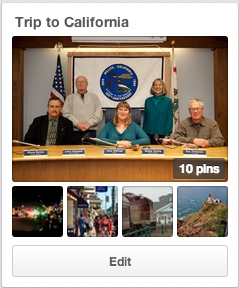
It is really a way of bookmarking websites that is very visual. You are keeping a collection of PICTURES of different webpages. You can share your "pins" or keep them private. It is easy to go back to something you have pinned and look at it later. I am going to start a Board with sites relating to a coming trip to California.

First of all I logged into Pinterest. I think the one thing that has made all of these sites possible is the ability to keep track of users by making them log in. Because you are logged in you can also keep your "Boards" (collections of things that you have pinned) private or share them with only certain people.


What makes Pinterest easy is the Pin it marker on the Browser. It shows up no matter what website I go to and in order to save a site I just click on the P! In order to get mine I had to go to the Chrome store because I use Chrome. There are instructions for how to get one no matter what browser you are using.


After logging in I created a Board called Trip to California I spent some time searching sites relating to the trip I will be taking. At each site that I want to save I click on the P on my browser to save the site. Pinterest offers me several pictures from the website to use as the one that will show when the Board is viewed. I click on the one I want and then it shows me a list of my boards and I tell the program which Board I want to add it to.

Some of the best uses I have heard of for this site involve planning the visual part of events like weddings or DIY projects. It is great to have a picture of each of the things that you are interested in after you have searched. Sometimes the words describing the site do not help you remember.

If you want to see boards you can just search for "pinterest dogs" or whatever interests you. The first site returned should take you to Pinterest pins on that subject. It is a fun way to search for something you are interested in.


Doodle is one of the most helpful sites that I have ever used and you do not even have to log in to use the site, but if you do log in there are more things that you can do. It is a site created for scheduling a group.


With any group it is extremely difficult to get everyone together and find out what is the best common date and tme for the next meeting. Doodle solves that problem. Whoever is in charge of the meeting creates the Doodle and then mails a link out to all of the others who are involved in that meeting asking them to designate what times they are available. If the person in charge of the meeting puts down 5 or 6 times that they can meet then each person is able to check ALL of the times that they can meet.


As each person confirms the meeting everyone can see what the results are. Then all the person in charge of the meeting has to do is to look at Doodle to see what is the best date for the meeting (when they most people can be there). They can then send out this information to the group.


Finally, Instagram is a fun way to send photos to people or to Facebook and other places easily. There is no need to attach something to an email.
Instagram is different than the sites above. 


It is an app that you can get on your iPad, iPhone, or other Smart Phone. First you need to download the free app from the app store or the Google store for the Android version.

After that all you do is take a picture with your Smart Phone or tablet. The picture shows up and you can edit it automatically. I just play with this until it looks the way that I want it to. When it is ready click NEXT and fill in any of the information. You can click Add People if you want to put markers on the picture so that people can see who is in it by rolling their mouse over the picture.

Then you can decide who you want to share it with. It can be posted to Facebook, put on Twitter, Sent in your email, sent to Tumblr, Flickr or Foursquare automatically. When you click share the photo is automatically shared. You will still have a copy saved in your instagram profile also. You can follow other Instagram users to see all of the photos that they post.

You can use keywords with hashtags in Instagram. Those are words that have # in front of them. You can put important describing words about your pictures with the # mark in front of them in order to help people searching that word to find them.

To search go to the symbol on the bottom of the screen that looks like the compass rose on a map (showing West, North, East, South) and click on it. It will take you to a screen where you can type in what you want to see. You can search for a specific user OR for a hashtag. I searched for #cats and it returned 6,795,304 photos! I guess I need to narrow my terms next time! Also, when I looked at them very few were actually cats although they were not offensive photos.

Wednesday, October 12, 2011

Addition to Printing Address Labels

The recent post about printing address labels was from Eileen. She came to me and said that my response was nice, but I didn't understand what she wanted. She wanted to print a DIFFERENT picture next to each address.

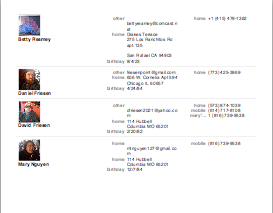
Well, I am not sure if the following information is helpful or not. With the Mac Address Book you can assign an image to each of your contacts. I usually try to take pictures of people that I add into my address book so I have both their picture and their information. You could just as easily put pictures of different flowers or anything you want for each person. The address book will allow you to print a LIST (not labels) which has those pictures showing right next to their phone numbers. For this list each person has their own picture.

When you set it up you have a choice of what information to display. My computer started by just showing the phone numbers, but I was able to add the address, email, and birthdays. There are a lot of other choices. You can see an example on the side. These pictures are tied to the information and so if you delete one of your contacts the image is also deleted. See the link above for more detailed information about creating this. The main thing to remember is the word PRINT! You have to choose that before you can set anything up.

Wednesday, September 7, 2011

Save those Photos and other things from Fire

In Austin, Texas this week we are dealing with fires that are out of control. I read somewhere this morning that over 800 houses have burned down. That makes me sad and thoughtful. Two weeks ago my son's apartment in Chicago burned down (http://www.indiegogo.com/Dan-Friesen-Fire-Relief-donation page set up by his brother has links to news articles about the fire). When Dan's apartment burned I did not think about it much. I was concerned more about him and did not apply it to myself. Now that much of Bastrop right outside of Austin is burning I am starting to think about me, especially since it is so smokey outside. What have I done to think about dealing with fire?

There are lots of websites that offer help with what to do in general - http://www.statefundca.com/safety/safetymeeting/SafetyMeetingArticle.aspx?ArticleID=43, but this post is about how technology can help you.

As I write I am backing up my computer. I have a small hard drive that plugs into my computer and keeps a copy of everything I have on it. I think I may start carrying that in my purse. It is very small and has so much information on it. Even if I lose my computer I would still be able to get a new one and put back on it the things that I have stored. Even better much of what I have is actually saved on servers somewhere else. Any time I need to go to a website and log in I am usually saving things on "the cloud" (or actually some computer somewhere). Even if my house burns down and I lose my computer and my hard drive I can still get to those things.


That brings to mind two programs which are extremely helpful:  Flickr and Picasa. I will talk about Flickr today and Picasa tomorrow. Both of them are Photo saving websites where you can upload your photos for FREE. If there is a disaster you can still get your pictures back using any other computer.

http://www.flickr.com/ 
Flickr allows you to upload 300 mb each week for free. When you have gotten to that limit you must wait until the next week to upload or you can pay $25 annually for a pro account. When you upload a picture here the program automatically resizes the file to several different sizes so that it is not too large for the web.

One of the first things you want to do is to set up your privacy settings. After you have logged in you can find this by clicking on your name in the right top corner. You can choose to share your pictures or to make them private. If you make them private they will not show up when someone does a search. There are also very detailed settings in your account where you can allow some photos to show and others not, or maybe allow them to show, but not be copied or printed.


When you open up Flickr you see a greeting in a different language each time! The program starts out on the Home page where you can either go to your Photostream to see all of your pictures or to Upload Pictures or Video where you can do the uploading.

There is a lot you can do with your photos in Flickr which I could talk about on a different post. You can organize them into galleries and sets and you can mark them with lots of information like locations, names of people and tags.

Since the focus of this post is on saving important things in a fire the main thing is this: If you upload your pictures to a site like Flickr can be retrieved.

If something happened with all of your photos they will still be on Flickr. You may want to download another back up copy of all of them. This is not easy to do in the size of the original, but it is possible. If something like that would happen you may need to use a third party piece of software to do the whole download. If you want just a picture at a time it is not a problem.

Tomorrow I will look into Picasa and compare the two. There are other Photo saving and sharing sites so if you know about one that should be mentioned please comment.

Wednesday, August 24, 2011

10 Essential Privacy Settings on Facebook

As I was writing this I took time to look at all of the privacy settings on Facebook. I came away thinking that I have a lot of control of what I want to share and what I want private. I also felt a little strange about how many privacy choices there are and how easy it is to miss some of the settings that seem important.  An article from mashable.com really helped me to figure out some of the most important settings.

Facebook privacy settings
http://mashable.com/2011/02/07/facebook-privacy-guide/

1. Sharing Settings:
Account > Privacy Settings > Sharing on Facebook
Facebook allows you to set your sharing settings so that everyone, friends of friends (this means that your friends can see your content and THEIR friends can see them also) or only friends can see your content. Each item is listed and you can either set them all the same way or do a custom setting where  each one has different setting. If you do not indicate what you want it is possible that some of your content (pictures, status updates, etc...) will be seen by friends of your friends. This could be a LOT of people that you do not really know.

2. Existing Photo Settings:
Account > Privacy Settings > Sharing on Facebook > Customize Settings > Edit album privacy for existing photos
It is really important to make sure to set the privacy settings for your existing photo albums. As you create each album you choose what level of privacy it should have. However, your existing albums are probably all set as viewable by everyone. When I went in and checked mine were.


3. Friends Checking you into Places:
Account > Privacy Settings > Sharing on Facebook > Customize Settings > Friends can check me in to Places
If you do not want someone else notifying the world where you are you may want to be sure to change this setting.
It lets your friends check you in to Places. "Having someone else telling the world where you are can be unpleasant and even dangerous in some cases. If you want to avoid it, disable this feature."

4. Connecting on Facebook 
Account > Privacy Settings > Connecting on Facebook
These settings determine how people can find you on Facebook. Can anyone search for you? Are your listings open to everyone? 

5. Apps You Use
Account > Privacy Settings > Apps and Websites > Apps You Use
Facebook is full of additional apps (or applications). For example Yelp, Pandora, etc... Each one has its own privacy settings. Either go to each one and be sure that you are in agreement with how they are sharing your content or remove them and only keep the ones you use regularly.

6. Instant Personalization
Account > Privacy Settings > Apps and Websites > Instant Personalization
This allows third party companies to access your information so that they can tailor their information to match your interest. I think this is sort of spooky and also sort of amazing. These sites can only access information that you have marked for public sharing.

7.  Info Accessible through your friends:
Account > Privacy Settings > Apps and Websites > Info accessible through your friends
You may think that you have set all of your settings so that only your friends can see what is there, but until you have gone to this level and indicated which information can be shared through them you are not done with setup. I was pleased to see that the default was that NO information was shared and that I had the choice to add specific things to share.

8.  Public Search
Account > Privacy Settings > Apps and Websites > Public Search
Do you want people to be able to search for you through Google or another search engine and find your Facebook page? They will still have to request to be your friend, but you can set it up so that your profile does not even show up when someone searches in Google or other places.

9. Friend Lists
Friends > Edit Friends > Create a List
You can simplify setting up your privacy settings by creating lists of friends that fall into different groups. For example: family, work friends, childhood friends, etc...  You can then set up privacy settings that apply to a group rather than an individual.

10. Using HTTPS
Account > Account Settings > Account Security > Secure Browsing (HTTPS)
Now go back to the main page and choose Account>Account Settings rather than Privacy Settings. There is a setting called Account Security. It talks about secure browsing with HTTPS.  HTTPS is a programming language behind Facebook that will make it more difficult for anyone to hack into your account. It is recommended that you choose this setting to be more secure.

One problem with these settings is that they keep changing. Keeping up with new ones can be a problem. Even now there is a warning that appears on top of the privacy settings:
I have decided to do the best I can to set up my privacy settings so that they work for me. I know that they are not perfect, but the benefits of using Facebook in my opinion outweigh the questions of privacy. I know and respect that everyone does not feel that way and so each person has to decide for themselves about this issue.