LET'S MEET ONLINE

LET'S MEET ONLINE! Call (512)560-2609 or email helpimnotageek@gmail.com and set up a time for a session. It works really well. We talk on the phone while I see your screen.
Showing posts with label pinterest. Show all posts

Thursday, October 2, 2014

Putting a Facebook or Twitter Icon on your Website

We have all seen the row of icons that lead to Twitter, Facebook, Pinterest, Instagram, YouTube, Foursquare, etc... They are found on sites where the company or owner of the site has accounts with social media platforms and they want you to go to them.

If you have a website and communicate on social media you may want to add these icons to your site.

There are two types. One will lead you to the Facebook page of the company on the website and the other is a share button that takes you to your own Facebook profile and creates a link back to their site so that you can share it with your friends.

These buttons can be added manually to your site and then linked where you want them to go. There are lots of sites that have free graphics of the buttons where you can go and download the ones that you want to use.

http://www.iconarchive.com/category/social-network-icons.html

http://line25.com/articles/20-free-social-media-icon-sets-to-use-on-your-website


These are two examples, but there are many more. In most website programs the steps for adding linked graphics are similar.
  1. You upload the image to the page and then insert it where you want it to appear.
  2. The program allows you choose the size and location (Right, Left or centered) of the image.
  3. When the icon is where you want it to be select it by clicking on it and look for the words add link or click on the picture of a chain at the top of the program. In a second tab on your browser open the website that you want to link and copy the URL. Go back to the tab where you are working on your web page and paste in the link. 
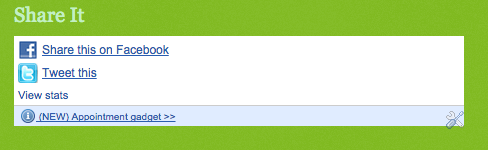
If you are using Blogger, Weebly, Wix, SquareSpace or one of many other websites where you can make your website the directions for doing this are part of the page. Here in Blogger it is one of the Widgets that I can add to the page. If you scroll down to the bottom of the page you will see it. 

USING A PLUG IN

The other way to make it easy for someone to share your page is to use a widget or gadget that creates code which can be put into your site. One of these sites is http://www.addthis.com/

After you sign up on this website for free you are able to choose between various looks for your buttons. When you are done a code is created and you can paste that code into your webpage.

You can go to Google and search for 'plugin', 'social media', and the name of the software that you would like to put it into (wordpress, blogger, etc...) You will be given many choices and hopefully find one you like!


Wednesday, March 26, 2014

5 Things You Can Do to Make Being Online Meaningful (3-5)

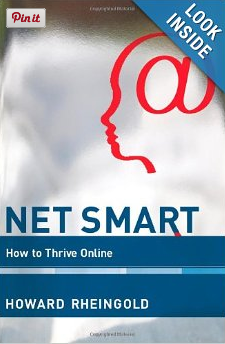
The last post talked about the book NetSmart How to Thrive Online. It lists five skills that the author recommends for making use of the Internet meaningful. Last post I talked about two of the five skills. They were Attention and Crap Detection. In this post I will outline the next three. I know that this is very different from my "how to" posts, but please put up with me and we will get back to those.


PREFACE
Our cultural expectations have dramatically changed. A small example of that is telephone etiquitte. It used to be that you did not call anyone too early or too late. It was rude. You might be interrupting their sleep, or they might not be at home. Message machines seemed so impersonal at the beginning. 

Today rudeness on the phone means not silencing a cellphone at a concert or talking on a cell when other people are in hearing distance. The hour you call and even if a person answers does not matter. The caller just leaves a message or texts. If you call someone at 3 in the morning it is no problem because you can just leave a message that they will get in the morning. Just like cell phone etiquitte, Participation, Collaboration and Network Smarts are important changes caused by technology in our lives.

Participation
It has become possible for everyone to publish what is important to them online in one way or another. In Facebook you can "like" something, you can bookmark favorite websites, you can comment on blogs, or if you want to do more create you own blog or website. There are so many sites like Facebook, Linked In, Pinterest, Etsy, Twitter, etc... that will allow you to publish your own thoughts and pictures on the web for the benefit of others.

If you participate you need to be aware of your digital footprint. Everything that you do online is permanent and you have no control of who reads it or copies and pastes it to their own computer. Hopefully you have all positive contributions that you are proud of. Your digital footprint shows you as a positive contributer. If you have posted some things that you are not proud of it is important to be active in publishing things that correct your digital footprint, so that anyone who views you online will more likely find your current footprint than what is history.

Collaboration
Collaboration used to be considered cheating, but now it is necessary. Wikipedia is a good example. When I grew up Encyclopedias were sources of fact. You had to have a special shelf for them and they needed to be updated annually. The speed of new information increased and Encyclopedias could not keep up. Wikipedia allowed anyone to write or add to an article there are now 30 million articles. Collaboration allowed extremely current updating of information. People in locations of a disaster can add an article to show what is happening right then. The article on Hurricane Katrina was very interesting to follow because it changed in real time. If something untrue were added someone could come and correct it right away.

Since just anyone can add to it Wikipedia cannot be trusted as a final resource for information (actually, even the Funk and Wagnels could not!) However, it is a great place to start researching a topic. Usually there are links to follow at the end of an article that will take you to other information also.

Wikipedia is just one example of how Collaboration can make use of the Internet more meaningful. The general term for sites that allow this type of collaboration is Social Media. There are hundreds of sites on the Internet now that fall under that category.

Network Smarts

The final skill that I am going to summarize is more difficult to explain. The new way of relating to people is in a network rather than in a group. Sometimes you do not personally know someone, but on a social network site you are able to help them with an answer to a question. Networks make paying something forward (doing someone a favor even when they have not helped you) really meaningful. By being someone who gives you build Social Capital and trust. 

Facebook can be an example of a network. You may see comments on your news feed that are not from people you know. You are connected to them only through someone else. How you respond to them can build Social Capital and trust.

It is important also for you to be mindful and to set your privacy settings so that you know who is seeing your contributions. You do not have total control and sometimes the privacy settings change, but it is important to know where you stand.

CONCLUSION
I know that these two posts have been more academic than most of my posts. It has helped me because at times I feel caught in changes that are going so fast. It helps to take time reflect and to be mindful of what I do online and how I help others. 


Monday, June 3, 2013

Pinterest, Doodle and Instagram

Every day there are more and more Web 2.0 sites showing up that solve various problems in our lives. I assume that some of them do not get used and so they disappear after a while and others take off and become favorites. Today I am going to review three of them that seem to have made it and are well-liked and used by many people.


Probably the most popular of sites is Pinterest. Here is the description from their website:"Pinterest is a tool for collecting and organizing the things you love. Browse boards created by others to discover new things and be inspired by people who share your interests. People use boards to plan their trips, decorate their homes, and share their favorite recipes."


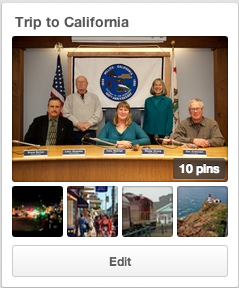
It is really a way of bookmarking websites that is very visual. You are keeping a collection of PICTURES of different webpages. You can share your "pins" or keep them private. It is easy to go back to something you have pinned and look at it later. I am going to start a Board with sites relating to a coming trip to California.

First of all I logged into Pinterest. I think the one thing that has made all of these sites possible is the ability to keep track of users by making them log in. Because you are logged in you can also keep your "Boards" (collections of things that you have pinned) private or share them with only certain people.


What makes Pinterest easy is the Pin it marker on the Browser. It shows up no matter what website I go to and in order to save a site I just click on the P! In order to get mine I had to go to the Chrome store because I use Chrome. There are instructions for how to get one no matter what browser you are using.


After logging in I created a Board called Trip to California I spent some time searching sites relating to the trip I will be taking. At each site that I want to save I click on the P on my browser to save the site. Pinterest offers me several pictures from the website to use as the one that will show when the Board is viewed. I click on the one I want and then it shows me a list of my boards and I tell the program which Board I want to add it to.

Some of the best uses I have heard of for this site involve planning the visual part of events like weddings or DIY projects. It is great to have a picture of each of the things that you are interested in after you have searched. Sometimes the words describing the site do not help you remember.

If you want to see boards you can just search for "pinterest dogs" or whatever interests you. The first site returned should take you to Pinterest pins on that subject. It is a fun way to search for something you are interested in.


Doodle is one of the most helpful sites that I have ever used and you do not even have to log in to use the site, but if you do log in there are more things that you can do. It is a site created for scheduling a group.


With any group it is extremely difficult to get everyone together and find out what is the best common date and tme for the next meeting. Doodle solves that problem. Whoever is in charge of the meeting creates the Doodle and then mails a link out to all of the others who are involved in that meeting asking them to designate what times they are available. If the person in charge of the meeting puts down 5 or 6 times that they can meet then each person is able to check ALL of the times that they can meet.


As each person confirms the meeting everyone can see what the results are. Then all the person in charge of the meeting has to do is to look at Doodle to see what is the best date for the meeting (when they most people can be there). They can then send out this information to the group.


Finally, Instagram is a fun way to send photos to people or to Facebook and other places easily. There is no need to attach something to an email.
Instagram is different than the sites above. 


It is an app that you can get on your iPad, iPhone, or other Smart Phone. First you need to download the free app from the app store or the Google store for the Android version.

After that all you do is take a picture with your Smart Phone or tablet. The picture shows up and you can edit it automatically. I just play with this until it looks the way that I want it to. When it is ready click NEXT and fill in any of the information. You can click Add People if you want to put markers on the picture so that people can see who is in it by rolling their mouse over the picture.

Then you can decide who you want to share it with. It can be posted to Facebook, put on Twitter, Sent in your email, sent to Tumblr, Flickr or Foursquare automatically. When you click share the photo is automatically shared. You will still have a copy saved in your instagram profile also. You can follow other Instagram users to see all of the photos that they post.

You can use keywords with hashtags in Instagram. Those are words that have # in front of them. You can put important describing words about your pictures with the # mark in front of them in order to help people searching that word to find them.

To search go to the symbol on the bottom of the screen that looks like the compass rose on a map (showing West, North, East, South) and click on it. It will take you to a screen where you can type in what you want to see. You can search for a specific user OR for a hashtag. I searched for #cats and it returned 6,795,304 photos! I guess I need to narrow my terms next time! Also, when I looked at them very few were actually cats although they were not offensive photos.