LET'S MEET ONLINE

LET'S MEET ONLINE! Call (512)560-2609 or email helpimnotageek@gmail.com and set up a time for a session. It works really well. We talk on the phone while I see your screen.
Showing posts with label YouTube. Show all posts

Thursday, October 2, 2014

Putting a Facebook or Twitter Icon on your Website

We have all seen the row of icons that lead to Twitter, Facebook, Pinterest, Instagram, YouTube, Foursquare, etc... They are found on sites where the company or owner of the site has accounts with social media platforms and they want you to go to them.

If you have a website and communicate on social media you may want to add these icons to your site.

There are two types. One will lead you to the Facebook page of the company on the website and the other is a share button that takes you to your own Facebook profile and creates a link back to their site so that you can share it with your friends.

These buttons can be added manually to your site and then linked where you want them to go. There are lots of sites that have free graphics of the buttons where you can go and download the ones that you want to use.

http://www.iconarchive.com/category/social-network-icons.html

http://line25.com/articles/20-free-social-media-icon-sets-to-use-on-your-website


These are two examples, but there are many more. In most website programs the steps for adding linked graphics are similar.
  1. You upload the image to the page and then insert it where you want it to appear.
  2. The program allows you choose the size and location (Right, Left or centered) of the image.
  3. When the icon is where you want it to be select it by clicking on it and look for the words add link or click on the picture of a chain at the top of the program. In a second tab on your browser open the website that you want to link and copy the URL. Go back to the tab where you are working on your web page and paste in the link. 
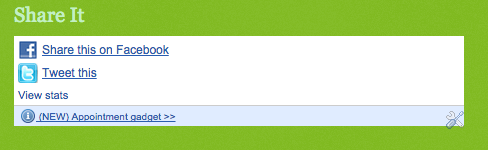
If you are using Blogger, Weebly, Wix, SquareSpace or one of many other websites where you can make your website the directions for doing this are part of the page. Here in Blogger it is one of the Widgets that I can add to the page. If you scroll down to the bottom of the page you will see it. 

USING A PLUG IN

The other way to make it easy for someone to share your page is to use a widget or gadget that creates code which can be put into your site. One of these sites is http://www.addthis.com/

After you sign up on this website for free you are able to choose between various looks for your buttons. When you are done a code is created and you can paste that code into your webpage.

You can go to Google and search for 'plugin', 'social media', and the name of the software that you would like to put it into (wordpress, blogger, etc...) You will be given many choices and hopefully find one you like!




Thursday, October 17, 2013

Using YouTube to Learn

Last week I worked with several people who wanted to know more about Excel. I know the basics of Excel and use Spreadsheets regularly. I use the basic formulas and often use it as a fancy table.

I am comfortable using Excel 2003, but it has changed quite a bit.  It still does the same things that it did before, but it has a new ribbon menu that is confusing to me.  I could get used to it. I just need to take time to practice and use it.

So, I decided to learn on YouTube. YouTube has short videos on about anything that you would want to learn as well as lots of entertainment videos. Here is what I did:

1. I opened up Excel to a blank page.

2. I opened up a browser (Internet Explorer, Chrome, Firefox, or some other program that will get me to the Internet) and went to YouTube

3. I right clicked on the task bar (the bar across the bottom of the screen) and chose to show the windows side by side so that  I could see both of them at the same time. You can set up the windows to cascade,
show stacked or side by side.


4. I searched on YouTube for what I wanted to learn. I started out by just typing Excel in the search window and then selected videos that seemed like they might be helpful.


5.  I ran the video and paused it to try things out using the Excel program that was open on the other side of the screen.

6.  If there were things that I already knew in the video I fast forwarded past them by dragging the scrubber to the next point in the video that had something of interest.

My Favorite was How to Demystify the Ribbon because it went over using the ribbon in an organized and helpful way.


Tuesday, February 5, 2013

Ten Tech Skills That Everyone Should Have: Part One

This post is based on a blog that I read online a while ago. I thought it had some helpful tips, so I have edited it and added a bit of my own stuff. It was written by someone who was thinking about what students need to learn about using technology in school. We are all long passed school, so I wonder how many of these skills you feel comfortable with? Here is the URL of the post it is based on:

http://educationaltechnologyguy.blogspot.fr/2012/01/10-tech-skills-every-student-should.html


Do you know how to do an

effective Internet search?

Common Craft videos are a great, simple and fun way to learn things about technology. This one is about searching. It does have some extra words on it to protect people from downloading and using it because they make their money from people who subscribe to use the videos.

Common Craft Video on Web Search Strategies


Do you know how to create, edit, and save

documents, spreadsheets and presentations?


These are common uses for computers. Almost everyone knows how to create, edit and modify documents. There are many people who are unsure of themselves when it comes to spreadsheets or presentations. Most people use Microsoft Office to create documents, spreadsheets or presentations. 

There are other low cost and even free options now. Open Office is a free product that is very much like MS Office. You can download it for free and try it out. When you save your document you have to tell it that you want it to be a .doc so that anyone can open it. Otherwise it is automatically an Open Office document and can only be opened with that program. When I downloaded the newest operating system to my Mac none of my Intel programs would work. MS Office was one of the casualties. I have downloaded and used Open Office and it takes the place of word just fine. I have not tried it for presentations.

Another possibility is Google Drive. It used to be called Google Docs and was upgraded to Google Drive. The difference is that you can download a program to your computer so that you can access your Docs even when you are offline. A future post will have more about Google Drive. It has a word processor, a spreadsheet and a presentation software and some other things. All of your documents are automatically saved and you can even share them with other people and work on the same document collaboratively.


Do you know how to get help when you need it?


Recently I have learned that you can find answers to almost everything by just going to Google and typing in what you want to know.  I am soon going to do a post on maintaining your computer and so just to be sure that I don't miss anything important I am going to go to Google and type "computer maintenance". In the first page of links I will probably find links to some very helpful pages. The main problem with this approach can be that you do not understand what they are trying to tell you. If that is an issue here are some links to other sites that may be helpful.


This site is a lot of fun. It is posted as a letter to your parents where you send them videos about things that they may need to learn. You fill in all of the blanks and then press the PREVIEW button at the bottom and it takes you to where you can watch the video. This is a great way to learn and there are lots of choices of videos.


Can you type?


For the longest time I have been told that "soon people will not need to type because they can just talk to their computers." This has been possible for a long time and maybe sometime we will get used to doing it. Until then it really makes a difference in how fast you can get something done if you can type. Here are a few free programs you may want to try:


Typing Tutor - This one has games

If you want to pay for a great program my favorite is Mavis Beacon. There are many others. Just do a Google Search!


Do you know how to use Social Media

(Facebook, Twitter, YouTube, Flickr, etc...)?


There is so much to learn in this area. It is like an explosion. The Internet used to be static, meaning that it basically stayed the same. You could not change anything on the Internet. Now everything has changed. You have the power to add, comment, post, and change many parts of the Internet. The most popular is Facebook. Many people have gone to using it as their main way of communicating with other people. There are also many more. I am adding links to many of them. It is not the purpose of this post to explain how to use them all. If you would like me to write specifically about one of them or a part of one of them (more than I have in other posts) please let me know.


I have run out of time for this posting, so I will have to do the second five in the next post. Let me know what you think I may have missed and what you want to learn about!


Tuesday, August 30, 2011

Embed Code

On Flickr, YouTube and many other sites you get the choice to use "embed code" in order to put any media (picture, video or audio) on Facebook or another website. Here are the steps for using the embed code:
Go to the site that has the picture or video you want to use. To find the embed code choose SHARE. You will be given a choice to post to various places or get the link to copy and an embed code (on Flickr it was called HTML or BBedit code). Copy the embed code.  


    Go back to the page you want the media to be on. To go back to the place that you want the picture to show up, choose EDIT HTML or whatever you need to do in order to edit the code. You can guess where you think the picture should go by looking at the code on the page. It includes the words that are on the page, so if you do a search (CTRL-F or F3 on a Mac) for those words you can paste the code directly into the HTML. Here is an example: (I searched for the words "Here is an Example:)

    Hephaistos Temple
    When I pasted the code into the HTML on my blog this is what actually showed up!
    Now you can save, publish or preview to see that the picture or video that you wanted to show is now on your webpage.

    The reason to use embed code is that the picture STAYS on the site where it was originally and you just put in a pointer to that place. When someone looks at your page the computer automatically gets the picture or video from the other place and puts it on your page.

    Tomorrow we are back to Facebook!

    Monday, August 29, 2011

    Detour from Facebook-Video, YouTube, Vimeo and others

    Last week I was in California helping out my Mom and so I didn't write all of the posts I was planning to about Facebook, so we will have to come back to that.

    Today's post is about video. I was motivated to write it because a professor I know asked me about posting his lectures on the web. Since I had to look up and try things I thought it would be a good topic to share about. I hope I will be able to do more writing about issues people ask about as time goes on. This is especially for my teacher friends who might want to do something, but have no time to figure it out.


    SHARING VIDEO ON THE INTERNET
    First of all video files are HUGE. The size depends on what resolution the video was taken at. High resolution videos are the best to watch on your big screen TV or to submit to festivals like Sundance, but if you just want to put your video on the web so that someone can see it there are lots of options. Each of these sites resizes your video automatically to make it perfect for viewing on a computer screen.  They also provide embed code (We will have to talk about that tomorrow) so that you can put your video onto your blog or website.

    http://www.youtube.com
    The best known and most used video site is YouTube. There are videos up on YouTube on every topic you can imagine (and some that you can't even imagine). If you want to post a video to YouTube first you need to sign up for a free account.

    Next set up your own channel. You can use your channel as a place to collect videos that you like as well as a place to get to all of your own videos easily.

    When you first get to your channel page you will have lots of choices. You can make it look the way you want it to look.

    At the very top of the screen you will see the word UPLOAD. When you have a video that you want to put onto your channel click "UPLOAD" and you will be walked through all of the steps.

    Be sure to set the privacy settings that you want. YouTube offers three settings:
    Public-Anyone can see your videos and searches can find them.
    Private-You can share your video with ONLY 50 or fewer people who already have accounts with YouTube.
    Unlisted-Only people who have the link to the video can view it. The number of people is only limited by your sharing. People who you share the link with DO NOT have to have YouTube accounts to watch the video.

    There are many other video sharing sites and they all work in about the same way. There are a few differences and I will list the ones I know about and their differences here. It is not meant to be a comprehensive list, so if you have one to add it will be welcome.


    Vimeo emphasizes quality and creativity. It was made by film makers and can work with HD video. There are Video classes on the site if you want to learn more.
    Privacy: Public, Only Moderators can view (you need to enter their emails), Password Protected-people do not need an account, but need the password to view the video.
    http://vimeo.com


    YouTube created for schools. This has different settings for students and teachers allowing teachers to do more.
    http://www.schooltube.com/

    http://www.teachertube.com/
    Similar to SchoolTube, but created with teachers in mind. Today when I looked at it the site was extremely slow, so I don't have privacy information.

    Surprisingly I could not find a site for professors to upload their lectures. There are LOTS of sites where you can go and watch the top professors in the world lecture and there are online classes, but not an upload site! One other thing I learned is that you can actually watch MOVIES on YouTube. They cost $1.99

    I am sure there are other sites out there, but these are the ones that I know about and that are FREE
    I hope people will add comments if they know about other places.