LET'S MEET ONLINE

LET'S MEET ONLINE! Call (512)560-2609 or email helpimnotageek@gmail.com and set up a time for a session. It works really well. We talk on the phone while I see your screen.
Showing posts with label searching. Show all posts

Monday, September 9, 2013

What Shortcuts can help me with Windows 8?


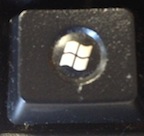
Windows 8 has many shortcuts using the Windows Button which is on the lower left of the keyboard. 


Windows-x brings up a list of letters you can press to automatically make certain things happen. The list tells what it will do with the letter to use underlined.  

For example it says Programs and Features. If you press f it opens a window that lists the programs that are installed on the computer and allows you to add or remove programs. These letters only work if you have clicked Windows-x before pressing them and the list on the left bottom is open.
b - Opens the Mobility Center which is the place to change the brightness, sound rotation, etc... of your computer
o - Power Options - You can change your power settings to make your battery last longer. 

y - Opens the System. This is a very helpful one because it opens a window that will tell you all the basics about your computer like what Windows edition it is running, how much memory you have, etc... Often it is good to know where this information is when calling for computer help. 
m  - Disk Management - This is where you go to see how much memory you have on your computer and how it is partitioned (divided into different parts)  
t - Opens the Task Manager.  This lists what programs are running and will open even if the program that you are on is frozen. This is the way to force quit one program that has frozen so that you can use other things on your computer. 
p - Control Panel - This window is where you go to set up all sorts of things on your computer. Go here to correct your clock, set up family security, set up a printer, set up your network, and other tasks. 
e - Opens Windows Explorer. This is where you can see everything that is on your computer and easily move files from one place to another.

Windows-E Also opens Windows Explorer. Do not confuse this with Internet Explorer. Windows Explorer is a way to see what is on your computer.

Windows-P Brings up a side bar giving you choices about PROJECTING to a second screen.

Windows-F Brings up a lit of all of the FILES on your computer.

Windows-L LOCKS the computer so that you have to log in with your passsord to get in.

Windows-U Opens up the Ease of Use Center which includes ways that you can set your computer to be easier to see.  You can also start the narrator so that your computer reads aloud the text on the screen.

Windows-TAB Opens side bar with icons of the programs that you have open. This is a good way to switch between windows.

THE BEST TRICK FOR LAST

I was so glad to learn how easy it is to search on Windows 8. It has a very robust search engine which is context driven. That means that depending on what you have open on your desktop the computer searches for that particular area. For example if you are looking at your photos it will search the picture library. 

I always wanted to search when I needed a new app. I would open the STORE from my desktop. The store is devided into many different categories; Surface Pics, Games, Social, Entertainment and so on. It would take me forever to find what I was looking for and there didn't seem to be a Search feature. I was so happy when I learned that you just begin to type ANYTHING and the search engine opens up and gives you a list of items that match your request. 

I wanted to find a list of the free games I could download. When I typed free games while looking at the apps store the Search feature opened up and this is what it showed me. 

There were 1297 apps available. I could search through those or be more specific in my search. When I typed 'solitaire' there were only 142 apps!  "Angry Birds Free" gave me 27 game apps.

IN CLOSING

Clicking the Windows key with any number opens up a different program for each number. I will let you play with that and figure out how it works for you. 

There are a lot more shortcuts than I listed here. Here are a few links to other locations where you might find the one you are looking for!

50 Windows 8 Keyboard Shortcuts
http://www.hongkiat.com/blog/windows-8-keyboard-shortcuts/

Windows list of various types of Shortcuts
http://windows.microsoft.com/en-us/windows-8/keyboard-shortcuts

Printout of comprehensive list of Shortcuts
http://blogs.technet.com/b/matthew_starkie/archive/2012/11/21/windows-8-shortcut-keys.aspx

Tuesday, February 5, 2013

Ten Tech Skills That Everyone Should Have: Part One

This post is based on a blog that I read online a while ago. I thought it had some helpful tips, so I have edited it and added a bit of my own stuff. It was written by someone who was thinking about what students need to learn about using technology in school. We are all long passed school, so I wonder how many of these skills you feel comfortable with? Here is the URL of the post it is based on:

http://educationaltechnologyguy.blogspot.fr/2012/01/10-tech-skills-every-student-should.html


Do you know how to do an

effective Internet search?

Common Craft videos are a great, simple and fun way to learn things about technology. This one is about searching. It does have some extra words on it to protect people from downloading and using it because they make their money from people who subscribe to use the videos.

Common Craft Video on Web Search Strategies


Do you know how to create, edit, and save

documents, spreadsheets and presentations?


These are common uses for computers. Almost everyone knows how to create, edit and modify documents. There are many people who are unsure of themselves when it comes to spreadsheets or presentations. Most people use Microsoft Office to create documents, spreadsheets or presentations. 

There are other low cost and even free options now. Open Office is a free product that is very much like MS Office. You can download it for free and try it out. When you save your document you have to tell it that you want it to be a .doc so that anyone can open it. Otherwise it is automatically an Open Office document and can only be opened with that program. When I downloaded the newest operating system to my Mac none of my Intel programs would work. MS Office was one of the casualties. I have downloaded and used Open Office and it takes the place of word just fine. I have not tried it for presentations.

Another possibility is Google Drive. It used to be called Google Docs and was upgraded to Google Drive. The difference is that you can download a program to your computer so that you can access your Docs even when you are offline. A future post will have more about Google Drive. It has a word processor, a spreadsheet and a presentation software and some other things. All of your documents are automatically saved and you can even share them with other people and work on the same document collaboratively.


Do you know how to get help when you need it?


Recently I have learned that you can find answers to almost everything by just going to Google and typing in what you want to know.  I am soon going to do a post on maintaining your computer and so just to be sure that I don't miss anything important I am going to go to Google and type "computer maintenance". In the first page of links I will probably find links to some very helpful pages. The main problem with this approach can be that you do not understand what they are trying to tell you. If that is an issue here are some links to other sites that may be helpful.


This site is a lot of fun. It is posted as a letter to your parents where you send them videos about things that they may need to learn. You fill in all of the blanks and then press the PREVIEW button at the bottom and it takes you to where you can watch the video. This is a great way to learn and there are lots of choices of videos.


Can you type?


For the longest time I have been told that "soon people will not need to type because they can just talk to their computers." This has been possible for a long time and maybe sometime we will get used to doing it. Until then it really makes a difference in how fast you can get something done if you can type. Here are a few free programs you may want to try:


Typing Tutor - This one has games

If you want to pay for a great program my favorite is Mavis Beacon. There are many others. Just do a Google Search!


Do you know how to use Social Media

(Facebook, Twitter, YouTube, Flickr, etc...)?


There is so much to learn in this area. It is like an explosion. The Internet used to be static, meaning that it basically stayed the same. You could not change anything on the Internet. Now everything has changed. You have the power to add, comment, post, and change many parts of the Internet. The most popular is Facebook. Many people have gone to using it as their main way of communicating with other people. There are also many more. I am adding links to many of them. It is not the purpose of this post to explain how to use them all. If you would like me to write specifically about one of them or a part of one of them (more than I have in other posts) please let me know.


I have run out of time for this posting, so I will have to do the second five in the next post. Let me know what you think I may have missed and what you want to learn about!


Friday, August 17, 2012

Searching With Images

I just learned something new and really interesting. You can search Google using images instead of words! 

You just go to Google.com and choose IMAGES from the top of the screen. The Google Images search shows up (like the one above). 

Click on the little camera in the window where you would usually type in a search term. 

Then find the image you want to use and drag and drop it into the spot that Google opens up for you.


The results are interesting. I found that Google matches the color of the image and finds other images that have a similar color palate.

Here is the image I used.


And here is the result:


Try it out! It is fun!

Friday, August 19, 2011

I've Downloaded Something and I can't find it!!

Where do items go when you download them and how can you find them?

Usually when you download something you are asked where you would like the item to go. If you are like many of us you have often just pressed OK and the item downloaded, but you are not sure where it went.


SET UP WHERE YOUR DOWNLOADS GO


First of all to set up WHERE your downloads go you must do it in the browser (a browser is a program that allows you to search the Internet). That is either Firefox, Internet Explorer, Safari, or any other browser. You can choose to download things to the default folder which is usually called downloads OR you can designate another place where you would like your downloads to go. To do this in a Mac go to the Preferences (located under the name of the program). It is usually under General. On a PC you will use the TOOLS menu and choose Options. Once you set this up you should know where your downloads are going and be able to find them.


DOWNLOAD FOLDER


Most programs have a folder called "downloads" where anything that is downloaded goes to automatically. Once you find that folder you can put a copy of it on your desktop so that it is easy to find.
On a Mac there is a copy of the downloads folder on the bottom left on the dock. If you would rather have one on your desktop here are the steps.
When I search for the word Download using Sherlock (the magnifying glass) on my Mac it finds the folder for me.
I can click on it then and it opens and I can see where it is sitting.
I can also press control while I click and choose Make Alias and an alias of the folder will be made. This is not a copy, but just a pointer to the real folder.
Then drag the alias onto the desktop and now it will be easier to find.


I do not have pictures for the PC, but the process is the same.
  1. Search for download using START>SEARCH
  2. When you find the folder click on it. A window should open showing you where the folder is. 
  3. Right click instead of CTRL click and choose Short Cut instead of Alias. A short cut of the download folder should appear.
  4. Drag the short cut to the desktop and now when you download something it will be easy to find.
LOOKING FOR SOMETHING YOU DOWNLOADED, BUT CANNOT FIND

But what if you already downloaded something, but you cannot find it? There are several ways to search your computer to find something. On a Mac you have Sherlock (see image above), represented by a magnifying glass. When you put a little information into the box that you know is part of the download the computer will search all over and give you a list of what it finds. If you do not have success this way you can go to the Finder (just click anywhere on the desktop) and on the left side you will see the words "search for" and "yesterday" "past week", etc... This will also return a list of items that were saved or downloaded on those days.

On a PC you can also search for what you have downloaded or saved. Click on the START menu and look for the word Search. This will open a window where you can designate what you are looking for and the computer will return a list.

Hopefully this has helped you to find what you downloaded. If not, feel free to contact me at http://helpimnotageek.blogspot.com for some one on one help! Next week is Facebook week, so look forward to Facebook tips.

Friday, August 12, 2011

Searching with Google

I just spent time with family and I realized that most people really have no idea how to search the web. Most people 'google' when they want to find something, but is it effective?

When you put a search term into Google it automatically finds MILLIONS of pages. Sometimes they are not what you want at all. Here are some tips that might help you find what you want more quickly:

1. Reading search results is a new type of reading that they do not teach you in school. Here are some important things to remember. I will use the example that your child (or you) have a stomach ache that you want to find more about:

  • Ads are always the first things at the top of the page and down the right side. People are paying to have their ads show up in these locations. Click on them first if you want to purchase something. Sometimes they can be helpful even for information about something, but be aware of why they come to the top.
  • Right below the name of the site is the URL (or web address) of the site. You can tell A LOT by breaking the URL down. http://www.mayoclinic.com is called the kernel. Often by the name you can tell if it is what you want. For example when searching for "stomach ache in children" I found http://lifestyle.iloveindia.com/.../chronic-stomach-ache-in-children this might be a helpful site, but I can tell that it is a person giving advice. It may or may not be the information you seek.
  • Search Tools - Along the Left side of the page you may see something that says "show search tools"

When you click it you will see a list of different ways to search. One of my favorite is that Google can help me find the latest news on something when I click "past hour". There are also very visual ways of searching. Try these different searches out and see if there is anything helpful for you!

2. Search basics - When you search you will have the most success if you put in as many search terms that you can think of that relate to what you are looking for.


SPECIAL SYMBOLS:

  •  - A minus sign narrows your search. For example when searching for snakes I might put -plumbing so that I just get animals.
  • "" Quotation marks mean that there is a phrase you are looking for. "1011 Olive Street" I don't want the search engine to return a bunch of results on 1011.
  • Google also makes suggestions when you are typing in your term. Sometimes clicking on one of these is helpful.
  • Advanced Search-Google will do all of this and more for you if you chose the ADVANCED SEARCH.  It will give you a screen that will help you to narrow down your search.
3. Other Search Engines

Contrary to what many people think Google is NOT the only search engine. In fact the WEB is so huge that it is impossible to really search everything. There are many other search engines and some of them are specialized to find certain types of websites. At the top of the screen you may have a pull down like I do that makes it easy to change to a different search engine. Here is a list of other search engines to try:

Most of these search engines were found at http://webquest.sdsu.edu/searching/specialized.html on the Webquest page which is a project of Bernie Dodge at San Diego State University. There are more at this link.

  • Alta Vista was one of the best search engines before Google came along. It has been purchased by Yahoo and so when you do a Yahoo search it goes to Alta Vista.http://www.altavista.com/ 
  • There are a few search engines that actually search OTHER search engines and put all of the results onto one page. Here are two of them Dogpile- http://www.dogpile.com/   and Webcrawler-http://www.webcrawler.com/
  • Microsoft has come out with a very different search engine. It is really worth trying. It searches in a whole different way. Bing-http://www.bing.com/
  • Delicious allows you to search the bookmarks of millions of other people who have made their bookmarks public. The benefit of this is that you are finding things that other people thought were helpful. http://www.delicious.com/ (Delicious is so helpful I will talk about it also in another post).
  • Internet Movie Data Base is where to go when you want to find out ANYTHING about a movie. It is amazing! http://www.imdb.com/
  • If you need a map here are two map databases Perry Castenada Library at UT-http://www.lib.utexas.edu/maps/index.html and Mapserver-http://mapserver.maptech.com/
  • You can find any Webcam that you are interested in looking at here: Earthcam-http://www.earthcam.com/
  • Technorati is a search engine for blogs. It goes out and searches blogs for the terms you are interested in. http://www.technorati.com/