LET'S MEET ONLINE

LET'S MEET ONLINE! Call (512)560-2609 or email helpimnotageek@gmail.com and set up a time for a session. It works really well. We talk on the phone while I see your screen.
Showing posts with label downloading. Show all posts

Friday, August 29, 2014

My Phone is full of Pictures, Now What?

Recently several of my clients have had the same problem. All of them had iPhones, loved taking pictures and video and had gotten to the point where they could not update the operating system or add apps because they kept getting the message from their phone that there was not enough memory. They did not want to delete any of their pictures. 


You can check the memory of your phone this way: 


  1. From the start page choose settings
  2. Open General
  3. Slide down until you see Usage and click on it.
  4. Your phone will tell you how many GB are available and how many you have used. Then it lists the apps on your phone in order of how much space they are taking. From here you can see what is taking the most space on your phone and decide what you might want to remove.
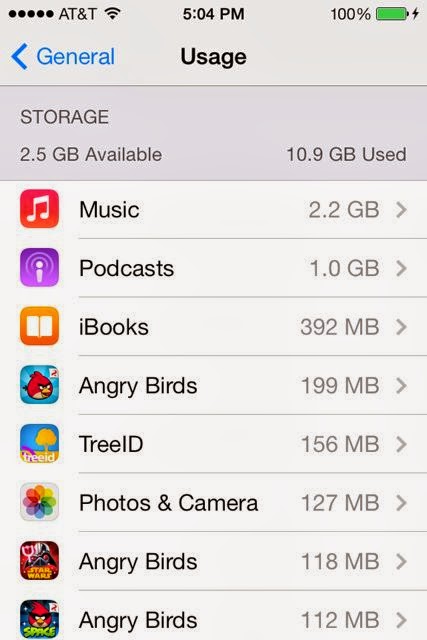
If you are sure that it is pictures and videos that are taking up too much space you may want to find another space to save them. On your computer you probably have a built in software for storing and editing your photos. iPhoto is the main one for Mac, but there is also Picasa. PCs come with Windows Photo Gallery. Each of these programs allows you to organize your pictures in different ways so that they are easy to find. 
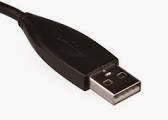
First you will need a USB connector that goes from your phone (or camera) to the computer. Once you have plugged in your iPhone (or other SMART phone) to your computer and turned it on your compute should notice it and a screen should pop up asking what you want to do with the files that are on the device you just plugged in. You want to MOVE them to your computer from the iPhone. When you have chosen to do this a window will pop up and there will be a place to check that you want them to be deleted from your phone when they are transferred to the computer. Your computer should show you the process of transferring the pictures and then the process of deleting them from your iPhone. 

Now your iPhone has new space and your photos are all in a place where you can edit them and sort them in different ways easily. 

Having a program that will store your photos online as well as on your computer is really helpful. If something happens to your computer you will not lose all of your photos. iPhoto, Picasa and Windows Photo Gallery all have ways that you can sign up to have your photos stored online. They usually give you a bit of space free (3-5 GB) and then charge you for space beyond that. 

DELETE ON YOUR PHONE
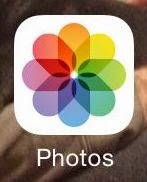
On your phone you can delete photos and video without downloading them. You can also delete them if you have already downloaded them to your computer and didn't want to erase all of them from your phone. 
Start by going to the Photos button on your phone. When you click on it your collection of photos shows up. You can see them in many different ways. For this you want to choose "photos". 


In this view they are organized by date. The first view is to see them by year. 


If you choose one of the years it will open to something called Collections. These are organized by date or place. 


If you click on one of those they are now organized as Moments. When the are in this arrangement you can see the word SELECT on the top right corner. 


If you click it the word SELECT appears at the top right of each of the groups of pictures. You will also see that there is a trashcan at the bottom right of the screen. You can select whole groups of photos or only the ones you want to delete. When you have selected more than one you will see the trashcan become blue. Now when you click it the pictures are gone.


Friday, August 19, 2011

I've Downloaded Something and I can't find it!!

Where do items go when you download them and how can you find them?

Usually when you download something you are asked where you would like the item to go. If you are like many of us you have often just pressed OK and the item downloaded, but you are not sure where it went.


SET UP WHERE YOUR DOWNLOADS GO


First of all to set up WHERE your downloads go you must do it in the browser (a browser is a program that allows you to search the Internet). That is either Firefox, Internet Explorer, Safari, or any other browser. You can choose to download things to the default folder which is usually called downloads OR you can designate another place where you would like your downloads to go. To do this in a Mac go to the Preferences (located under the name of the program). It is usually under General. On a PC you will use the TOOLS menu and choose Options. Once you set this up you should know where your downloads are going and be able to find them.


DOWNLOAD FOLDER


Most programs have a folder called "downloads" where anything that is downloaded goes to automatically. Once you find that folder you can put a copy of it on your desktop so that it is easy to find.
On a Mac there is a copy of the downloads folder on the bottom left on the dock. If you would rather have one on your desktop here are the steps.
When I search for the word Download using Sherlock (the magnifying glass) on my Mac it finds the folder for me.
I can click on it then and it opens and I can see where it is sitting.
I can also press control while I click and choose Make Alias and an alias of the folder will be made. This is not a copy, but just a pointer to the real folder.
Then drag the alias onto the desktop and now it will be easier to find.


I do not have pictures for the PC, but the process is the same.
  1. Search for download using START>SEARCH
  2. When you find the folder click on it. A window should open showing you where the folder is. 
  3. Right click instead of CTRL click and choose Short Cut instead of Alias. A short cut of the download folder should appear.
  4. Drag the short cut to the desktop and now when you download something it will be easy to find.
LOOKING FOR SOMETHING YOU DOWNLOADED, BUT CANNOT FIND

But what if you already downloaded something, but you cannot find it? There are several ways to search your computer to find something. On a Mac you have Sherlock (see image above), represented by a magnifying glass. When you put a little information into the box that you know is part of the download the computer will search all over and give you a list of what it finds. If you do not have success this way you can go to the Finder (just click anywhere on the desktop) and on the left side you will see the words "search for" and "yesterday" "past week", etc... This will also return a list of items that were saved or downloaded on those days.

On a PC you can also search for what you have downloaded or saved. Click on the START menu and look for the word Search. This will open a window where you can designate what you are looking for and the computer will return a list.

Hopefully this has helped you to find what you downloaded. If not, feel free to contact me at http://helpimnotageek.blogspot.com for some one on one help! Next week is Facebook week, so look forward to Facebook tips.