Countdown to the Death of XP
When you read this more time will have passed.
They give many good reasons why you should make a change in your Operating System before then:
WHAT SHOULD YOU DO?
CHECK TO SEE IF YOU HAVE WINDOWS XP
Depending upon your current operating system you can check this in different ways. Right now there are mainly four versions: Windows XP, Windows 7, Windows Vista and Windows 8 or 8.1. It is easy to know if you are using Windows 8 or 8.1 because it looks so different. Here is an example of what you will see when you turn on your computer:

If you have Windows 8 or 8.1 you do not have to do anything.
 If your computer has a desktop with a picture and a START menu in the bottom left corner you have Windows 7, Windows Vista or Windows XP. To find out which one of them you have you want to check the Properties. If your computer has a desktop with a picture and a START menu in the bottom left corner you have Windows 7, Windows Vista or Windows XP. To find out which one of them you have you want to check the Properties.  One way to do that is to open the START menu and find the word 'computer'. Right click on the word computer and choose Properties. One way to do that is to open the START menu and find the word 'computer'. Right click on the word computer and choose Properties. Another way is Click the Start button Another way is Click the Start button  , click or type Run at the bottom of the menu and then, type winver into the space that opens up , click or type Run at the bottom of the menu and then, type winver into the space that opens up
Press enter and a window will open up that will tell you the version.

IF YOU DO HAVE WINDOWS XP
It is time for you to make a change.
It is possible that your computer is old and slow and it is time to upgrade by getting a new computer. This may be the easiest solution, but I know that everyone cannot afford to do that. If that is not true of your computer or you can't afford to buy a new one you can download the new Operating System by going to:
Look for the words
If your computer can run a new Operating System the first step is always to back up all of the files on your computer. Backing up is a whole subject to figure out. Look at the link below for more information.
In order to upgrade you will have to remove your files and programs from your computer and put them back in after you have run the CD that will install the new version of Windows. This is a complicated process and it is made more confusing if you have lots of software downloaded onto your computer. It is not hard to back up your files and settings and then reinstall them (there is a program that will do that for you), but then when you are done you will have a "clean install" withouth any software that you downloaded before. You will have to find your CDs or look online for where you downloaded them and get them again. If you have old versions you may have to pay for newer versions.
If you have very little software or just want to start out over again without all of the programs you used to have the upgrade will work easily. You can upgrade to Windows 7 or Windows 8. Windows 7 costs a little less, but since it is not the newest version it will need to be updated sooner than Windows 8. Here are some articles on the web about upgrading your version of XP. This webpage has a step by step tutorial and a video to explain what you need to do. A helpful article on upgrading to Windows 7 Recommendation to buy a new PC rather than just upgrade. Comparison of Windows 7 and Windows 8 You will have to purchase the new operating system on disks. It will cost from $75-$125 depending on where you buy it and whether you by Windows 7 or 8. Since 8 is new it is a bit more expensive. Here are some places online that you can order it. You can also find it at local Computer Stores and stores like Staples or Office Depot. eValue Software Microsoft Store Amazon WANT TO BUY A NEW COMPUTER? My main advice is to start with a few questions:
How to Buy a New Computer http://www.wikihow.com/Buy-a-New-Computer Finding the Right One for You -http://www.techradar.com/us/news/computing/best-computer-how-to-choose-the-right-one-935053 Buying a Refurbished Computer http://www.computerhope.com/btips/desktop.htm Helpful Laptop Buying Guide http://reviews.cnet.com/laptop-buying-guide/ DESKTOP PROS - stable, you might be used to having one and just want to replace it. If you do not use WiFi in your home and your computer plugs into the Internet with an Ethernet cord a desktop is a good answer. CONS - With a desktop you are tethered to one spot. You cannot bring your computer with you anywhere. LAPTOP PROS - Can do everything a desktop can do. Is portable so you can work anywhere. If you have WiFi in your home you can sit in any room or even use it in the kitchen. CONS - The screen size is more limited than a desktop. Laptops are too heavy with a large screen. TABLET: Pad, Nexus, Surface, Asus, etc... PROS - Tablets have a touchscreen, which can be a good thing. Make sure to try it out at a store to see what you think about it. They are lightweight and easy to bring anywhere. They have a camera built in so you can take pictures and store them there or upload them to Picasa or another program online. There are a lot of apps that you can download for free. CONS - For lots of typing with it you may want to purchase a separate keyboard. It is possible to print from these, but not easy to set up. |
Showing posts with label windows 8. Show all posts
Showing posts with label windows 8. Show all posts
Tuesday, February 18, 2014
The End of Windows XP
As I write this the end of Windows XP is soon and sure. The website where I learned about it (http://go.cmitfranchise.com/dump-xp) gave this time-


Monday, September 9, 2013
What Shortcuts can help me with Windows 8?
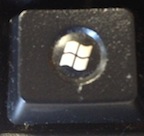
Windows 8 has many shortcuts using the Windows Button which is on the lower left of the keyboard.

Windows-x brings up a list of letters you can press to automatically make certain things happen. The list tells what it will do with the letter to use underlined.
 For example it says Programs and Features. If you press f it opens a window that lists the programs that are installed on the computer and allows you to add or remove programs. These letters only work if you have clicked Windows-x before pressing them and the list on the left bottom is open.
b - Opens the Mobility Center which is the place to change the brightness, sound rotation, etc... of your computer

o - Power Options - You can change your power settings to make your battery last longer.

y - Opens the System. This is a very helpful one because it opens a window that will tell you all the basics about your computer like what Windows edition it is running, how much memory you have, etc... Often it is good to know where this information is when calling for computer help.
m - Disk Management - This is where you go to see how much memory you have on your computer and how it is partitioned (divided into different parts)
t - Opens the Task Manager. This lists what programs are running and will open even if the program that you are on is frozen. This is the way to force quit one program that has frozen so that you can use other things on your computer.
p - Control Panel - This window is where you go to set up all sorts of things on your computer. Go here to correct your clock, set up family security, set up a printer, set up your network, and other tasks.

e - Opens Windows Explorer. This is where you can see everything that is on your computer and easily move files from one place to another.

Windows-P Brings up a side bar giving you choices about PROJECTING to a second screen.
Windows-F Brings up a lit of all of the FILES on your computer.
Windows-L LOCKS the computer so that you have to log in with your passsord to get in.
Windows-U Opens up the Ease of Use Center which includes ways that you can set your computer to be easier to see. You can also start the narrator so that your computer reads aloud the text on the screen.
Windows-TAB Opens side bar with icons of the programs that you have open. This is a good way to switch between windows.
Windows-F Brings up a lit of all of the FILES on your computer.
Windows-L LOCKS the computer so that you have to log in with your passsord to get in.
Windows-U Opens up the Ease of Use Center which includes ways that you can set your computer to be easier to see. You can also start the narrator so that your computer reads aloud the text on the screen.
Windows-TAB Opens side bar with icons of the programs that you have open. This is a good way to switch between windows.
THE BEST TRICK FOR LAST
I was so glad to learn how easy it is to search on Windows 8. It has a very robust search engine which is context driven. That means that depending on what you have open on your desktop the computer searches for that particular area. For example if you are looking at your photos it will search the picture library.
I always wanted to search when I needed a new app. I would open the STORE from my desktop. The store is devided into many different categories; Surface Pics, Games, Social, Entertainment and so on. It would take me forever to find what I was looking for and there didn't seem to be a Search feature. I was so happy when I learned that you just begin to type ANYTHING and the search engine opens up and gives you a list of items that match your request.
 I wanted to find a list of the free games I could download. When I typed free games while looking at the apps store the Search feature opened up and this is what it showed me.
 There were 1297 apps available. I could search through those or be more specific in my search. When I typed 'solitaire' there were only 142 apps! "Angry Birds Free" gave me 27 game apps.
IN CLOSING
Clicking the Windows key with any number opens up a different program for each number. I will let you play with that and figure out how it works for you.
There are a lot more shortcuts than I listed here. Here are a few links to other locations where you might find the one you are looking for!
50 Windows 8 Keyboard Shortcuts
http://www.hongkiat.com/blog/windows-8-keyboard-shortcuts/
Windows list of various types of Shortcuts
http://windows.microsoft.com/en-us/windows-8/keyboard-shortcuts
Printout of comprehensive list of Shortcuts
http://blogs.technet.com/b/matthew_starkie/archive/2012/11/21/windows-8-shortcut-keys.aspx
Tuesday, April 16, 2013
Windows Tricks in Windows 8 and earlier versions of Windows
Windows Explorer is extremely helpful. It is allows you to see all of the things that are on your computer and work with them. This post will guide you through using Windows Explorer or File Explorer (in Windows 8) to set up your computer and to understand what is in it.
Earlier Versions of Windows
 Right click on the "orb" or little colorful windows icon that is in the bottom left of the screen when you start up the computer. One of the choices that comes up is Windows Explorer.
Windows 8
 To get to File Explorer which is the same as Windows Explorer first choose the Desktop from the Ribbon Menu. Then click on the file folders on the bottom left of the screen.
 When the window first opens on the left you see a list of all of the things that are in your computer. When your arrow is pointing to them you see little triangles next to each item. These triangles mean that there are sub folders inside each of the folders. When you click one of these triangles it will change the left side list by showing you what is in the folder, but it will not change the right side at all.
 The right side shows what is inside whatever folder or item is select. Try clicking on different icons and you will see how the right side changes.

 Sometimes it helps to have the programs and folders on your computer look a different way so that you can find them easily. For example this is shows the same list of files as above in Detail View. This is nice because you can see the size of the file and when it was last edited. You do that by choosing the icon that shows the way that you want the files to look. The picture above is in Windows 8, but a very similar picture can be found in other Windows programs.
 To create a new folder right click on the area where you want the new folder to show up. A window will appear. Look for the word NEW and put your mouse on it. Another window will open up that says Folder (or Library) and when you click on it a new folder will open up. You can change the name of the folder by typing in the name you would like it to have.
You can think of a Library as the top level in a system of file folders. It is like the drawer of the file cabinet. Inside the library are folders that have files in them. Libraries can even have documents in them that are NOT in a folder. You decide how all of this is organized.
Windows comes with four Libaries to start with: Documents, Music, Pictures, and Videos. Inside each one of those are files and folders. When you save a file you can choose to save it anywhere that you want to, but this structure is supposed to make it easy to find your work.
Let's say that two people are using the same computer. You may want to have a Folder for each person and then inside that folder create Documents, Music, Pictures, and Videos folders to keep the two accounts separate. There are other ways to do this that are beyond the scope of this post.
1. Get the left side arranged so that all of the folders needed are showing.
2. Click on the folder that contains the file I want to move so that I can see it on the right side and drag it to the left side to move it where I want it to go.
3. When the folder is highlighted let go of the file you are moving and it will drop into the folder.
If you want to have one copy of the file in the original location and create a second copy in another folder you can COPY and PASTE the file.
If you press down the "ctrl" key when you are moving the file it will switch between "copy" and "cut".
1. To open any program on your desktop click twice.
2. To open any program listed at the bottom of your screen click once.
You can also change how many clicks or how quickly you must click by going to mouse in the Control Panel and looking at what settings there are.
This post was inspired by a class on Windows at the Austin Groups for the Elderly Computer Center in Austin Texas. It is a great place to come for low cost computer classes.http://www.ageofcentraltx.org/computer_lab.php
Getting to Windows Explorer
Earlier Versions of Windows
Right click on the "orb" or little colorful windows icon that is in the bottom left of the screen when you start up the computer. One of the choices that comes up is Windows Explorer.Windows 8
To get to File Explorer which is the same as Windows Explorer first choose the Desktop from the Ribbon Menu. Then click on the file folders on the bottom left of the screen. A Walk Through
The right side shows what is inside whatever folder or item is select. Try clicking on different icons and you will see how the right side changes. Changing the Look
Sometimes it helps to have the programs and folders on your computer look a different way so that you can find them easily. For example this is shows the same list of files as above in Detail View. This is nice because you can see the size of the file and when it was last edited. You do that by choosing the icon that shows the way that you want the files to look. The picture above is in Windows 8, but a very similar picture can be found in other Windows programs.Folders Creating and Organizing
To create a new folder right click on the area where you want the new folder to show up. A window will appear. Look for the word NEW and put your mouse on it. Another window will open up that says Folder (or Library) and when you click on it a new folder will open up. You can change the name of the folder by typing in the name you would like it to have. You can think of a Library as the top level in a system of file folders. It is like the drawer of the file cabinet. Inside the library are folders that have files in them. Libraries can even have documents in them that are NOT in a folder. You decide how all of this is organized.
Windows comes with four Libaries to start with: Documents, Music, Pictures, and Videos. Inside each one of those are files and folders. When you save a file you can choose to save it anywhere that you want to, but this structure is supposed to make it easy to find your work.
Let's say that two people are using the same computer. You may want to have a Folder for each person and then inside that folder create Documents, Music, Pictures, and Videos folders to keep the two accounts separate. There are other ways to do this that are beyond the scope of this post.
Moving and Deleting Files or Folders
I think that using Windows Explorer is the easiest way to move and organize my files.1. Get the left side arranged so that all of the folders needed are showing.
2. Click on the folder that contains the file I want to move so that I can see it on the right side and drag it to the left side to move it where I want it to go.
3. When the folder is highlighted let go of the file you are moving and it will drop into the folder.
Cut or Copy and Paste?
If you want to MOVE the file so that it is in the new place and there are not two files in different locations choose to CUT and PASTE the file.If you want to have one copy of the file in the original location and create a second copy in another folder you can COPY and PASTE the file.
If you press down the "ctrl" key when you are moving the file it will switch between "copy" and "cut".
Clicking Once or Twice
People I know and have worked with seem very concerned about when you click once and when you click twice. This has never bothered me. I click once and wait. If nothing happens I click twice. I guess that doing that for a while has made me intrinsically understand when to click once and when to click twice. I usually just do the right one, but programmers have made these rules. It could be that some people learn better by knowing the rules and applying them, so here they are:1. To open any program on your desktop click twice.
2. To open any program listed at the bottom of your screen click once.
You can also change how many clicks or how quickly you must click by going to mouse in the Control Panel and looking at what settings there are.
Right and Left Click
Almost everything is a Left Click. The left click should be your default. Right Clicks do EXTRA things and are very helpful. Usually they bring up a list of choices of things that you can do for the item you are clicking on. For example if you right click on the desktop you can create a folder, change the background picture, personalize your computer, sort the folders on the desktop, etc...This post was inspired by a class on Windows at the Austin Groups for the Elderly Computer Center in Austin Texas. It is a great place to come for low cost computer classes.http://www.ageofcentraltx.org/computer_lab.php
Monday, April 1, 2013
Virus Protection on Windows 8
This is NOT an April Fool's Post!! Have a great day!
Windows 8 comes with Virus Protection built in. You do NOT have to purchase McAfee, Norton or download AVG like I wrote about in an earlier post.
Windows 8 comes with Virus Protection built in. You do NOT have to purchase McAfee, Norton or download AVG like I wrote about in an earlier post.
Here is what you can do to see what is already set up.

- Go to the Charms Menu (the bar to the far right of your screen that appears when you put your mouse in the top corner)
- Click on SEARCH. There is a picture of a magnifying glass to represent it.
- Click on Apps if it is not already chosen and type in “windows defender”.
- A window will come up showing you how Windows Defender is set up.
It is set up to automatically do real time protection and to keep up with new virus and spyware definitions. You can do a scan manually by clicking on Scan Now. A full scan took me less than an hour while I did other things on the Surface. My copy of Windows 8 was set to do quick scans and it had just done one when I was working on it and I didn’t even notice.
There are four tabs on the window that appears:


Update-This tab shows you when the virus and spyware definitions were last updated. There are new viruses and spyware everyday, so it is set to automatically update, but you can click the button and manually update if you want.


History-Virus protection programs quarantine items that might be harmful. You can see a list of these items or a list of the ones that were scanned and allowed or both by clicking on the View Details button in the middle on the bottom of the window

Settings-If you know of certain files that you never want scanned you can designate them from the scan here. There is probably no reason to do this since the scan is done in the background and doesn’t take too long, but if you want it to go faster for some reason you can designate that certain things are not scanned. You can also set how long the computer keeps quarantined files (that were identified as having viruses)
SHARING VIRUS INFORMATION
Microsoft collects the virus information from your computer to help protect everyone who uses the Microsoft Security program. You can opt out of this or allow them to collect more information by going to Settings and choosing MAPS (Microsoft Active Protection Service). The default is set to Basic membership.
THE SEARCH FUNCTION
THE SEARCH FUNCTION

Monday, January 21, 2013
Tips on Working with Windows 8

First a quick review of Windows 8 after about a month of use
The keyboard takes some getting used to and I am much better typing on my MacBook keyboard. I think with practice I can get used to it and not make so many mistakes. It is easier to use than the screen keyboard on the iPad or the screen keyboard that pops up on the Surface. I do not have an iPad keyboard, so I assume that if I did it would work like this does for the Surface.
So, how does it compare to the iPad? They are just different, but both of them are great. The Surface does not have the camera quality that the iPad does and so it does not work well for taking picures or even for just looking at them, but it is OK.
Here are some tips for things that have baffled me that I figured out:
1. Closing programs
 |
| ONE |
Windows 8 is not like most operating systems. It has a way of keeping programs open without using a lot of the memory. It does not matter how many programs you have open.
 |
| TWO |
 |
| THREE |
I really like the way that you can close programs with a touch screen even if it is not necessary. All you need to do is using one finger and swipe from the top to the bottom. First the program shrinks to a small rectangle and then you can get rid of it by swiping clear off of the screen at the bottom.
2. Shutting down the computer

"In Windows 8 and Windows RT, there's really no need to shut down your PC completely—put it in sleep mode instead. This uses very little power, your PC starts up faster, and you’re instantly back to where you left off."
They say that if it runs out of power it will automatically save everything and then shut down so you don't lose any of your work. If you just close your lid the Windows 8 chooses the sleep mode automatically.

The Shut Down Menu is still available by sliding your touch finger from the right side toward the left or putting your mouse pointer to the top right corner and then sliding down to the Charms Menu (that is what Microsoft calls the bar that shows up at the right side.) Then click on or touch Settings, which is the Gear at the bottom of the Charm Menu. You will see the familiar Power Symbol and when you touch it you will have the choice to sleep, shut down or reboot.
3. Filing email
 I have been using the Mail Client that comes with Windows 8 for reading my email. It was not hard to set it up so that it downloads my Gmail. When it was set up it added all of the same folders that I had created on Gmail, but it was not clear at all HOW I could get my mail into those folders. This is also fairly easy once you figure it out.
When you are in Mail and want to file a message, slide up from the bottom with your finger or the mouse. Click on the icon that says MOVE and then click on the folder that you want to move it into. It has to be one of the folders that you have already set up in your email program before.
4. Creating new Folders
This was one of the most puzzling things for me. There did not seem to be any way to set up new folders and I searched and searched online for the answer and could not find it. I finally learned that you cannot create new folders or even delete folders in the Mail program on Windows 8. All folders must be created, reorganized or deleted using the email program that you normally use. For example, I have a gmail.com address, so I have to log into my Gmail account online and make any changes to my folders. The changes are made also in your Mail program on Windows 8.
You Ask, "So, why not just use the Online program like Gmail?"
Sometimes (like when on an airplane, riding in a car, or at a location without WiFi) you may want to keep up with your email. If you open your Mail program in Windows 8 all of your email is downloaded to your computer and then you can look at it and respond even when you are offline. The responses do not get sent until you are online again, but at least they will be saved and waiting for when they can be mailed.

I know that there will be other things that come up as I use this operating system. If you have any questions let me know and I will see if I can figure them out and post the answers I find. I would also love to hear from you if this blog has been helpful to you. It is hard to know if people are reading unless I hear back from you!
Friday, November 9, 2012
An Update
I have been working on a post about "Wiping Out a Hard Drive on Purpose", but it is not done yet and I want to make sure to get something up by Friday every week.
So, today I have decided to talk to you a little bit about how it has been starting a business.
There are ups and downs. When someone calls and says they want to hire me that is exciting. When I talk to people and they like the name of the business that makes me feel good. However, there are days when there is not much going on and I have to force myself to keep working on it. When does the "word of mouth" begin?
 One thing that a friend who is in business for herself suggested was to take advantages of any chance I had for networking and that has been really fun. I have met lots of new people and seen new things. I am going to start listing some of the start up businesses of others I have talked to on the sidebar of this blog. Yesterday I attended the Innotech Conference at the Austin Convention Center. I learned a lot of new things and met interesting people. One thing that I especially learned was about Windows 8. I have seen ads on TV showing how different it is, so I really enjoyed trying it first hand and going to a session where they talked about it and I could ask questions. If you are upgrading and need some help with Windows 8 I will be ready.
I also learned about a software that will allow me to work with people virtually. We could connect on the computer and communicate that way and then if I needed to I could, with your permission of course, have access to your computer. It is called Link and would cost me a small monthly amount, but you would not have to pay anything.
Other things I have been doing are substitute teaching at University of Texas Elementary School, volunteering with Trinity Child Development Center, making phone calls for Lloyd Doggett (a local candidate for Congressman) and working the Election Day Polls. That was an experience.
So, next week you can look forward to Wiping Out a Hard Drive on Purpose. Please send along any suggestions for topics.
So, today I have decided to talk to you a little bit about how it has been starting a business.
There are ups and downs. When someone calls and says they want to hire me that is exciting. When I talk to people and they like the name of the business that makes me feel good. However, there are days when there is not much going on and I have to force myself to keep working on it. When does the "word of mouth" begin?
I also learned about a software that will allow me to work with people virtually. We could connect on the computer and communicate that way and then if I needed to I could, with your permission of course, have access to your computer. It is called Link and would cost me a small monthly amount, but you would not have to pay anything.
Other things I have been doing are substitute teaching at University of Texas Elementary School, volunteering with Trinity Child Development Center, making phone calls for Lloyd Doggett (a local candidate for Congressman) and working the Election Day Polls. That was an experience.
So, next week you can look forward to Wiping Out a Hard Drive on Purpose. Please send along any suggestions for topics.
Subscribe to:
Posts (Atom)