LET'S MEET ONLINE

LET'S MEET ONLINE! Call (512)560-2609 or email helpimnotageek@gmail.com and set up a time for a session. It works really well. We talk on the phone while I see your screen.
Showing posts with label apps. Show all posts

Tuesday, February 25, 2014

Arranging the Icons on your iPhone or iPad

The iPhone and iPad are amazing. There are so many apps that eventually you have too many and it is difficult to find anything. In this post I will go over several ways that you can organize your apps so that they are easier for you to find.

ON THE PHONE

1.  Alphabetical Order

You can only organize the apps that you have downloaded and added to your iPhone or iPad. The ones that come with the phone cannot be changed.  Go to:
              • Settings 
              • General 
              • Reset 
              • Reset Home Screen Layout
Now all of your apps, except the ones that came with the phone are in alphabetical order. If you like it this way you will have to redo this each time you download an app because they download to the first empty space or to the end rather than in alphabetical order.


2.  Putting them in Folders

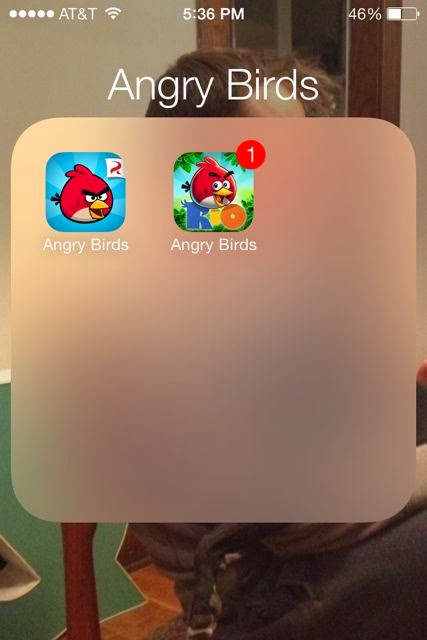
It is possible to put your apps into folders so that you can sort them into types. You can name the folders yourself.


        • Hold down one of the icons until they all have x's and shake.
        • Drag one of the apps onto another one that you want in the same folder.
        • Click the name at the top of the folder window and erase the name that is there and type what you want it to be.
        • It will be the same size as the icons before, but when you click on it the folder opens to reveal all of the apps inside.
3.  Pages by subject

At the bottom of the iPhone window above the bar with the programs that do not change when you go to a different page of icons there are dots. Each dot represents a page of apps. When you swipe the dot that represents the page you are on becomes bold.

Some people like to organize their apps by making each page one of their categories. They might put all games on one page or all music apps on another page.


ORGANIZING ONLINE


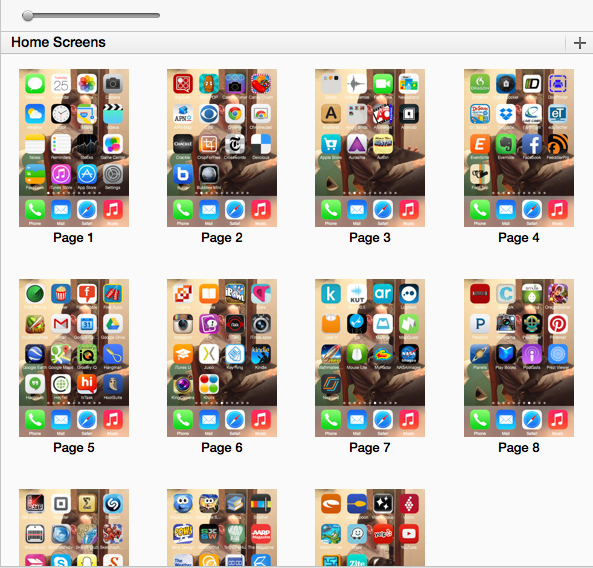
Probably the easiest way to organize the apps is in iTunes on your computer with your iPhone or iPad plugged in because the icons are larger and you can use your mouse. 

  1. Plug your iPhone or your iPad into the computer that you use for syncing.
  2. Go to the iTunes Program and you can see all of the pages of your apps at one time. 
  3. Now using your mouse you can do the same organizing that you were doing on the phone before. You can drag apps from place to place and create folders or pages with your organized apps. When you are finished click on apply at the bottom to make sure to  have the same set up on your phone.
  4. The only thing that is more easily done on the device than on the computer is alphabetize the apps. Remember that alphabetization will not reorder the default apps that came with your phone. 
ON THE IPAD

The iPad works in the same way that the iPhone does and so if you follow the directions above they will help you to organize your iPad

I cannot help you with your Android or Windows devices because I am not sure if they work in the same way or not.

RUNNING OUT OF SPACE? 

I recently had to do an update to my phone and the message it sent me was that it could not download the update because there was not enough empty space on the device. 


The way to deal with that is to open your phone and go to SETTINGS.  In SETTINGS choose GENERAL

In GENERAL choose USAGE. This will give you a list of all of the apps that are on your iPhone or iPad and then you can look through the list to decide if there are apps on there that you never use.


Remember that on your computer you have a comprehensive list of everything you have had on your iPhone.  It keeps track of the apps that you have removed. You can always add them back in without paying for them again if you paid or if they were free!  

Monday, September 9, 2013

What Shortcuts can help me with Windows 8?


Windows 8 has many shortcuts using the Windows Button which is on the lower left of the keyboard. 


Windows-x brings up a list of letters you can press to automatically make certain things happen. The list tells what it will do with the letter to use underlined.  

For example it says Programs and Features. If you press f it opens a window that lists the programs that are installed on the computer and allows you to add or remove programs. These letters only work if you have clicked Windows-x before pressing them and the list on the left bottom is open.
b - Opens the Mobility Center which is the place to change the brightness, sound rotation, etc... of your computer
o - Power Options - You can change your power settings to make your battery last longer. 

y - Opens the System. This is a very helpful one because it opens a window that will tell you all the basics about your computer like what Windows edition it is running, how much memory you have, etc... Often it is good to know where this information is when calling for computer help. 
m  - Disk Management - This is where you go to see how much memory you have on your computer and how it is partitioned (divided into different parts)  
t - Opens the Task Manager.  This lists what programs are running and will open even if the program that you are on is frozen. This is the way to force quit one program that has frozen so that you can use other things on your computer. 
p - Control Panel - This window is where you go to set up all sorts of things on your computer. Go here to correct your clock, set up family security, set up a printer, set up your network, and other tasks. 
e - Opens Windows Explorer. This is where you can see everything that is on your computer and easily move files from one place to another.

Windows-E Also opens Windows Explorer. Do not confuse this with Internet Explorer. Windows Explorer is a way to see what is on your computer.

Windows-P Brings up a side bar giving you choices about PROJECTING to a second screen.

Windows-F Brings up a lit of all of the FILES on your computer.

Windows-L LOCKS the computer so that you have to log in with your passsord to get in.

Windows-U Opens up the Ease of Use Center which includes ways that you can set your computer to be easier to see.  You can also start the narrator so that your computer reads aloud the text on the screen.

Windows-TAB Opens side bar with icons of the programs that you have open. This is a good way to switch between windows.

THE BEST TRICK FOR LAST

I was so glad to learn how easy it is to search on Windows 8. It has a very robust search engine which is context driven. That means that depending on what you have open on your desktop the computer searches for that particular area. For example if you are looking at your photos it will search the picture library. 

I always wanted to search when I needed a new app. I would open the STORE from my desktop. The store is devided into many different categories; Surface Pics, Games, Social, Entertainment and so on. It would take me forever to find what I was looking for and there didn't seem to be a Search feature. I was so happy when I learned that you just begin to type ANYTHING and the search engine opens up and gives you a list of items that match your request. 

I wanted to find a list of the free games I could download. When I typed free games while looking at the apps store the Search feature opened up and this is what it showed me. 

There were 1297 apps available. I could search through those or be more specific in my search. When I typed 'solitaire' there were only 142 apps!  "Angry Birds Free" gave me 27 game apps.

IN CLOSING

Clicking the Windows key with any number opens up a different program for each number. I will let you play with that and figure out how it works for you. 

There are a lot more shortcuts than I listed here. Here are a few links to other locations where you might find the one you are looking for!

50 Windows 8 Keyboard Shortcuts
http://www.hongkiat.com/blog/windows-8-keyboard-shortcuts/

Windows list of various types of Shortcuts
http://windows.microsoft.com/en-us/windows-8/keyboard-shortcuts

Printout of comprehensive list of Shortcuts
http://blogs.technet.com/b/matthew_starkie/archive/2012/11/21/windows-8-shortcut-keys.aspx

Monday, April 1, 2013

Virus Protection on Windows 8


This is NOT an April Fool's Post!! Have a great day!

Windows 8 comes with Virus Protection built in. You do NOT have to purchase McAfee, Norton or download AVG like I wrote about in an earlier post. 

Here is what you can do to see what is already set up.


    1. Go to the Charms Menu (the bar to the far right of your screen that appears when you put your mouse in the top corner)
    2. Click on SEARCH.  There is a picture of a magnifying glass to represent it.
    3. Click on Apps if it is not already chosen and type in “windows defender”.
    4. A window will come up showing you how Windows Defender is set up.


It is set up to automatically do real time protection and to keep up with new virus and spyware definitions.  You can do a scan manually by clicking on Scan Now. A full scan took me less than an hour while I did other things on the Surface. My copy of Windows 8 was set to do quick scans and it had just done one when I was working on it and I didn’t even notice. 

There are four tabs on the window that appears:

Home-This tab is the one that always appears when you set up the program and is described above.


Update-This tab shows you when the virus and spyware definitions were last updated. There are new viruses and spyware everyday, so it is set to automatically update, but you can click the button and manually update if you want.


History-Virus protection programs quarantine items that might be harmful. You can see a list of these items or a list of the ones that were scanned and allowed or both by clicking on the View Details button in the middle on the bottom of the window


Settings-If you know of certain files that you never want scanned you can designate them from the scan here. There is probably no reason to do this since the scan is done in the background and doesn’t take too long, but if you want it to go faster for some reason you can designate that certain things are not scanned. You can also set how long the computer keeps quarantined files (that were identified as having viruses) 

SHARING VIRUS INFORMATION

Microsoft collects the virus information from your computer to help protect everyone who uses the Microsoft Security program. You can opt out of this or allow them to collect more information by going to Settings and choosing MAPS (Microsoft Active Protection Service). The default is set to Basic membership. 

THE SEARCH FUNCTION

Something I learned when trying to find apps and while writing this is that SEARCH on the Charms Panel is really powerful. If there is anything that you used to do with your computer and need to find out how to do it with Windows 8 you can just type the item into the search window and then choose Apps, Settings or Files and you will be given a list of the items it finds.  I used it to find Windows Defender and Control Panel.

Monday, February 18, 2013

Ten Tech Skills That Everyone Should Have: Part Two

Here are five more tech skills that EVERYONE should have. If you need help with any of these you may want to give "I'm not a Geek.com" a call at (512)560-2609. I am looking for some people who want to try learning long distance (giving me access to your computer screen so I can see what you are doing), so even if you do not live in Austin give me a call or email to helpimnotageek@gmail.com  

Now to the tech skills:

DO YOU KNOW HOW TO USE NETIQUETTE WHEN USING THE INTERNET?

Internet/Email/Social Media etiquette - The proper way to use the internet, write professional emails, use social media in relation to your job.


The main rule to this Net-Etiquette is to consider who you are sending something to. Often people do not think before pressing "send" and end up forwarding lots of junk to other people or saying something private to a whole group. If you use ALL CAPS in an email it is like yelling since there is no intonation when someone reads your note. Also, it is easy to be misunderstood when you are sending a joke or being sarcastic. Be careful.


The first link takes you to Wikipedia which is a great place to learn many things. This article is helpful, but in some places difficult to understand. The second link is an online book which is much easier to understand and you can choose which pages you are interested in reading.

Netiquette - Wikipedia

Netiquette - Online Book - This one is easy to navigate

DO YOU KNOW HOW TO MAKE YOUR COMPUTER SECURE AND SAFE?

Some security and safety issues are: Antivirus, spam, phishing, sharing too much personal information sharing, stalkers and more. It also involves creating good passwords.

Most of us know what a Virus on your computer is and what spam is, but you may not have heard of phishing although it has been around a long time. Phishing is when someone sends you something in email that looks legitimate, but is not. They often have links to what looks like your bank or paypal, but actually are not. The goal of people who do this is to get secret information from you like your bank account number, passwords or other information.


When I get anything asking me to click on a link (URL) first I look to see if it is from someone I know. If not, I roll the mouse over the URL and it shows in the bottom left corner where it is really going. It may look, from the address like it is going to Paypal, but when I roll over and look at the left bottom of the screen it shows that actually it is going somewhere else. If I am not sure I just delete it. People who send messages will understand and resend the message if they do not hear from you. You should also never send messages that just have a link and no message.

Link to more information about phishing
http://en.wikipedia.org/wiki/Phishing

Cyberstalking means that someone is trying to harass you with multiple emails or saying things that are not true about you through Social Media

More about Cyberstalking
http://en.wikipedia.org/wiki/Cyberstalking

Google How You Can Protect Your Family Online - This has lots of links to information that is readable about different things you might need to know.
http://www.google.com/goodtoknow/familysafety/

Common Craft Video - How to make a good password
http://www.commoncraft.com/video/secure-passwords


DO YOU KNOW WHAT YOU SHOULD BE DOING TO REGULARLY MAINTAIN YOUR COMPUTER?

Look for more information about this in the post coming next week called "Clean Up and Maintenance of Your Computer"

DO YOU KNOW HOW TO FIND PROGRAMS AND APPS THAT YOU MIGHT WANT TO DOWNLOAD TO YOUR COMPUTER OR MOBILE DEVICE?
 
There are so many apps (applications or programs) available and it is hard to know which ones are good and how to choose. 

Quixey is a helpful search engine that will look for all kinds of apps for you. There is a way to look for only free apps for a PC, paid apps for a mobile device

FreeNew (FN)
This is the place to go to find free apps for many different devices and download them easily, even doing several at once.  

DO YOU KNOW HOW COPYRIGHT HAS CHANGED IN THE DIGITAL AGE?
With the addition of computers and the ease of copying and pasting everything Copyright has totally changed. It used to be something that only librarians, inventors, musician, artists and writers needed to think about. If you do anything that you would not like to see replicated somewhere else without your permission (photography is one example) you should take a look at the Library of Congress' Copyright Page.

http://www.copyright.gov/ 


These tips are rewritten and reworked from  http://educationaltechnologyguy.blogspot.com/2012/01/10-tech-skills-every-student-should.html

Monday, August 13, 2012

Getting the Most out of your iPad


Tomorrow I am doing an iPad seminar for Austin Computer Learning Center. I have created a handout for the session and I think it might be helpful to share it here. Please ask questions!  You can do it by pressing the word COMMENT at the bottom of the blog post and typing in the window that comes up. You can do it anonymously or sign up if you want to.

Setting up your iPad


The set up icon looks like this and can usually be found in the bottom row of icons.


Use settings whenever you want to set something up. 


Under the category of General you can find:
  • eMail
  • Clock
  • Calendar
  • iCloud
  • Gestures
  • Brightness and Wallpaper

There is also set up available for all of your apps. It is a good idea to click into all of these and see what they can do for you. You can always get back to the original setting if you change anything by accident (or on purpose!)


Getting Around

The HOME Button - Whenever you are done with an app click on the home button to return to the desktop with all of your apps.

This does not close the application. To do that you need to use 4 fingers and slide the screen up. All of the applications that you have used should show up there.

Hold your finger down on one of the icons until all of them start jiggling and have the red minus sign next to them. Completely close the programs by touching the red minus sign one at a time. To get rid of the - signs click once on the home button.


What is on my iPad?
The iPad comes with some interesting apps.

  • Weather
  • Clock
  • Map
  • Contacts
  • Safari
  • Calendar
  • Notes
  • Camera

In the session I will take a little time to show each one of these and answer any questions.

The Search Window

When you are looking for an app, but do not see it you can just swipe to the right to get the search window. Type in the name of what you are looking for and it will show up in a list.


Typing

Anytime you click on something and have a cursor the keyboard opens up. The keyboard is sensitive and takes some getting used to.

If the keyboard is in the way just press this key and it will disappear. 


Gestures

You must turn this on in settings. Under GENERAL. It is called Multitasking Gestures.

Use different numbers of fingers for different effects.
  1. One finger to scroll up and down and to click on things.
  2. Two fingers to pinch and make something smaller or to move out and make it larger.
  3. Three fingers to tap the screen for it to temporarily enlarge the print. Tap again the same way to return to normal.
  4. Four fingers to scroll up to see what programs are open.
  5. Four fingers and a thumb to close an app and go to the desktop.
Setting up an account

In order to download anything, even free apps, you must have an account with iTunes. This will help you keep track of what you have downloaded so if you lose your device or it gets erased for some reason you can download them again. You should sync with a computer on a regular basis, so that it keeps a record of what you have downloaded.

To get an account:

  1. From your home screen click on settings and then choose store.
  1. Choose "create new account"
  1. Choose your country, then tap "next"
  1. Choose to agree to terms
  1. Fill in your email, a password of your choice, and question to be a password hint. Click next
  1. Put in your billing information. Once it is in there you will not have to type it each time. This info has to be in there even to get a free app.
  1. Click done and check your email account for verification.
After you have verified this you can try logging into make sure it works.


Downloading apps
  1. Find the App Store icon
    The little red number in the corner is the number of apps you already have that need updates.
  2. After you click on it several choices will appear at the bottom of the screen.    
  3. For this example I am going to use Web MD because I have heard good things about it.  Type it into the search window in the App Store.
  4. Notice it is free and has been rated with 4 stars. 
  5. To get it I just click on the word FREE. 
  6. After I click on the word "FREE" it changes into the word INSTALL.
  7.  When I click on the words install app it asks for my password. 
  8. When I put it in the app starts to install. 
  9. You have to put your account password in even when something is free. 
  10. Once I put a password in the app downloads right to my iPad.
Apps to Share

  • Web MD for iPad
  • Crossword Puzzles/Word Search Puzzles
  • Skype
  • AARP magazine
  • Flight Status
  • Silver surf-high contrast
  • Mobile me gallery
  • ABC
  • Netflix
  • NPR
  • Google Earth
  • Pandora
  • Smule Instruments 

    There are so many cool and helpful apps. What is your favorite?