LET'S MEET ONLINE

LET'S MEET ONLINE! Call (512)560-2609 or email helpimnotageek@gmail.com and set up a time for a session. It works really well. We talk on the phone while I see your screen.
Showing posts with label security. Show all posts

Saturday, May 14, 2016

My Experience with Google Photos

This week I have had more than one person talk to me about saving their photos. These days most of us have more photos than we know what to do with because we always have our Smartphones with us and we take pictures of EVERYTHING.

I usually organize my photos using Mac's Photo app. It works well for me. If you have a PC you can use Microsoft Photo Gallery which comes free with Microsoft Windows. Today I am going to try and also describe my experience using Google Photos.

external hard driveBefore I begin with Google photos I want to make sure that you are backing up all of your pictures on a hard drive or in the cloud somewhere (or both). The cloud is just a way to talk about a huge bank of computers that you can get space on in order to save things. iCloud is Apple's cloud. Dropbox is a cloud. Microsoft has OneDrive. If you use Google Photos you are backing up on Google's Cloud.

What I have learned is that in May of 2015 Google made a big announcement and began Google Photos. It was designed as a pain free way to store, organize and share all of your photos without having to do much of anything. The program does it for you. It is a single location for ALL of your photos from your computer, phone and any other devices you have. It works with Android phones as well as iPhones.

The first thing that you do is to download the Google Photo Autobackup App. This will search and find all of your photos from all of your devices and put them on Google Photos which you can find by going to http://photos.google.com. This process takes a long time, maybe a few days, but when it is done ALL of your photos are backed up and accessible to you on all of your devices. If you choose to save them as "high resolution" the space does not cost you any money. If you want the RAW original format you will have to pay for extra space after your allotment is filled up. Even the "high resolution" photos are formatted perfectly for most of us. If you are a photographer and usually print large copies of photos you may want to pay for the extra space.

Now for my experience using the app.
  1. It has pop out tools on the sidebar. There are three ways to look at your photos
    • view photos iconPhotos-This is the view that you first see when you upload your photos. It is organized by date that the photo was taken. You can view all of these photos on all of your devices. You can see them as individual pictures, days, months and years by pinching and unpinching the screen. They are located "in the cloud", so they are not taking up space on any of your devices. You can download them or send them to someone from here.
    • albums iconAlbums-Google Photos will organize your photos for you by face (It is amazing at recognizing faces even as they change through aging) and by places and things. This is also the place where you can view albums that you have created using the assistant. 
    • Assistant-This is where you can create your own albums and other creative things. To do this Click on "create new album". Then click on all of the photos that you want in the album. The album will appear with "untitled" at the top. You click on it and give the album a name. 
search bar
  • You can also search your photos for specific photos that you remember. The search is amazing. I tried searching for "snow", "food", and several other things. Even though I had not tagged or named the pictures a bunch of snow pictures and food pictures were found. A few of the other searches were not as successful (books, beach), but I am not sure that I had any pictures that fit these categories. Also, my pictures were still being downloaded.
In the agreement that you must sign in order to use their free services it says that they can "host, store, reproduce, modify, create derivative works, communicate, publish, publicly perform, publicly display and distribute these photos".
  • There is the issue of trust. What is Google doing with all of your photos? Google is a search and advertising company. They make their money by very precise advertising. Your photos make it possible for them to know you better and target advertising directly to you. They do this already, but your photos make it even better for them.  If this is a problem for you then it is better not to use it. Many people think that the value of using all of the free apps that Google offers is a fair exchange. Targeted marketing is a little creepy, but in some ways is better than constantly getting ads for things you do not want. One video said that being selective about which photos are stored on Google Photos can protect some of your privacy. 

CONCLUSION
Having tried it I am impressed with Google Photos. I tend not to be someone who is very private, so my experience may not fit you. The important thing to take away from this article are that YOU are in charge of your photos and backing them up somewhere is EXTREMELY important. I think that having an external back up on a hard drive is a good idea because even Google may change its business model and who knows what would happen to your photos then? 

Friday, April 15, 2016

Allowing your Computer or Keychain in Mac to Save Your Passwords

Passwords are the bane of our existence when it comes to technology. So, anything that makes them easier is hard to turn down. What should you do when you are on a site and the question pops up, "Do you want to save this password?" or "Save this password in your Keychain?" YES or NO??

I did some searching and found several good reasons why you might want to say NO to this question and why Keychain and other Browser password savers are not as secure as Dashlane, 1Password, LastPass or other password managers.

First of all, let's clarify where this information is coming from. Browsers have their own password savers.  For example in Firefox under the Preferences you can see this window:


If you put a check in the box next to Remember Passwords for sites you will always get that question. Then you can click on Saved Passwords to see what you have saved. When I clicked on Saved Passwords there were 9 saved there! At first they were hidden, but then I clicked on SHOW and there they were. Anyone could have done that!  I deleted them all right away because I didn't even know that they were there!


One thing that would have made it more secure is if I used a master password. You can see above that there is a box next to that which you can check. If I had created a master password then someone could not get into my passwords so easily. 

Chrome, Internet Explorer and other browsers have similar password savers.

Keychain (the Apple built in password saver)  is a little different because it is actually on your computer and not connected to a browser. If you choose to activate Keychain in your iCloud account it will also sync to any other Apple Devices you have.

Most password managers will generate strong passwords for you. That is one thing that saves a lot of time when you are at a new site. You do not have to think up one more password that is really difficult, but that you can remember. The password management software will remember it so it can create really long difficult passwords and you will never have to even know them.

NOW FOR THE PROS AND CONS

PROS


  • It is much better than having the same password for everything.
  • If you create a master password it is more secure.
  • It works well (with a master password) for someone who never has someone else accessing their computer.
CONS
  • If you do not put in a Master Password (and many people do not) then all of your passwords can easily be found.
  • Keychain only works on the Safari browser and does not work with every single site. Use of Keychain is not supported by Banks, Credit Cards and some other places because of security issues. Other password managers each work on their own software (Safari, Internet Explorer, Chrome, Firefox, etc...)
  • Keychain does not generate the strongest passwords.
  • Easier to hack than a Password Manager like LastPass or Dashlane. With these password managers your master password NEVER leaves your machine. It is not stored anywhere else. 

On some of the sites I read it said to NEVER use the password savers in browsers or Keychain. It is just not as safe as the other tools. 

And now for one more free tip. To find all of this out I just typed my question into Chrome (my favorite browser and here are some of the sites that I read to learn what I shared with you. It does take some time, but you can do that too. Maybe it is how you found this blog!


Que Publishing

Gizmag

HOW TO SET IT UP - FROM APPLE

iMore

Ask Leo

Step by Step how to access the Password Saving Feature of Browsers

More about Password Managers

I have now used Dashlane for a few years and LOVE it. Other people swear by different password managers, so I doubt that there is one that is the best, but it is definitely worth finding and using a password manager!!

Friday, November 21, 2014

How does Apple Pay work?

If you are like me you watch with interest whenever Apple introduces something new. That is not because I want to buy every new thing, but lately it seems like their new products and ideas change how things are done everywhere.

So, I have been curious about Apple Pay. I keep reading articles and seeing things on it, but none of them tell me how it really works. I want a down to earth, Not A Geek, explanation. 

Here is what I have found out and want to share with you in the way I understand it best.

HOW PEOPLE USE IT
  1. There are a lot of details, but basically, if you have the right equipment and are in the right store you can just take out your phone at the cash register and instead of swiping your card and entering your pin you can hold your iPhone up to the machine and put your finger on the finger print reader on your phone.
  2. The machine will register the purchase and charge your credit card just like it did when you swiped the card through the machine. 
WHAT YOU NEED TO DO IT

If you have a new iPhone 6 or 6 Plus, first you have to download OS version 8.1. If you have a phone older than 6 you cannot do Apple Pay. It will also work with the Apple Watch when it comes out in 2015.

You have to set up your credit card information in your Passbook application on your phone. If you want to use the credit card that is already associated with your iTunes account you can do that by just setting up a 4 digit pin. You can take a picture of the card and the phone will fill in the information!

It only uses cards like Visa, MasterCard, American Express, and Discover. You cannot use your Macy's card. The information about payments made using Apple Pay can be found in the Passbook App.

The cash register that you pay at must be Apple Pay Enabled. You can look for that sign before you begin standing in line planning to pay that way.

It might be good to have a back up way to pay ready. Even though you hope to pay with your phone it is a pretty new technology and so the store may not be set up. 

MORE GEEKY EXPLANATIONS

Near Field Communication Symbol
A bit more "geeky" way to explain it is that Apple Pay uses NFC or Near Field
Contactless Payment Symbol
Communication to connect to the Apple Pay enabled device at the store. Look for the contact-less payment symbol. You may have seen these before because Google Wallet and some credit cards work this way already.


It will also work with the Apple Watch which is due out in January 2015

It is surprising that Apple will not make a bunch of money from this. The company will take a small cut from each transaction. Their goal is to sell phones and watches.

SHOULD YOU USE IT?

So, why use it?  Right now it is mainly a novelty. It might save a little time over swiping a card. Maybe you can carry a lighter wallet. We will only see in the future what it can really do.

BENEFITS OF USING IT

Security - Your credit card number is only entered once during setup. After that your phone sends a different number that is tied to your device when it makes a transaction. The cashier will NEVER see your credit card number and it is not stored anywhere but on your phone. If you lose your phone you can use the app "find my iPhone" to put your phone in LOST MODE so that no one else can get your info. Unlike when you lose your cards you will not have to cancel your credit card and get a new one because your card number was never stored.

Privacy - Apple does not transmit any information about you to the store. In this time when all of our information seems so public Apple Pay is actually anonymous. Some retailers are not happy about that because it does not help them to collect information about you. You will need to provide them with a loyalty card separately, rather than having that information transferred automatically.

Friday, April 25, 2014

What is encryption?

Since there has been so much news lately about the Heartbleed bug and other viruses I thought it would be a good time to talk a bit about encryption.


S
Illustration from http://www.engineeringafamily.com/
Encryption is an important part of Internet Safety although it is something that you do not see or do anything about. It takes what you type on the computer (input) and puts it into a code so that while it is traveling over the wires no one can intercept it and steal that information. When your message arrives at the other end it is decrypted so that it can be read.

At this time most Banks, PayPal, and other Websites that involve money or information that needs to stay secure use strong encryption. It is also a major concern of Doctors and Hospitals as they put patient information online. 

Unlike most posts this does not end with something that you should do. Encryption is good to know about. It is automatically done at many sites.

Good security is an important part of doing business online. The good thing for us users is that the companies are possibly more concerned with safety than we are. They know that if they are unable to provide secure transmissions on their site they will lose customers. 

Encription according to http://dashlane.com


Tuesday, January 21, 2014

Should I use 2 Step-Authentication?

WHAT IS 2 STEP AUTHENTICATION?

Authentication means making sure you are who you say that you are. Using a password is the main way that you are authenticated by most websites. But what if someone finds out your password. Google, Yahoo, Facebook and Twitter (and other large companies) have designed a way that you can have two layers of security for your accounts with them. First you have to put in your password. Second a random code is texted to your cell phone. When you get the message you type the code into the website and you are in. If someone has your password it is most likely that they do not have your cell phone also. 

NOW THAT YOU KNOW WHAT IT IS SHOULD YOU USE IT?

The more secure you want to be online the more important it is to use the two-factor authentication. You can set this so that it does not happen on your own computer, but only when you are using a public computer or one that belongs to someone else. 

In Facebook click on the gear in the top right to get the settings.  Then choose Security. Look down the list on the left until you see Log in Approvals. This is where you set up your phone to be an extra layer of security.


In Google after you log in find your picture, or the default picture in the top right corner. When you click on it a window will pull down and you should click on the word Privacy. This will open a webpage that will give you lots of information about how to be more secure. If you want to set up 2-step authentication slide down the page and click to "find out more about 2-step authentication. 

Follow similar steps to set this up in Yahoo, Twitter and other programs. The choice will be found in your settings under security or privacy. 

The more secure your computer is the more difficult it is for anyone, including you, to use it. I like the advice of Socrates "Know Thyself". How old are you?  How good is your memory? What do you use your computer for? How often do you use computers other than your own? Do you have a cell phone and do you use Text Messaging? 

For someone who uses a computer all of the time for business purposes or for regular banking it is a good idea to be as secure as possible even if it is frustrating sometimes. For someone who mostly plays solitaire and sometimes gets online to do email it may not be worth the effort. Then there are all of the many cases that fall inbetween. So, know yourself, is the best advice that I have. 

SOMETHING EXTRA

Since we are talking about security I thought I would also mention the Captcha Codes. Wikipedia says it stands for Completely Automated Public Turing test to tell Computers and Humans Apart. 

You often have to fill them out at the bottom of a form or application that you are submitting. They are getting more and more difficult to interpret. They were devised to make sure that it was a real person who is filling out the form. Today there are robot computers that can fill in forms and send notes, but they cannot read pictures of letters and numbers. 

If you cannot read the code on the page that you are on there is a speaker you can click on to hear the audio of the captcha. You can also press the circle arrows (or reload) to get a new code. There are several really tricky letters and numbers to read (L, l, I, and 1 for example), so never feel like you are stupid. You are SO much smarter than any computer.

Monday, February 18, 2013

Ten Tech Skills That Everyone Should Have: Part Two

Here are five more tech skills that EVERYONE should have. If you need help with any of these you may want to give "I'm not a Geek.com" a call at (512)560-2609. I am looking for some people who want to try learning long distance (giving me access to your computer screen so I can see what you are doing), so even if you do not live in Austin give me a call or email to helpimnotageek@gmail.com  

Now to the tech skills:

DO YOU KNOW HOW TO USE NETIQUETTE WHEN USING THE INTERNET?

Internet/Email/Social Media etiquette - The proper way to use the internet, write professional emails, use social media in relation to your job.


The main rule to this Net-Etiquette is to consider who you are sending something to. Often people do not think before pressing "send" and end up forwarding lots of junk to other people or saying something private to a whole group. If you use ALL CAPS in an email it is like yelling since there is no intonation when someone reads your note. Also, it is easy to be misunderstood when you are sending a joke or being sarcastic. Be careful.


The first link takes you to Wikipedia which is a great place to learn many things. This article is helpful, but in some places difficult to understand. The second link is an online book which is much easier to understand and you can choose which pages you are interested in reading.

Netiquette - Wikipedia

Netiquette - Online Book - This one is easy to navigate

DO YOU KNOW HOW TO MAKE YOUR COMPUTER SECURE AND SAFE?

Some security and safety issues are: Antivirus, spam, phishing, sharing too much personal information sharing, stalkers and more. It also involves creating good passwords.

Most of us know what a Virus on your computer is and what spam is, but you may not have heard of phishing although it has been around a long time. Phishing is when someone sends you something in email that looks legitimate, but is not. They often have links to what looks like your bank or paypal, but actually are not. The goal of people who do this is to get secret information from you like your bank account number, passwords or other information.


When I get anything asking me to click on a link (URL) first I look to see if it is from someone I know. If not, I roll the mouse over the URL and it shows in the bottom left corner where it is really going. It may look, from the address like it is going to Paypal, but when I roll over and look at the left bottom of the screen it shows that actually it is going somewhere else. If I am not sure I just delete it. People who send messages will understand and resend the message if they do not hear from you. You should also never send messages that just have a link and no message.

Link to more information about phishing
http://en.wikipedia.org/wiki/Phishing

Cyberstalking means that someone is trying to harass you with multiple emails or saying things that are not true about you through Social Media

More about Cyberstalking
http://en.wikipedia.org/wiki/Cyberstalking

Google How You Can Protect Your Family Online - This has lots of links to information that is readable about different things you might need to know.
http://www.google.com/goodtoknow/familysafety/

Common Craft Video - How to make a good password
http://www.commoncraft.com/video/secure-passwords


DO YOU KNOW WHAT YOU SHOULD BE DOING TO REGULARLY MAINTAIN YOUR COMPUTER?

Look for more information about this in the post coming next week called "Clean Up and Maintenance of Your Computer"

DO YOU KNOW HOW TO FIND PROGRAMS AND APPS THAT YOU MIGHT WANT TO DOWNLOAD TO YOUR COMPUTER OR MOBILE DEVICE?
 
There are so many apps (applications or programs) available and it is hard to know which ones are good and how to choose. 

Quixey is a helpful search engine that will look for all kinds of apps for you. There is a way to look for only free apps for a PC, paid apps for a mobile device

FreeNew (FN)
This is the place to go to find free apps for many different devices and download them easily, even doing several at once.  

DO YOU KNOW HOW COPYRIGHT HAS CHANGED IN THE DIGITAL AGE?
With the addition of computers and the ease of copying and pasting everything Copyright has totally changed. It used to be something that only librarians, inventors, musician, artists and writers needed to think about. If you do anything that you would not like to see replicated somewhere else without your permission (photography is one example) you should take a look at the Library of Congress' Copyright Page.

http://www.copyright.gov/ 


These tips are rewritten and reworked from  http://educationaltechnologyguy.blogspot.com/2012/01/10-tech-skills-every-student-should.html

Thursday, January 24, 2013

Facebook-Constantly Changing

I guess Facebook has to keep changing in order to be responsive to all of their customers. It can be frustrating to think that all your privacy settings are set up and then to find out that Facebook has changed around how it works. Recently, it seems to me that they have been trying to figure out how to make your experience using Facebook more secure without losing all of the possibilities for networking that is the central purpose of the program.

I just read an article from USA Today (a paper that I usually do not take too seriously) at 
http://www.usatoday.com/story/tech/columnist/komando/2013/01/18/kim-komando-facebook-settings/1827413/ 
It was sent to me by a friend and the article did have several good recommendations. One overall suggestion is that it is good to check your privacy settings every once in a while to be sure they are how you want them to be. 

Facebook has added a new link to the right of your name at the top that looks like a lock with three lines next to it. When you click on it and the window opens up you can answer three questions. Who can see my stuff?, Who can contact me? and How do I stop someone from bothering me? Under these three questions is the link to See More Settings. When you click this it will bring you to a place where you can go into each one of your privacy setting areas and make changes. To make a change to them you click on the EDIT link, type in your changes, and then close the window. 


There is also a link here for looking at your own profile so you can see the way it looks to someone else who comes to your page. That is really helpful because you can get a feel for what people are seeing about you and decide whether you want to be more private or more public. 

To get there go to your privacy settings and look for the words "view as" in this view you will be able to see what people coming to your page see and also check if it is different for the public, your friends and friends of friends.

I suggest you take some time to click through these things and see what you think about the way your Facebook is set up. If this does not make sense to you or you have more questions please do add them as comments to this post and I will get back to them.


Tuesday, December 11, 2012

Security Settings for Kids


One cannot protect their kids from every harm that may come to them. The most important thing is to love them and to be there for them. However, there are a lot of things that you can do as a parent to minimize the problems they might have online and to maximize your time and communication with them about how they spend their time online.


PLACEMENT OF THE COMPUTER
Do not set up a computer in your child's bedroom. All computer devices should be used in the central part of the house where anyone could see what is on the screen. You should be able to casually walk by and see what is happening on the computer. 

COMPUTER SET UPAll computers and devices have ways to set up different identities with different rights. If there is a family computer that several people use, set different personal log ins for each person. Each log in will have a different password so that your identity will not be available to your kids. On their identity you can set it up so that they cannot download or purchase items. You can also adjust the level of different things like sex or violence that is allowed. Remember that this is not perfect. There are always things that cannot be controlled.

BROWSER SETTINGS
All browsers (Internet Explorer, Firefox, Chrome, Safari, etc...) have settings that you can change that block out certain websites from searches. 

COMMON SENSE MEDIA  
http://www.commonsensemedia.org/
Common Sense Media is a non profit organization that reviews media (movies, TV, apps, books, games, websites, and music). They are very clear that they do not tell you what to think, but give you a way to decide what you think about different things. They are for media-sanity not censorship and their webpage says,"We can't cover their eyes, but we can teach them to see." The emphasis here is on discussion and understanding rather than blocking certain things. One parent I  know said that after a while his daughter went directly to Common Sense Media to read the reviews before asking if she could go to a certain movie.
Each item is rated on these things:
  • Positive Messages
  • Role Models
  • Violence
  • Sex
  • Language
  • Consumerism
  • Drinking, Drugs, Smoking

It is easy to browse by many different qualities:

  • Age of Kids
  • Type of Entertainment (movie, game, app, etc...)
  • Genre (action, comedy, etc...)
  • Topics (dinosaurs, magic, sports, etc...), and more.

There are also  many advice articles and videos on things like screen time, multitasking or keeping kids safe online.

COMMON PROBLEMS AND SOME IDEAS

1. Sharing too much information with others - Have talks with your children about the importance of not sharing personal information online. The law says that children must be at least 13 before signing up for different sites on the Internet, but the responsibility for that is put on the companies offering services. Usually they just have a place where the person registering has to enter their birthday. It is quite easy to enter a birthday that makes you old enough to register.  Talk to your children about this and make sure that they have your approval before signing into any sites. Facebook is a good example. You can tell your children that they cannot have an account until they are 13 and make the point that it is not your rule, but actually a law. Once they do sign up think about having access to their account (their password) so that if it is necessary you can access it. You don't want to be constantly "spying" on them, but there may be an occasion where it would be helpful to have that access.

2. Getting into forbidden spots on the Internet - First set up whichever browsers you use (or all browsers on your computer) to the settings that you want for your children. Then be sure that they are aware that EVERYTHING they do on the computer is recorded. It is possible to trace back where they  have been and what they have done. One simple way that you can do this is to check the History on the Browser. In Firefox this is one of the menus at the top of the screen. Beware though, the history can be deleted. All of the information is findable by a specialist at a cost, but it is not as easy.

3. Downloading copyrighted material - According to current Copyright Law everything published on the Internet (or anywhere) is copyrighted. It is NOT OK to save images or copy and paste someone else's text without asking permission. There are ways to find images through Flickr, Google, and many other places that are marked with a Creative Commons license. This is a type of copyright that allows you to use the work for different uses without asking. Usually the license spells out what you can use and what you can do with it. If there is something that you want to use that is not licensed with Creative Commons you can email the owner and most of the time they are flattered and will let you use it. Wikimedia is a great place to look for pictures that can be used!

4. Using the Internet to do schoolwork - Caution is the main thing to use here. The world has changed and new information is discovered and published on the web every day. It is a terrific place to learn all kinds of things. Wikipedia, for example, is a great place to find lots of information. However, it can be inaccurate. It is true that ANYONE can add to an article in Wikipedia. It is also true that it is constantly being curated by thousands of energetic people who want it to succeed. The only way to be sure about accuracy is to "triangulate" or find two other places that have the same information.  Help your kids to be careful about what they trust on the Internet and to be able to "read" where a webpage comes from or who wrote it.


Common Sense Media has a  Holiday Gift Guide
http://www.commonsensemedia.org/guide/holiday-gift-guide-2012

Monday, September 26, 2011

Virus Anxiety and Internet Security

If you have ever thought you had a virus on your computer you understand the anxiety and confusion that it can bring. I will attempt in this post to make things a tiny bit clearer for you so that the next time this happens you will feel more confident dealing with it.

VIRUS PROTECTION
A virus is a computer illness that can be passed from computer to computer through the network. Sometimes viruses are malicious, someone created them to mess something up. Sometimes they get into your computer and use your information (Like sending email out to all of your friends in your name). The most important thing you can do is to have a VIRUS protection program running on every machine that you use, especially if you have a PC. But a virus protection program is no good if you have not set it up to download the new virus definitions regularly and to run through your computer on a regular basis. There are new viruses created every day and so it is impossible to install something one time and then be done with it.

GET A VIRUS PROTECTION PROGRAM
There are several very common virus protection programs available. Some of the best known are Norton, McAfee, and AVG, but there are many others. They all work in similar ways. After you buy the software you continue to pay a smaller monthly or quarterly fee and every day at a time you set up, all of the new virus definitions are downloaded. The next time you run your virus protection it will find any problems. You can set it up to automatically get rid of the viruses it finds. It creates a report so that you can see what it has done. You can run it in the background and do other things, but it may slow down your computer. You can also run it at a certain time when you are not using your computer (midnight), but you have to leave the computer ON and connected to the Internet.

AVG has a free version which is simpler, but is often used by nonprofit organizations that do not have money to purchase a full protection program. Each of the other programs does many other things, so when you are looking for one to purchase you should compare them. Look at a comparison site like: http://anti-virus-software-review.toptenreviews.com/ the different programs are listed in a chart and you can see what is the same and different about them. They all work, so choose one that seems the most helpful and affordable to you.

BEST ADVICE 
1. Never click on links that are sent to you in email! The link on the email may actually take you somewhere different than it says because it just connects to code in the background which you do not see. You can go to the Internet and type the URL that you see into the Location bar.
2. REGULARLY back up everything that is on your computer so that if the worst happens and you lose everything on that computer you will have a back up and can start over.
3. Keep your virus protection program up to date.
4. If your computer gets a virus relax and expect that it will be a hassle and take some time, but it will be resolved. Hopefully you have Virus Protection installed and active, so you can just call the 800 number if you need help.
5. Do not pass on hoaxes (see below)

THE 800 NUMBER VOCABULARY
Once you have a Virus Protection program your best friend is the 800 number. There are so many different things that can happen that it is difficult to cover them all here. If you have the phone number handy you can call and get help when you need it. I was recently helping out a Child Development Center with a laptop that they had. I just could not figure out how to make the Virus Program (AVG) that I had downloaded work correctly. I used the 800 number and even though I did not understand every word that the person from the Philippines was telling me I was able to follow their direction and eventually it all worked!

What often happens in cases like this is that the help desk person uses vocabulary that is new to you and so it is very difficult to understand what they are trying to say. Additionally, customers often say things like "my computer is broken" and so the help desk person has very little to go on when trying to help. I am starting to keep a vocabulary sheet that I will post as an attachment on the right side of the blog. Here are today's words:

malware - short for malicious software. Software that gets onto your computer and does bad things. Malware is the larger term for virus, worm, trojans, and spyware.
virus - a small program or script that does something bad to your computer.
hacker - someone who "hacks" or gets into computers by getting passwords or creating programs
worm - a type of virus that replicates itself in your computer causing problems
trojan horse - viruses that masquerade as regular programs like games, but do damage.
system software or files - the programs that make your computer work.
operating system - They system that makes your program work. Examples are Mac OSX, Tiger, Lion, Windows XP, and Windows 2007.
version number - You may be asked what version you are using of the anti virus software or of the computer. The person helping you should be able to explain how to find this out.
firewall - A system designed to prevent unauthorized access to a private network. You probably do not need this for a home computer, but they are regularly used for public places. A firewall is just like a wall that keeps people from accessing things.
Internet Security vs. Virus Protection- Virus protection programs are  limited to keeping viruses from getting onto your computers, but there are also programs that offer Internet security. Internet security refers to protection from identity theft while using the internet and many other things. 

Start-Run - You may be asked to go to START and choose RUN. Run will open up a black window with white letters. This is programming language and you can type into this area and make things happen. The tech person helping you will tell you what to type. One example is cmd which means command and tells the computer what to do
spyware - a program put onto your computer without your knowledge that sends out information about what you do on your computer.
Phishing - The act of sending email to someone that looks legitimate and causes them to click on a link or reply to the message. This is used to get people to surrender private information that is used for Identity Theft.

EMOTIONAL STATE
If you are sure that your computer has a virus the first thing to do is to relax about it. There is nothing that anxiety will solve and it can make you prone to bad decision making. If you are very frustrated it is best to set your computer aside and do other things for a few hours and then go back to it. Most likely you will have to be on the phone with someone in the Philippines for hours trying to explain what is happening and maybe understanding only a fraction of what they say to you. You WILL succeed and things will clear up. Just do not expect it to be quick or easy.

HOAXES
If you are like me, you regularly get notes from friends telling you of urgent things that you need to do. Maybe it is sending a note to someone to cheer them up. Maybe it is clicking on a link. Maybe it is just warning you that something horrible will be happening in the next week.  Sometimes these are legitimate, but other times they are hoaxes which float around for years and years on the internet. You can find out by going to a website that keeps up with all of the hoaxes that are out there and researches them to find out what is true. Always make a point of going to one of these sites to be sure that what you have received is legitimate before doing what it says or sending it on to other friends.


Snopes.com - http://www.snopes.com/snopes.asp


Hoax Slayer - http://www.hoax-slayer.com/

A fun place to learn about hoaxes through out history is the Museum of Hoaxes: http://www.museumofhoaxes.com


The Museum of Hoaxes has a Test to see if you can recognize a Hoax photo.
http://www.museumofhoaxes.com/tests/hoaxphototest.html


Thursday, September 1, 2011

Setting up your Facebook Profile

Your Facebook profile is important because it is what other people see when they come to your page. If you have set your privacy settings they only see what you have allowed, but the people you have given permission to will see your profile.

To get there you click on the word "profile" on the right of the top bar. Now on the top right you will have a choice to EDIT or VIEW your profile. VIEW allows you to see what other people see of your profile so that you can change your privacy settings if you want to.

When you click on Edit Profile you have the chance to change lots of things about your profile.

Basic Information-This is pretty straight forward and has your name, location and statement.

Profile Picture-This is where you can upload a picture from your computer that you want to use for your profile picture. Most people put pictures of themselves on Facebook, but you can put up any picture that you would like to represent you. You can also take a picture if you have a camera on your computer and use that. When you have uploaded a picture click on Edit thumbnail and you will be able to adjust what part of the picture shows up in your profile.

Friends and Family, Education and Work, Philosophy, Arts and Entertainment, Sports, Activities and Interests and Contact Information are all optional. You do not have to fill this all in if you do not want to. Ads on Facebook are targeted and so you will get ads that are closer to your interests if you do fill this in.

For example in my profile it says I am a teacher and so I get an ad about Autism. The ads change every time you go in.


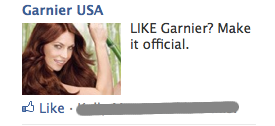
Sometimes the ads relate to things that your friends or family "like". This means that on a page (like I'm not a geek.com) someone has clicked the hand to say that they like it. You will be notified about things your friends like because the company thinks you probably will like it also.

All of this information is optional. Some people do not like to fill it in because they do not trust Facebook or others to use the information wisely. Others put lots of information into their profile because they want visitors to know about them.

SECURITY STORY
Recently I looked at my address book and noticed that everyone who is one of my Facebook Friends now has a Facebook webpage linked to them. I was shocked. I did not put that information in there. I am sure that Facebook decided it was a fast way for me to get to my friend's profiles and so they just added them. They may have announced this somewhere, but I don't remember seeing it. It bothers me because I would not like someone writing extra stuff in my paper address book. It is private. I think of my digital address book the same way. It is spooky to know that they can access it that way.