LET'S MEET ONLINE

LET'S MEET ONLINE! Call (512)560-2609 or email helpimnotageek@gmail.com and set up a time for a session. It works really well. We talk on the phone while I see your screen.
Showing posts with label address labels. Show all posts

Wednesday, October 12, 2011

Addition to Printing Address Labels

The recent post about printing address labels was from Eileen. She came to me and said that my response was nice, but I didn't understand what she wanted. She wanted to print a DIFFERENT picture next to each address.

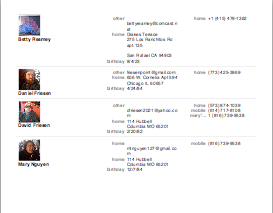
Well, I am not sure if the following information is helpful or not. With the Mac Address Book you can assign an image to each of your contacts. I usually try to take pictures of people that I add into my address book so I have both their picture and their information. You could just as easily put pictures of different flowers or anything you want for each person. The address book will allow you to print a LIST (not labels) which has those pictures showing right next to their phone numbers. For this list each person has their own picture.

When you set it up you have a choice of what information to display. My computer started by just showing the phone numbers, but I was able to add the address, email, and birthdays. There are a lot of other choices. You can see an example on the side. These pictures are tied to the information and so if you delete one of your contacts the image is also deleted. See the link above for more detailed information about creating this. The main thing to remember is the word PRINT! You have to choose that before you can set anything up.

Saturday, October 8, 2011

Merge Labels for Holiday Letters with Pictures

I just learned something REALLY cool about making address labels with pictures with a Mac. It is really easy using the built in Address Book.

1. Make sure that all of the addresses you want to print labels or envelopes for are listed in your Address Book.


2. Open your Address Book and hold down command as you click on the names of the people that need address labels or envelopes.


3. Now you do something that does NOT make sense, but works. You go to FILE>PRINT this is at the top of the screen on the left side.


4. A small window opens up and seeing it you may think that nothing has really happened! Click on the down triangle next to the name of your printer and the window will open up!


5. Now you should see a place where you can set up your labels to look the way you want them to. You could also choose just to print envelopes, lists or an address book.   

6. You can change the font of the label, put a picture on it, and the picture of the font.


7. Choose the layout that you need to have. The program has all of the Avery Labels listed, so you can just look at your box of labels to see what number you need to put in. 
 

When it is all set up all you have to do is to press PRINT! 

Really cool! I may do Christmas Cards after all.