LET'S MEET ONLINE

LET'S MEET ONLINE! Call (512)560-2609 or email helpimnotageek@gmail.com and set up a time for a session. It works really well. We talk on the phone while I see your screen.

Monday, September 12, 2011

Google Forms

Google has a whole suite of programs that you can use online called Google Docs. These are very similar to Microsoft Office that most of us are familiar with, but the saved documents are stored on their server (the cloud!) so that you can access them anywhere. They can also be shared so that more than one person can access, read and edit the document depending on how you set it up.

Today I am going to talk about something called Google Forms because it is so cool and easy to use. Google Forms is similar to Survey Monkey or any other type of survey software. You create a form that can be filled out by other people and then the results are collected in one place and you can manipulate them there.

You must have a Google Account to use Google Forms. Once you have one and have logged in you can choose to create a form.

A window will open up where you can design your own form. The form is fairly self explanatory to fill in. You put in each question or statement, directions for those who are filling it out. Choose a question type and put a check to indicate whether it is required.

Google offers 97 different themes so that you can change the way that your form looks.

Once you have designed your form you can choose to email it to the people who you want to fill it out. A window opens up where you can type in email addresses or choose from the contacts that you already have in your Google Docs account. You can also embed the form into your blog or website so that people who go there can fill it out (see the sample at the bottom of the blog and fill it out if you want to!)

When people fill out the form the results are automatically recorded on a Google Spreadsheet that is tied to the form. They see a window allowing them to go back to the form or to create their own form. The spreadsheet looks like this.

You can pull down the Form menu and choose "summary of responses" to see graphs that summarize your responses. You can also easily put formulas into the spreadsheet to average or sum up any numbers in the responses.

I used this for a contest where judges had to score pictures that students drew. Rather than trying to get everyone together at the same time I set up a form and then routed the pictures to each person. They could record their scores on the form and then I could just average the spreadsheet and get the responses right away!

This is an example of an embedded form. Feel free to fill it out. I will receive the feedback!:


Friday, September 9, 2011

HELP, I've lost my Facebook Password!!

I just got a note from my friend, Ruthie who has lost her Facebook password for some reason. She asked me to help her figure out how to get it.

She had already done the first step that a person should do when they forget a password. On the login page she clicked "forgot your password?" and entered her email address. Shortly after that she received email with a link to set a new password to get into her account. The problem is that when this happened it connected her to an OLD account that she had created by accident. This account was empty, while the other one had 209 friends, photos and lots of messages.

I was not sure how to help her, so I did what I always do and went to the HELP section of the program. I learned lots of things that might be helpful someday:

1. All accounts are connected to an email address. In your Account settings you can put in a back up email address which will allow Facebook to contact you even if your first email address is gone. Having a second email address here is important. I am adding one right now. Even if you have to create a free gmail, hotmail, or yahoo account in order to have a second add a second one do it!

2. Some times accounts are Disabled. There is a whole section on disabled accounts that might be helpful to look at.

3. In extreme cases Facebook has a way that you can Restore your Account through Friends. This still involves communicating with Facebook through a recognized email address. If you can not solve your problem any other way you may want to look at this section. I had a hard time finding it and learned that which words you use is really important. I kept looking for "restore" and could not find it, but when I used "recover" it worked.

4. You can get to the Facebook HELP CENTER even if you are not logged in by going to the bottom of the login page and looking for the small word "help" on the bottom right side.

5. You are not supposed to be able to make more than one account with the same email address. With my email address I made a business page, but it is tied to my Facebook page and acts a little differently. You can also create GROUPS with Facebook to have a password protected space that only certain people can access.

Thursday, September 8, 2011

Saving your Photos from Fire Two-Picasa

Picture downloaded from Picasa from Jeremy King
Yesterday we talked about Flickr as one place that you can upload your pictures. Having all your precious photos online somewhere means that they will not be damaged if there is an earthquake, flood or a fire. Today I will talk a little about Picasa.

Picasa works a little differently than Flickr. It actually has two parts. One is a program on your computer and the other is online file space.

You start with Picasa by going to http://picasa.google.com and downloading a copy of the free program. It puts a program on your computer that can automatically look for all of the pictures on your computer and display them into the one program. It does not actually move any of the pictures, but puts a pointer to them so that you can find them all in one place. So far all you have is a program that helps you organize what is already on your computer.

The thing I find most irritating thing about Picasa is that it automatically goes and finds all of your pictures, so when you open it up you see a scrolling window on the bottom left side that automatically finds and categorizes all of the graphics on your computer. You can set it up to only look in certain folders for pictures.

First go to Tools>Folder Manager
In the Folder Manager you can indicate which folders you want Picasa to look for new pictures. Now when you open the program it will only collect and display the new photos you wanted it to find.

Picasa always leaves the original of your photos the same as it was. It is a program for organizing and editing your photos. When you open a picture and do some editing of it the original is not changed and when you save it a second copy is saved so that the original stays the same.

The next thing that you can do with Picasa is to upload your pictures to a web album. This web album works like Flickr. You can choose to upload the pictures you want there and you can make them public or private. The photos that you have not uploaded yourself are NOT on the web and will be destroyed or lost if your computer is damaged.

In order to upload any pictures that you want to save find the picture or folder from the left side menu and at the top of the window that appears choose SHARE. You will be given a choice to share these pictures publicly or privately.


When you have uploaded them you will find them at http://picasaweb.google.com. From here you can either search everyone's public photos with the search at the top of the page or log into your own album. Your online web album also has privacy settings. Here you can allow people to see your images, but not download them or even keep them completely private so that only you can see them when you log in.

Picasa recommends that you make a back up copy of all of your pictures using TOOLS>BACK UP PICTURES in order to be sure that you are actually saving all of the originals. The program automatically resizes the photos when you upload them so that they do not take up too much space. You can set it up so that your original sizes are uploaded, but it will take a lot of room and you may use up space quickly. If you lose your external hard drive in a fire you will be happy to at least have the smaller versions saved.

Because Picasa is a Google program it has a connection to Blogger and so any images that are posted to a blog are also posted in Picasa online. All of the images from this blog can be found in the Picasa album from this blog.

There is some fantastic information here that goes more in depth. https://sites.google.com/site/picasaresources/faq

There is so much more that you can do with either Picasa or Flickr, but this should give you a start saving your precious photos. Picasa is made for editing, organizing, sharing and creating things with your photos.


Wednesday, September 7, 2011

Save those Photos and other things from Fire

In Austin, Texas this week we are dealing with fires that are out of control. I read somewhere this morning that over 800 houses have burned down. That makes me sad and thoughtful. Two weeks ago my son's apartment in Chicago burned down (http://www.indiegogo.com/Dan-Friesen-Fire-Relief-donation page set up by his brother has links to news articles about the fire). When Dan's apartment burned I did not think about it much. I was concerned more about him and did not apply it to myself. Now that much of Bastrop right outside of Austin is burning I am starting to think about me, especially since it is so smokey outside. What have I done to think about dealing with fire?

There are lots of websites that offer help with what to do in general - http://www.statefundca.com/safety/safetymeeting/SafetyMeetingArticle.aspx?ArticleID=43, but this post is about how technology can help you.

As I write I am backing up my computer. I have a small hard drive that plugs into my computer and keeps a copy of everything I have on it. I think I may start carrying that in my purse. It is very small and has so much information on it. Even if I lose my computer I would still be able to get a new one and put back on it the things that I have stored. Even better much of what I have is actually saved on servers somewhere else. Any time I need to go to a website and log in I am usually saving things on "the cloud" (or actually some computer somewhere). Even if my house burns down and I lose my computer and my hard drive I can still get to those things.


That brings to mind two programs which are extremely helpful:  Flickr and Picasa. I will talk about Flickr today and Picasa tomorrow. Both of them are Photo saving websites where you can upload your photos for FREE. If there is a disaster you can still get your pictures back using any other computer.

http://www.flickr.com/ 
Flickr allows you to upload 300 mb each week for free. When you have gotten to that limit you must wait until the next week to upload or you can pay $25 annually for a pro account. When you upload a picture here the program automatically resizes the file to several different sizes so that it is not too large for the web.

One of the first things you want to do is to set up your privacy settings. After you have logged in you can find this by clicking on your name in the right top corner. You can choose to share your pictures or to make them private. If you make them private they will not show up when someone does a search. There are also very detailed settings in your account where you can allow some photos to show and others not, or maybe allow them to show, but not be copied or printed.


When you open up Flickr you see a greeting in a different language each time! The program starts out on the Home page where you can either go to your Photostream to see all of your pictures or to Upload Pictures or Video where you can do the uploading.

There is a lot you can do with your photos in Flickr which I could talk about on a different post. You can organize them into galleries and sets and you can mark them with lots of information like locations, names of people and tags.

Since the focus of this post is on saving important things in a fire the main thing is this: If you upload your pictures to a site like Flickr can be retrieved.

If something happened with all of your photos they will still be on Flickr. You may want to download another back up copy of all of them. This is not easy to do in the size of the original, but it is possible. If something like that would happen you may need to use a third party piece of software to do the whole download. If you want just a picture at a time it is not a problem.

Tomorrow I will look into Picasa and compare the two. There are other Photo saving and sharing sites so if you know about one that should be mentioned please comment.

Sunday, September 4, 2011

Getting Help

Deleting an account in Facebook

I am not having success keeping up with Facebook week. It is Sunday and so far the "week" has been two weeks and I have not been regularly writing. So, this will be the last one for the Facebook series for right now.

There may be other things that you are curious about, so please feel free to give me ideas for future posts! Today I will be talking about getting rid of a Facebook account. What happens when you do not want your account anymore?

If you are thinking that you do not want to use your account any more go into the account settings and choose SECURITY. At the bottom you will see the words "DEACTIVATE YOUR ACCOUNT". When you click on it you have a second chance and Facebook does what it can to try to persuade you into keeping your account active. Even after deactivating your account you can choose to opt in or out of receiving email from Facebook from your friends.

Notice that they say "deactivate" rather than delete or totally shut down. When you do this Your profile is disabled (people cannot look you up) and your name and pictures are removed from anything you have shared. Your profile information and friend lists are saved in case you want to come back. This is often used for people temporarily. You can reactivate your account by logging back into it.


PERMANENT DELETION of your account is a different thing. In order to do this you have to send a request to Facebook to have it done. If you do this you cannot change your mind and come back to your account Information like your name, email address, mailing address, and IM screen name and other personal information is removed from their database. 

Another way of dealing with an inactive account is MEMORIALIZING the account. When someone passes away it is possible to leave their account up, but make it inactive as a memorial to that person.

True Confession: Most of this information has come from the Help documents available right at Facebook. You can easily find this type of thing out on your own, but maybe this summary is helpful.

p.s. Another place to look for information about Facebook is on their own Facebook page which can be found by clicking About Us at the bottom of the page or searching for Facebook in the search window. It is so full of information that I am not sure how you find what you want, but it is good to know about. I learned that Oprah is doing a live Facebook show!

Thursday, September 1, 2011

Setting up your Facebook Profile

Your Facebook profile is important because it is what other people see when they come to your page. If you have set your privacy settings they only see what you have allowed, but the people you have given permission to will see your profile.

To get there you click on the word "profile" on the right of the top bar. Now on the top right you will have a choice to EDIT or VIEW your profile. VIEW allows you to see what other people see of your profile so that you can change your privacy settings if you want to.

When you click on Edit Profile you have the chance to change lots of things about your profile.

Basic Information-This is pretty straight forward and has your name, location and statement.

Profile Picture-This is where you can upload a picture from your computer that you want to use for your profile picture. Most people put pictures of themselves on Facebook, but you can put up any picture that you would like to represent you. You can also take a picture if you have a camera on your computer and use that. When you have uploaded a picture click on Edit thumbnail and you will be able to adjust what part of the picture shows up in your profile.

Friends and Family, Education and Work, Philosophy, Arts and Entertainment, Sports, Activities and Interests and Contact Information are all optional. You do not have to fill this all in if you do not want to. Ads on Facebook are targeted and so you will get ads that are closer to your interests if you do fill this in.

For example in my profile it says I am a teacher and so I get an ad about Autism. The ads change every time you go in.


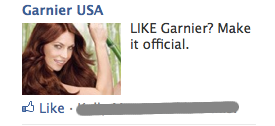
Sometimes the ads relate to things that your friends or family "like". This means that on a page (like I'm not a geek.com) someone has clicked the hand to say that they like it. You will be notified about things your friends like because the company thinks you probably will like it also.

All of this information is optional. Some people do not like to fill it in because they do not trust Facebook or others to use the information wisely. Others put lots of information into their profile because they want visitors to know about them.

SECURITY STORY
Recently I looked at my address book and noticed that everyone who is one of my Facebook Friends now has a Facebook webpage linked to them. I was shocked. I did not put that information in there. I am sure that Facebook decided it was a fast way for me to get to my friend's profiles and so they just added them. They may have announced this somewhere, but I don't remember seeing it. It bothers me because I would not like someone writing extra stuff in my paper address book. It is private. I think of my digital address book the same way. It is spooky to know that they can access it that way.