LET'S MEET ONLINE

LET'S MEET ONLINE! Call (512)560-2609 or email helpimnotageek@gmail.com and set up a time for a session. It works really well. We talk on the phone while I see your screen.
Showing posts with label back up. Show all posts

Thursday, July 24, 2014

Avoiding a Virus

Malware and Viruses are constant problems when using a computer. Because everything seems so invisible when using a computer a virus really seems impossible to predict or to find. So, the result is that many of us are always fearful that we might get a virus and are not even clear how it happens. 

The best defense against viruses is to be prepared and to not get them in the first place. There are a few things that you can regularly do in order to prevent getting viruses.

1. Most Importantly make sure that you have installed on your computer effective virus protection software. The most common ones are McAfee and Norton, which both have an annual fee. They are both very good. A free one is called AVG. If you go to the first link after you search for AVG you will come to the paid version which costs approx. $40/year. Keep looking until you find the actual free version. It is not as powerful as the paid version, but it does what you need it to do.

2. Back up, back up, back up!!!  I cannot emphasize this enough. Unless you do not care about anything on your computer and don't mind losing all of it you need to back it up on a regular basis. The frequency of your back ups depends on you. If you use your computer a lot once a week is good. If you just use it now and then maybe once a month is OK. If you have a business and depend on that data daily every day backups are good. There are online programs that you can purchase for around $40 a year that will do a regular back up to a server somewhere (in the cloud). Those servers are also backed up on a regular basis. This type of software is a simple solution. 

Another solution is to get a back up drive. There are drives on sale at Office Depot, Staples and many other places. They usually plug in using a USB plug. If you have a Mac you can use Timeline with an external drive to back up your files. If you do not have a Mac you can use any of the back up softwares with a removable drive rather than the cloud. This is so important that if you don't understand what is written here you should find someone to help you. 

There are two types of back ups.  One is a data back up. This is what most back up software does.  It will make a copy of all of your files and data (information saved on the computer), but it doesn't save programs. This type is the most common. Many people keep the original disks from the software they purchase or have paid for them and know that they can download the software again. The other type is an image back up. This is much more extensive and will copy all of the programs on the computer as well as the data/files. If you use a data back up you still need to make sure that you have copies of all of the programs you have added to your computer. 

3. NEVER click on a link or an attachment that you are not sure about. There are many negative hackers who can even make your email message look legitimate and put a link into it that opens a virus on your computer. If I get a message with a link from someone I know, I open a new message put in their address (never reply) and ask if they sent it to me. Most likely they did not and will let you know that. If they did send it you can ask them to send it again. People I know would not send a link without explanation and so often without asking I just delete the message.

4. If you are not sure about a link and it looks legitimate you can hover your mouse arrow over the link. Usually in the bottom left corner of your screen you will see the actual URL that your computer will take you to. If you do not recognize the link or it doesn't seem to be related to the sender do NOT click on it. Any legitimate company will send you a link with their company name in it (like www.facebook.com). 

IF YOU DO GET A VIRUS ALL IS NOT LOST

You can go to a Geek (look online for computer repair in your area) and ask for help or call the 800 number of your computer maker. If you have backed up your data or have an image of your computer they can help you restore it. If you don't care about what was on your computer before you can reset it back to the way it was when it was new. One big problem with viruses is that they multiply, so it is possible that people in your contact list will get email that looks like it is from you with a link they should not click on. For this reason if you know your computer has a virus immediately take it off the network. For wired computers unplug them from the ethernet cord. For WiFi computers go to the set up and end all of your Internet connections.  

Computer viruses are changing and getting stronger all of the time. One recent malware is called Cryptolocker. It will scan a hard drive and then encrypt files so that they can no longer be opened. The only way to get them back is to pay anywhere from $100-$300 to de-encrypt them. That is why it is so important to follow the prevention tips above. 

If you do click on something and get a CryptoLocker message or something like that immediatly disconnect from the network. This is one thing you can do to keep from using your contact list to send out other messages that may infect other machines. 

Monday, November 12, 2012

Wiping out your Hard Drive-on Purpose

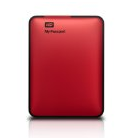
PICTURE of a Hard Drive
A HARD DRIVE
A friend recently asked me this question: "I want to give my computer to someone else, but I need to back up and then wipe out the Hard Drive first. How do I do that?"


Mac

First you need to back up all of your information from the hard drive. You need to think about any software that you have purchased or downloaded and your own files. Since you will be deleting all of this you will want to make sure you have a way to transfer them to another computer. If you have your new computer you can just transfer files from one computer to the other. You can see my post about backing up to learn more.


Also delete all of your files and folders from the computer. Most of these are probably in My Documents, but you may have saved things in other places like the Desktop. To delete you right click on the file and choose "Move to Trash" or "Delete". If you are using a Mac after everything is deleted you can empty the trash to get rid of the files from there.

Next use the Disk Utility that is included in a Mac to securely erase your computer. To get it go to Applications>Utilities and look for Disk Utility. If you choose the Secure method it will overwrite your hard drive so that the files cannot be accessed. You can run it several times to be sure that everything is clear.


PC

First you need to back up ALL of the information on your hard drive. To do this you can use a software program like Nova Back Up. You probably need to do this onto a separate Hard Drive. You can see my post about backing up to learn more.

Find the disks and licensing numbers (OEM number) that you used to connect to your printer and to install Windows. 

If you are giving away this computer you can use a program like Erase to wipe the machine so that your files cannot be found on it. 

Erase  http://eraser.heidi.ie/

If you are planning to reinstall and reuse the computer yourself here are some things to remember:

Be prepared to install dozens of patches after everything has been installed. It's very important that you do all Windows updates after installing a fresh copy of Windows on the computer.
Have installation discs or be prepared to download an antivirus immediately after installing Windows.
Finally, realize that re-installing any operating system to the point of completion is going to take several hours to complete.

Monday, September 10, 2012

How to Back Up your Computer

The best way to learn how important it is to back up your computer is to lose everything once. Most people have to go through that in order to learn, but not YOU. Starting today you are going to be careful about regularly backing up what matters to you.

WAYS TO BACK UP
1.  Put everything that you want to back up on "the cloud".  A good example of this is Google Drive. The slogan that they use is "Keep Everything, Share Anything". 

This is the easiest way to back up, but remember that whatever is put onto Google Drive is actually being put on a Server (a type of computer) somewhere owned by someone else.

I am very aware that much of what I am working on is already kept on "the cloud". I use Blogger.com to write this blog and so all of the content that is here is kept on a server somewhere that Blogger (actually Google) owns. I also have some pictures online using Flickr and some with Picasa. I often use Google Docs and whatever is done there is "on the cloud".

2.  Get a separate hard drive that you can plug into your computer and create a back up.

Of course if you back up using a hard drive it is important to realize that the hard drive should be kept in a different place than your computer. If there is a fire and you lose BOTH the computer and the hard drive, the back up will not help much. Some people recommend that you have three copies of everything (a double back up) so that at least one copy will be left if something happens. 


Most computers have a back up utility that will help walk you through the process. It is different for every computer, so I will not try to explain the details of how it works. You can either use the Utility that comes on your  computer or you can purchase a program that will walk you through the steps for backing up. I will give you one example, I use Time Machine on my MacBook.

I have purchased an external hard drive. The first time I plugged it in I opened the Time Machine program on my Mac and set it up to back up on that drive. Now every month or so I plug it in and my Mac automatically copies everything to the External Hard Drive. Time Machine backs up all of my programs, settings and data files on my computer. If something happened to my computer I could remake it with the Hard Drive. I really don't have to think about it much and it is easy to do. If I kept it plugged in all of the time it would do regular backups every hour.

In some computers the Utility (built in back up program) may be confusing, so it may be better to purchase a backing up program (something similar to Time Machine, but for PC) so that it will do the steps for you and make it easier. 

Some recommended programs that you can purchase for backing up your computer are:

http://data-backup-software-review.toptenreviews.com/ - This site reviews the top ten back up softwares for 2012.

http://www.pcworld.com/article/148765/save_your_data_with_one_of_these_top_backup_programs.html
This long URL may need to be copied and pasted into a browser to work. It is an article on PC World talking about 5 of the best Back Up programs.


Some places you can get external hard drives:
Go to these sites and search for external hard drive.
 
Amazon.com - http://www.amazon.com/

Newegg.com - http://www.newegg.com/

Office Depot - http://www.officedepot.com/

Best Buy - http://www.bestbuy.com

External hard drives come in different sizes. Some are in Gigabytes (GB) and some are in Terabytes (TB). All of the drives that I looked at came in at least 350 Gigabytes. That is plenty of memory for backing up most computers. If you are doing podcasts or making movies you may need more memory.

Thursday, September 8, 2011

Saving your Photos from Fire Two-Picasa

Picture downloaded from Picasa from Jeremy King
Yesterday we talked about Flickr as one place that you can upload your pictures. Having all your precious photos online somewhere means that they will not be damaged if there is an earthquake, flood or a fire. Today I will talk a little about Picasa.

Picasa works a little differently than Flickr. It actually has two parts. One is a program on your computer and the other is online file space.

You start with Picasa by going to http://picasa.google.com and downloading a copy of the free program. It puts a program on your computer that can automatically look for all of the pictures on your computer and display them into the one program. It does not actually move any of the pictures, but puts a pointer to them so that you can find them all in one place. So far all you have is a program that helps you organize what is already on your computer.

The thing I find most irritating thing about Picasa is that it automatically goes and finds all of your pictures, so when you open it up you see a scrolling window on the bottom left side that automatically finds and categorizes all of the graphics on your computer. You can set it up to only look in certain folders for pictures.

First go to Tools>Folder Manager
In the Folder Manager you can indicate which folders you want Picasa to look for new pictures. Now when you open the program it will only collect and display the new photos you wanted it to find.

Picasa always leaves the original of your photos the same as it was. It is a program for organizing and editing your photos. When you open a picture and do some editing of it the original is not changed and when you save it a second copy is saved so that the original stays the same.

The next thing that you can do with Picasa is to upload your pictures to a web album. This web album works like Flickr. You can choose to upload the pictures you want there and you can make them public or private. The photos that you have not uploaded yourself are NOT on the web and will be destroyed or lost if your computer is damaged.

In order to upload any pictures that you want to save find the picture or folder from the left side menu and at the top of the window that appears choose SHARE. You will be given a choice to share these pictures publicly or privately.


When you have uploaded them you will find them at http://picasaweb.google.com. From here you can either search everyone's public photos with the search at the top of the page or log into your own album. Your online web album also has privacy settings. Here you can allow people to see your images, but not download them or even keep them completely private so that only you can see them when you log in.

Picasa recommends that you make a back up copy of all of your pictures using TOOLS>BACK UP PICTURES in order to be sure that you are actually saving all of the originals. The program automatically resizes the photos when you upload them so that they do not take up too much space. You can set it up so that your original sizes are uploaded, but it will take a lot of room and you may use up space quickly. If you lose your external hard drive in a fire you will be happy to at least have the smaller versions saved.

Because Picasa is a Google program it has a connection to Blogger and so any images that are posted to a blog are also posted in Picasa online. All of the images from this blog can be found in the Picasa album from this blog.

There is some fantastic information here that goes more in depth. https://sites.google.com/site/picasaresources/faq

There is so much more that you can do with either Picasa or Flickr, but this should give you a start saving your precious photos. Picasa is made for editing, organizing, sharing and creating things with your photos.