LET'S MEET ONLINE

LET'S MEET ONLINE! Call (512)560-2609 or email helpimnotageek@gmail.com and set up a time for a session. It works really well. We talk on the phone while I see your screen.

Saturday, November 5, 2011

Changing the Language on Your Computer

Computers allow you to change all sorts of things in order to make them easier for you to use.  Each thing that you change only changes SOME of the programs on your computer.

This post will at least show you where to go to change the language. Knowing that it can be done is the first step.

You may need to go into each of the programs that you want to use and change the language that it uses. The way this is done varies with each program, but there are a few things that are the same. The instructions below should get you started. As usual, if you have anything to add to what is here please put a comment so that we can all learn from each other.

ON A MAC
On a Mac all of the controls are in the System Preferences.

  1. The best place to find these is to click on the Apple at the top corner of the screen. On my computer it is black, but it can also be a rainbow apple. 
  2. Look for the word System Preferences in the window that comes down.
  3. When you choose System Preferences you will see that in the top row you have a choice called Languages and Text.

  1. When you open this up it will give you lots of choices for how you want your computer to communicate to you.
  2. Down below that you will see something called "Universal Access". This is where you can change the size of the font and the color of the screen. You can also make it so that your computer talks to you and change the speed of the keyboard and the mouse.
3.  On the top row is a button called Languages and Text. Click on this to set the main language for your computer to use. 
4. Once you have clicked on it you can drag the language you want your computer to show to the top of the list. You can also change several other things that have to do with language here, like what characters show up when you type or what format is shown for money or time.
On this blog there is an arrow on the top right that lets me change the language that it shows up in and it changes right away.

ON A PC


On a PC all of the set up items are found in the Control Panel.  Click on the Start Button or picture of windows on the bottom left corner. On the right side you will see the words Control Panel.
In this window you will be able to change the LOCATION which tells the computer that you are in a different country. Your time will change on the clock. Then you can choose the tab at the top of the page Keyboards and Languages. Here you can choose to change the default language for input. 
When you open the Control Panel one of the choices is Clock, Language and Region. 


Click on that choice and then choose Region and Language. 


 Once you have set your main languages there is a language bar that shows up at the top and you can switch back and forth.


 When I changed the language settings on my computer it seemed to change the languages on most of the webpages in Internet Explorer.


It also changed the way that words showed up in the controls of my computer.


Monday, October 31, 2011

Happy Halloween


Today I am just writing a quick post to wish you a Happy Halloween and remind you that there are all sorts of fun virtual ways to enjoy the holiday.


The picture in this post is a pumpkin carving I made a few years ago. It is easy to go online and find a pattern for a pumpkin that you can print out and then transfer to a pumpkin and carve.


Here are some sites for doing that:

http://www.zombiepumpkins.com/

http://www.bhg.com/halloween/pumpkin-carving/printable-pumpkin-stencils/


http://www.rd.com/slideshows/12-free-printable-pumpkin-carving-stencils/2/

Then if you don't like the mess there are sites where you can virtually carve a pumpkin:

http://spookathon.com/halloween/pumpkin-carver.php
 

http://www.abcya.com/pumpkin_carving.htm


http://www.methodshop.com/games/play/pumpkin-carve/index.shtml

And then there are apps for your iPhone and/or iPad!

http://gigaom.com/apple/use-your-iphone-or-ipad-to-carve-a-cooler-pumpkin/


Monday, October 24, 2011

Editing Toolbars in Microsoft Word

I often use my favorite tool (word wrapping ) when creating a document.  It allows me to line up text to images in the way that I want them to look. It is in the picture toolbar. I find it by going to VIEW-TOOLBARS-PICTURE. It is part of the picture toolbar, but did not show up most of the time when I used MS Word. I had to click on the little arrow at the end of the toolbar that let me know that there were MORE tools and then find it.

Today I decided that there must be a way to edit the toolbar so that I don't have to look for the wrap text tool every time. There must be a way that I can add it to the toolbar where I can see it all of the time. I did find out how:

1. Click on VIEW-TOOLBARS and choose CUSTOMIZE.


2. A window opens. Click on the top where it says COMMAND.

3. When the COMMAND window is open you can drag and drop tools from the list of tools right to the menu OR drag tools off of the menu on the toolbar and they disappear.

4. In the Customize window you will see two choices. First is the Categories. When you click on each category a new list of commands appears on the right side.

5. It took a while, but I found the word wrap tool under the category of Drawing. I was then able to drag it right onto the toolbar where I wanted it to be!
BEFORE


AFTER
I have a lot of tools on the toolbar that I never use, so I would like to drag them off and then I have tools that I use often and I want them to be easy to find. Here is the before and after pictures of my toolbar!


It is amazing how many tools there are!  So many possibilities!

BONUS INFORMATION

One added tip: You can resize and move your toolbars anywhere you want on your computer screen, so that they are best for you.  You just need to be able to drag two different things.
This is the bottom corner blown up so you can see it better.
1. The right bottom corner, which looks like a folded corner-look for the three little diagonal lines.

2. The left side bar. The side bar always has a circle at the top and what looks like little dots under it.


3. To make the bar into a long skinny bar that you can put on the left or right side of your screen drag the corner until it is a line and then drag the top until it is where you want it to show up.

You can delete a toolbar by putting your arrow on top of the circle. It will turn red and then you click.

If a toolbar is missing you can choose VIEW> TOOLBARS and look for the toolbar that you want to show up and it will reappear.


Wednesday, October 19, 2011

Updating your iPhone to IOS5

Today when I went to sync my iPhone it told me that I needed to update to IOS5. There are a lot of changes in this version, so I though I had better do it.  I said yes and it began doing whatever it does when it updates and syncs. I continued working on the computer to get some things done that I needed to do. When I looked back at my phone it looked like it had synced, but when I went to iTunes on the computer it said,"An error occurred while backing up this iPhone (-5000). I went back to check my phone.  It looked OK, but when I tried to open on of my games nothing happened (a black screen).

It is such a horrible feeling when this happens. But I kept having to remind myself that everything was still on my computer because I have been syncing often. Even if it was not on my computer right now I have been doing regular back ups of my computer, so I could restore the data from a back up in the past. (REMINDER-Have you been backing up what you have on your computer to an external hard drive?)  It is hard not to feel panicked though!

When a sync goes wrong you can always choose RESTORE to restore your iPhone to the state when you got it. This will empty everything off of your phone, but remember it is still all on your computer. I clicked on Restore once and it seemed to get stuck again. So, I looked online. I have learned that you can find help for almost anything by typing it into a Google Search. I typed "problems with iphone update 5" into the search box and found this link http://www.zdnet.com/blog/storage/beware-the-ios-5-update/1553 The article described the same thing that had happened to me. That made me feel a little better. Reading it gave me the courage to try RESTORE again. This time it worked like it was supposed to. After the iPhone is restored I then chose to SYNC so that it put my calendar, contacts, and especially my apps back onto the iPhone. It is now all working again.

Tuesday, October 18, 2011

Dropbox-A great way to collaborate

For the last few weeks I have been working with someone from a distance and we have been sharing files in such a great way!  Dropbox is a program that you can download to your computer, iPhone, Blackberry, Android or  iPad. It creates what looks like another Folder or Drive on your device. It is a place where you can put files that you want to share with someone else OR that you just want to be able to access in more than one location on more than one computer. You can even go to a computer you have never used and log into Dropbox online to access all of your files.

My friend and I were trying to figure out how she could share a bunch of photos, that we had agreed I would resize and crop, with me. There were a lot of photos and we wanted to start out with the largest sizes we could so that the quality was good. First she copied them all onto a thumb drive and I tried to put them onto my computer, but we had some problems. Either the thumb drive was not good or it was because she is working on a PC and I work on a Mac. So, we decided to try Dropbox as a way to share files.  Here is how it works:

1. My friend uploaded all of the pictures into the SHARED folder in her Dropbox.

2. She invited me to share the files with her. I got an email and accepted.

3. Now when I open my shared folder the folder that she uploaded there appears. I can access all of the pictures that she sent me and work on them.

4. I edit the pictures for her and then put them in other folders inside the folder that we are sharing. She can access them and let me know if they are OK or what else needs to be done on them.

It is amazing and easy!

p.s. You remember 'the cloud' that everyone talks about? Well, that is how this works. The files in the dropbox are actually stored on a server (computer) somewhere and by sharing that folder more than one person can access it OR you can get your files from any computer that has WiFi access.


Wednesday, October 12, 2011

Addition to Printing Address Labels

The recent post about printing address labels was from Eileen. She came to me and said that my response was nice, but I didn't understand what she wanted. She wanted to print a DIFFERENT picture next to each address.

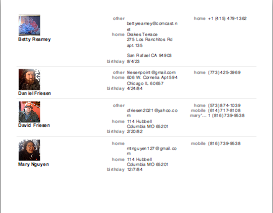
Well, I am not sure if the following information is helpful or not. With the Mac Address Book you can assign an image to each of your contacts. I usually try to take pictures of people that I add into my address book so I have both their picture and their information. You could just as easily put pictures of different flowers or anything you want for each person. The address book will allow you to print a LIST (not labels) which has those pictures showing right next to their phone numbers. For this list each person has their own picture.

When you set it up you have a choice of what information to display. My computer started by just showing the phone numbers, but I was able to add the address, email, and birthdays. There are a lot of other choices. You can see an example on the side. These pictures are tied to the information and so if you delete one of your contacts the image is also deleted. See the link above for more detailed information about creating this. The main thing to remember is the word PRINT! You have to choose that before you can set anything up.

Saturday, October 8, 2011

Merge Labels for Holiday Letters with Pictures

I just learned something REALLY cool about making address labels with pictures with a Mac. It is really easy using the built in Address Book.

1. Make sure that all of the addresses you want to print labels or envelopes for are listed in your Address Book.


2. Open your Address Book and hold down command as you click on the names of the people that need address labels or envelopes.


3. Now you do something that does NOT make sense, but works. You go to FILE>PRINT this is at the top of the screen on the left side.


4. A small window opens up and seeing it you may think that nothing has really happened! Click on the down triangle next to the name of your printer and the window will open up!


5. Now you should see a place where you can set up your labels to look the way you want them to. You could also choose just to print envelopes, lists or an address book.   

6. You can change the font of the label, put a picture on it, and the picture of the font.


7. Choose the layout that you need to have. The program has all of the Avery Labels listed, so you can just look at your box of labels to see what number you need to put in. 
 

When it is all set up all you have to do is to press PRINT! 

Really cool! I may do Christmas Cards after all.