LET'S MEET ONLINE

LET'S MEET ONLINE! Call (512)560-2609 or email helpimnotageek@gmail.com and set up a time for a session. It works really well. We talk on the phone while I see your screen.
Showing posts with label cloud. Show all posts

Friday, May 8, 2015

Is OneDrive Part of "the cloud"?

"The Cloud" can be really confusing. That is because it is invisible. I wrote aboutit in an earlier post called "What is Cloud Computing?" 

When I think of a cloud, I think of a fluffy white thing floating peacefully through the sky.  


That is NOT what the Cloud is that you hear about these days.When someone talks about "The Cloud" in the context of technology they are talking about HUGE warehouses of computers called servers that are storing HUGE amounts of your data and serving it or sending it out when requested. They look more like this picture.

Companies have "Clouds". If you use Kindle, you are storing your books on the Amazon Cloud. If you have Gmail your email goes through the Google Cloud. Apple has a cloud that they call iCloud. Microsoft calls their cloud OneDrive. Dropbox is a Cloud. Social Media sites like Facebook, Pinterest, and Twitter have Clouds. 

The Cloud or Clouds have made it possible for us to access information from anywhere that there is wifi. We can sync all of our devices so that they have the same information. We can share files and photos with people in other locations easily without having to attach them to email. Clouds are maintained and backed up regularly - hopefully in different locations, to ensure the integrity of information. 

A word of caution though.  The Cloud is not just one thing or an innocent peaceful thing. Clouds are many different collections of data managed by companies. It is possible that a company may go out of business. What will happen to your data? What if the company that is storing your data uses it in ways you do not approve of? What if there is a security breach somehow and your files are accessed? The recent story of celebrity pictures is an example of that. (Click on the link if you don't remember it! I chose CNN because it does not actually have the photos. It just talks about them.)

That is why strong passwords and not posting anything that you don't want to share with the world are really important.

The image below shows what the Cloud is and may make it clearer than what I have said. 


Friday, June 29, 2012

Getting iCloud to Work on all of your MAC Devices

If you have more than one Mac Device (an iPhone or an iPad) you may be interested in keeping them all the same. Now you can do that without syncing. Syncing is connecting your device to your computer's iTunes with the cord that came with the device. Now you never need to connect your device to your computer. Everything that happens on one device is also recorded on all of the other devices.

One of the best things about this is that if you download a new app from the app store it is automatically downloaded onto all of your devices. Another helpful thing is that when you change your address book, or calendar on one device it is changed on all of your devices.

The thing you need to know is that all of this can be controlled and must be set up at the beginning. Each device has a System set up area that includes iCloud.

Here is how to get to each one:

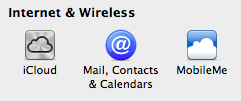
On your MAC computer click on the black apple in the top left corner. In the list that appears choose System Preferences and then look for the iCloud icon. If you do not have an iCloud icon you need to upgrade your operating system.
When you find the iCloud icon you can click on it to set up what you want to automatically sync. You then need to do the same set up on all of the devices that you want to communicate with.


On an iPhone or iPad look for the Gear Icon that says Settings down below the icon. It will lead you to the area where you can set up your iCloud. In this way you can set up your iPhone in a different way than your iPad if you wish.

You cannot stream your photos through iCloud unless you have iPhoto 9.2 or later. So far I have not upgraded to a new version of iPhoto, so I still have to transfer my photos the old way. 


So, now you know two ways to sync your device to your computer; through the cloud or using your computer's iTunes and plugging in physically with the cord that came with it. Remember that the Cloud is actually a computer. In this case it would be one of Apple's huge servers. So all of the data that you sync to your devices is also saved on their server. Just be thoughtful about what you want on a public computer. If you have passwords or banking information you may not want to put it on the Cloud. You can choose to sync with the cloud for part of your data and to sync onto your computer for other things. You are able to set it up in whatever way works for you.


Tuesday, October 18, 2011

Dropbox-A great way to collaborate

For the last few weeks I have been working with someone from a distance and we have been sharing files in such a great way!  Dropbox is a program that you can download to your computer, iPhone, Blackberry, Android or  iPad. It creates what looks like another Folder or Drive on your device. It is a place where you can put files that you want to share with someone else OR that you just want to be able to access in more than one location on more than one computer. You can even go to a computer you have never used and log into Dropbox online to access all of your files.

My friend and I were trying to figure out how she could share a bunch of photos, that we had agreed I would resize and crop, with me. There were a lot of photos and we wanted to start out with the largest sizes we could so that the quality was good. First she copied them all onto a thumb drive and I tried to put them onto my computer, but we had some problems. Either the thumb drive was not good or it was because she is working on a PC and I work on a Mac. So, we decided to try Dropbox as a way to share files.  Here is how it works:

1. My friend uploaded all of the pictures into the SHARED folder in her Dropbox.

2. She invited me to share the files with her. I got an email and accepted.

3. Now when I open my shared folder the folder that she uploaded there appears. I can access all of the pictures that she sent me and work on them.

4. I edit the pictures for her and then put them in other folders inside the folder that we are sharing. She can access them and let me know if they are OK or what else needs to be done on them.

It is amazing and easy!

p.s. You remember 'the cloud' that everyone talks about? Well, that is how this works. The files in the dropbox are actually stored on a server (computer) somewhere and by sharing that folder more than one person can access it OR you can get your files from any computer that has WiFi access.


Monday, August 15, 2011

Bookmarks or Favorites using Delicious

When you find a site that you like and want to find it again you may bookmark the site or make it a favorite. It is then added to a list kept on your computer. This is helpful, but ONLY on the one computer that you are using. If you go on a trip to visit a friend and use their computer or to the library and use that computer you will not be able to access your bookmarks or favorites.

That is why many people use Delicious, Diigo or other online tools to save their bookmarks. For this post I am going to use Delicious as an example (http://delicious.com) as an example, but there are many others that do similar things.


When you go to Delicious for the first time you have to sign up for a free account. This will give you a password protected space where you can save your bookmarks. You can decide to share them with others or to make them private. You can even have some shared and others private.

Once you have an account you can sign in and begin using it. Begin by following the directions to import all of your current favorites or bookmarks into Delicious. You can also add a browser button to the top bars of Internet Explorer or Firefox (or whatever browser you use). There are instructions for doing this that you can get back to at any time using the HELP menu.


When you add a bookmark to Delicious it is now saved on "the cloud" so that you can access it from any computer. You can also use Delicious to search. Just log in and there is a search window on the first page. You can search your own bookmarks or everyone's shared bookmarks. Each bookmark has a number in a blue box on the right that shows how many people have saved that particular bookmark. Sometimes this is helpful information to show how good a site it is. The words on the bottom are called TAGS and describe the site so it shows up when you search for those things.

Now when you go to any site you want to save you can just click on the Delicious button on your toolbar or the Menu at the top of Firefox and choose Save new bookmark. It will be added to your list of bookmarks in Delicious and you can find it on any computer!

Here are some other bookmarking online sites you may want to try:

Diigo-http://diigo.com - Diigo can do more than just bookmark sites. You can save highlighting, comments and other annotations on a site. You can share these with others or make them private. It can also do many other things.

Stumble Upon - http://www.stumbleupon.com/home/ Stumble Upon gives you a bar with an icon that takes you to a different website every time you click it. It can be a fun way to explore the web. You can set up your interests so that it sends you to sites that you may like. It also sends a weekly email with suggested sites depending on your settings.

List of many sites: http://www.social-bookmarking-sites-list.com/  - Look through this list!  Each of these does something in addition to saving your bookmarks.


Remember I am available to help you in person to set any of these things up or explain them more and answer questions. Just email helpimnotageek@gmail.com. And as usual please add helpful information to the comments!

Saturday, July 16, 2011

What is Cloud Computing?

If you have not heard the words "the cloud" yet I want to know where you have been.  Even frequently run commercials are talking about "the cloud" as if it is a really good thing. But what is it?

"The cloud" is a way of describing a huge bank of servers somewhere that store data for you. It is not really a magical place, but it is a place that is hard to visualize. When you save something to your computer you know where it is. You might also have some files, or data on a thumb drive or a CD Rom. When your data is in one of these places you can put your hands on it. However, if your data is in one of those places and you are in a different place you cannot just pick up any computer and access the information.

"The Cloud" describes computers that are called SERVERS and are designed to store and "serve" huge amounts of data to other computers. This blog is on a server that Google's Blogger is on somewhere and so it is easier to say that it is on "The Cloud". If you do genealogy you can benefit by having your information on "The Cloud" so that you can learn from what others are finding and they can learn from you. Facebook is on "The Cloud" and so are many more programs and websites where you need to login for access.

So, "The Cloud" can be a good thing, but it also brings up lots of questions:
Who owns the data on the cloud?
Is my stuff that is saved on "The Cloud" private?
Is there a way that I can lose everything that is out on "The Cloud"?
and
Is this the same cloud where heaven is?

If you are interested in learning more here are some links that might help you:
InfoWorld-What Cloud Computing Really Means
20 Things I Learned about Browsers and the Web
Wikipedia Article on Cloud Computing