LET'S MEET ONLINE

LET'S MEET ONLINE! Call (512)560-2609 or email helpimnotageek@gmail.com and set up a time for a session. It works really well. We talk on the phone while I see your screen.

Friday, May 23, 2014

What is an avatar?

An Avatar is a picture that you can use to represent yourself on a website. Many websites now ask for a picture when you complete your profile. Most people just use pictures of themselves, their families or something that they like. You will see some that are actually avatars. Here are some sites where you can make your own avatars for free. I have tried each one out and put it into the blog so that you can see what they are like.


10 Websites to Create your own Avatar
http://www.hongkiat.com/blog/websites-to-create-unique-avatar/

For Children especially
Avatars are especially good for children. It is best for them not to put their own photos online. This site has tons of choices.
https://sites.google.com/site/webtoolsbox/avatars


List of Avatar Makers
http://copyrightfriendly.wikispaces.com/Avatar+Makers

Doppel Me
http://doppelme.com/


Voki-Voki avatars can move and even talk.
http://www.voki.com/


Monday, May 12, 2014

Help!! I have a bunch of files to rename!

When I connect my camera to my computer and download the pictures they are all files named DMG001, DMG002, etc... Usually I don't have time to rename each of the pictures one by one. It helps me to remember what they are if I name them something more meaningful.  So, I searched and found some software that would do that for me.

This is often called a “batch” process because you are changing a batch of files at the same time. To find some software I did a search for 'software to rename files mac' You could do the same for 'software to rename files PC' and add the word free if you want to be sure that you get a free option.

I chose NameChanger because it was free. 


MAC

    picture of NameChanger window
Open NameChanger and find the files that you want to change. Set the program up to change parts of the name or the whole name. Notice that there is a pull down menu that gives you several choices. You can choose to give them all the same name with a numeral at the end that changes (1,2,3)


  1. Find the files that you want to change. This may mean opening a folder and clicking COMMAND-A to select all of the files.
  2. Drag the files into the first column showing on the NameChanger window.
  3. Click the RENAME button on the top.


On the left side you will see the result and automatically you will also see that the file names have changed in your computer.

PC
There are free options to do the same thing on a PC. 


TO CHANGE ONE FILENAME AT A TIME

MAC
Click on the file one time to highlight it. Count to 10 and then click just the name of the file one time and wait for a second or two. You will see the name highlight in a way that allows you to type whatever name you want it to be.

PC
Right Click on a file (Remember right click always gives you another menu). In the menu that pops up you will see the word “rename”. Click on it and you will be able to give the file a new name.


Thanks to Glee for having this problem so that I could figure it out and write it up here!

Friday, April 25, 2014

What is encryption?

Since there has been so much news lately about the Heartbleed bug and other viruses I thought it would be a good time to talk a bit about encryption.


S
Illustration from http://www.engineeringafamily.com/
Encryption is an important part of Internet Safety although it is something that you do not see or do anything about. It takes what you type on the computer (input) and puts it into a code so that while it is traveling over the wires no one can intercept it and steal that information. When your message arrives at the other end it is decrypted so that it can be read.

At this time most Banks, PayPal, and other Websites that involve money or information that needs to stay secure use strong encryption. It is also a major concern of Doctors and Hospitals as they put patient information online. 

Unlike most posts this does not end with something that you should do. Encryption is good to know about. It is automatically done at many sites.

Good security is an important part of doing business online. The good thing for us users is that the companies are possibly more concerned with safety than we are. They know that if they are unable to provide secure transmissions on their site they will lose customers. 

Encription according to http://dashlane.com


Tuesday, April 15, 2014

Password Management and the Heartbleed Bug

You may have heard of the Heartbleed Bug. Here is the article about it on Wikipedia http://en.wikipedia.org/wiki/Heartbleed_bug

The Heartbleed Bug could allow a hacker to access all of your passwords. Experts in cryptography have called it catastrophic and rated it 11 on a scale of 1 to 10. Big companies like Facebook, Google, and Yahoo are plugging that hole and taking care of the bug, but since the problem has been around so long (maybe 2 years) your password may already be compromised.

In order to avoid any problems you need to change your password on all of the sites that you use. That is an overwhelming thought. 

PASSWORD MANAGEMENT SOFTWARE

I looked into Password Management Software. This type of software is often called a vault because all of your passwords are stored behind one strong password which is the ONLY one you will need to use. The software automatically gets you into sites because it knows your passwords. NO ONE except you knows your Master Password. It is not stored on a server somewhere. Even the company does not know it so if you forget it you also lose all of your other passwords. 

I also decided to read about the safety of using this software. What if someone figures out my ONE difficult password?  Then they will have access to all of the others. The articles that I read said that this will not be an issue. Dealing with passwords this way is MUCH safer than using the same password for many sites. 

HOW I SET IT UP


With Dashlane I first went to their site and downloaded the program to my computer. Next the program looked through my computer to find any passwords that were automatically saved in the computer. There were several. It automatically added them to the list. I tried out each one and found that some of them did not work or were for old things that I do not use anymore. 

It was easy to click on the gear icon and then delete these with the trashcan at the bottom of the window that popped up. 

On the other sites I followed the directions for "forgot my password" and then did what they said in order to reset my password. When I clicked on the space to put in my new password a window popped up and Dashlane offered to generate a strong password for me.
I clicked to indicate that a secure password should be generated and then I closed up the site and tried to access it again. It was great! Dashlane did everything and I was logged directly into the site!

It took a while and some trial and error, but now I am set up with Dashlane for several websites. Now each time I go to a different site where I need a password it will be generated and added to Dashlane!  I just have to remember the one difficult password that I start Dashlane with. It is not saved anywhere, so if I forget it I will loose all of my other passwords and need to start again! I am going to put it somewhere I will not lose it.


Here are several Password Managers to choose from:

Dashlane - So far I like this one. It was recommended on many sites.
http://www.dashlane.com

LastPass - I think this one is the most common. It is very good and it is inexpensive to connect your accounts on your iPhone or iPad so that they all sync together.
https://lastpass.com/

Norton Identity

https://identitysafe.norton.com/

RoboForm Everywhere
https://identitysafe.norton.com/

1Password
https://agilebits.com/onepassword

StickyPassword
http://www.stickypassword.com

Password Depot
http://www.password-depot.com/overview.htm


Wednesday, March 26, 2014

Moving Documents to your iPad from your Computer and Printing Them

Now that a lot of us have iPads and use them all of the time we want an easy solution to getting our documents from our computers and to the iPad. Even better we want them to sync so that the same copy is on the iPad that is on the Computer.  Then we want to be able to print! We are demanding!

Luckily, there are lots of ways to move your documents from your iPad to your computer and to keep them in sync.


1.  PAGES - Using iTunes you can add documents from your computer to your iPad. They don't have to be .pages documents. You can even put .doc and .docx documents into Pages for iPad. In pages you can edit the document and then instead of "Saving As" you choose "Export" and export it as a .doc or whatever other format you can choose.
To add to your Pages App on your iPad:
  • Plug your ipad into your computer. 
  • Open iTunes 
  • Your ipad will show up on the list on the left side
  • Click on it and look for the apps tab on the top. 
  • The apps tab will show all of the apps that you have installed on your ipad. To get to pages slide down the page.
  • Click on Pages on the left side and on the right side it will show you all of the documents that you already have on Pages in your iPad. 
  • If you want to add a document click ADD at the bottom and find the document you would like to put up there.
Anything that is listed in the Pages documents can be edited with the pages application. You can then send it by email to your computer or use iTunes to move it back over or print it right from Pages if you have a WiFi printer (see below)


2.  GOODREADER -
Annotated PDF
GoodReader is an app that you can download to your iPad for free. Documents that you put here can be annotated. It is great for reading .pdf files or for teachers/professors who need to grade papers. After you have made the annotations that you want on the document you can send it by email. Goodreader always saves the annotated document and also the original that you began working with.


3.  DROPBOX - When you put a document into Dropbox you are actually putting it onto a server online. That server can be accessed by any computer that has the Dropbox app downloaded to it OR by logging in online at http://dropbox.com. Before you use Dropbox you sign up for an account. That way only you have access to your documents unless you specifically share them. When you work on the document and save it the changes are saved in Dropbox and so they are available on your iPad. You cannot edit a document in Dropbox, but if you have a word processing app on your iPad you can open the document into that app from Dropbox and work on it and then save it back into your Dropbox.


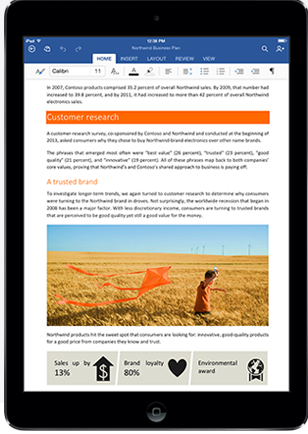
4.  MS OFFICE ON IPAD - Now you can get Office on your iPad. But wait! There are some drawbacks. It takes 450 MB of your iPad space just to load it. It is based on a subscription model that costs $99 annually.

5. GOOGLE DOCS - The great thing about Google Docs is that you can access them anywhere.  Google docs, also called Google Drive offers word processing, presentation, spreadsheet apps and others. When you type something in Google Docs it is saved on a server and you can access it through a browser anywhere that you have Internet access. If you need to access documents without internet access you can download Drive as a folder on your computer where you can access files even when you are not online. If you make changes they will upload the next time that you are online. 

PRINTING

You must have a WiFi printer and an app that can print in order to print from your iPad. You can print with Pages, MS Word, and there are many print apps (both free and up to $6.99). In my experience it takes a few times to get printing to work correctly, but don't give up. Search online for Printing with an iPad to get more information and quit when you are frustrated and start again when you are ready.


5 Things You Can Do to Make Being Online Meaningful (3-5)

The last post talked about the book NetSmart How to Thrive Online. It lists five skills that the author recommends for making use of the Internet meaningful. Last post I talked about two of the five skills. They were Attention and Crap Detection. In this post I will outline the next three. I know that this is very different from my "how to" posts, but please put up with me and we will get back to those.


PREFACE
Our cultural expectations have dramatically changed. A small example of that is telephone etiquitte. It used to be that you did not call anyone too early or too late. It was rude. You might be interrupting their sleep, or they might not be at home. Message machines seemed so impersonal at the beginning. 

Today rudeness on the phone means not silencing a cellphone at a concert or talking on a cell when other people are in hearing distance. The hour you call and even if a person answers does not matter. The caller just leaves a message or texts. If you call someone at 3 in the morning it is no problem because you can just leave a message that they will get in the morning. Just like cell phone etiquitte, Participation, Collaboration and Network Smarts are important changes caused by technology in our lives.

Participation
It has become possible for everyone to publish what is important to them online in one way or another. In Facebook you can "like" something, you can bookmark favorite websites, you can comment on blogs, or if you want to do more create you own blog or website. There are so many sites like Facebook, Linked In, Pinterest, Etsy, Twitter, etc... that will allow you to publish your own thoughts and pictures on the web for the benefit of others.

If you participate you need to be aware of your digital footprint. Everything that you do online is permanent and you have no control of who reads it or copies and pastes it to their own computer. Hopefully you have all positive contributions that you are proud of. Your digital footprint shows you as a positive contributer. If you have posted some things that you are not proud of it is important to be active in publishing things that correct your digital footprint, so that anyone who views you online will more likely find your current footprint than what is history.

Collaboration
Collaboration used to be considered cheating, but now it is necessary. Wikipedia is a good example. When I grew up Encyclopedias were sources of fact. You had to have a special shelf for them and they needed to be updated annually. The speed of new information increased and Encyclopedias could not keep up. Wikipedia allowed anyone to write or add to an article there are now 30 million articles. Collaboration allowed extremely current updating of information. People in locations of a disaster can add an article to show what is happening right then. The article on Hurricane Katrina was very interesting to follow because it changed in real time. If something untrue were added someone could come and correct it right away.

Since just anyone can add to it Wikipedia cannot be trusted as a final resource for information (actually, even the Funk and Wagnels could not!) However, it is a great place to start researching a topic. Usually there are links to follow at the end of an article that will take you to other information also.

Wikipedia is just one example of how Collaboration can make use of the Internet more meaningful. The general term for sites that allow this type of collaboration is Social Media. There are hundreds of sites on the Internet now that fall under that category.

Network Smarts

The final skill that I am going to summarize is more difficult to explain. The new way of relating to people is in a network rather than in a group. Sometimes you do not personally know someone, but on a social network site you are able to help them with an answer to a question. Networks make paying something forward (doing someone a favor even when they have not helped you) really meaningful. By being someone who gives you build Social Capital and trust. 

Facebook can be an example of a network. You may see comments on your news feed that are not from people you know. You are connected to them only through someone else. How you respond to them can build Social Capital and trust.

It is important also for you to be mindful and to set your privacy settings so that you know who is seeing your contributions. You do not have total control and sometimes the privacy settings change, but it is important to know where you stand.

CONCLUSION
I know that these two posts have been more academic than most of my posts. It has helped me because at times I feel caught in changes that are going so fast. It helps to take time reflect and to be mindful of what I do online and how I help others. 


Friday, March 14, 2014

5 Things You Can Do To Make Being Online Meaningful (1-2)


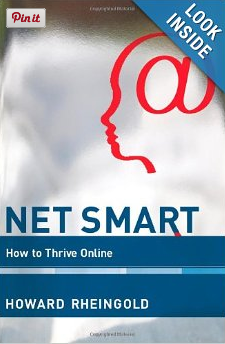
In the book called "NET SMART How to Thrive Online" Howard Rheingold talks about five important skills that we need to have in order to use the Internet meaningfully (and that includes email).

The book interested me because for a long time I have felt that technology is overwhelming. It seems to change so fast and once you do email fairly regularly it tends to pile up faster than you can read it.  How does anyone deal with this? Then there is the issue of safety. How can you keep your identity safe online? What about viruses?

I would highly recommend this book for anyone who is dealing with these questions. In the book he also discusses some other important questions.

  • What do you do if you have a bad reputation online when things that are online ever go away?
  • Why is it important to live mindfully?
  • How can I possibly keep up with technology?
  • Why should anyone use Twitter?
  • Is the Internet making us stupid?
  • Can everyone see everything on Facebook?

It is summed up in 5 important skills that we all need to develop in order to use the Internet in a meaningful way. These are new literacy skills that we all need to learn.

ATTENTION

I tend to avoid going to Facebook because a few hours after I have started looking at it I realize how much time has passed and remember (usually too late) why I was going there in the first place. I think we all have that type of experience when we go to the Internet and just follow interesting links from where we are to other interesting places and on and on.

Rheingold says that this is a good new way of learning, but only if you are in control of your own attention and choose to spend time this way. However, it is difficult and takes intentional effort to train yourself in attentiveness.

This section of the book is especially worth reading. He talks about the hoimportance of breathing and being aware of what we are feeling and also our body. It is not good to sit at a computer for too many hours without getting up and moving. Moving brings blood to our brain and helps us to think and learn better. He also suggests that we need to learn to put down the phone or iPad and look at the people we are talking to. Paying attention to others is important.

Multitasking usually causes a person to lose some effectiveness on each thing they are doing. Repetition is important. When you repeat good habits you instill them in yourself.

These skills are especially important for people under their 30's who have lived with technology all of their lives. I have not developed the habit of being caught up in my phone while not attending to people I am with, but you see it all of the time on college campuses. Some of the other literacy skills that he talks about are more important for us "older" folks

CRAP DETECTION

You can find almost anything you want to know on the Internet. The words you use to search are important. It is up to you to decide whether what you find is accurate, inaccurate or intentionally misleading. It helps to be skeptical first. Next you can do several "detective" activities to figure out if what you are seeing or reading is accurate.

Think about who wrote the page. Anyone can make a webpage pretty easily now. Try to find the author and search to find out if there is other information about them on the Internet. He suggests some really helpful ways to authenticate a webpage and learn more about it. One important word is TRIANGULATE. That means you should find three sources that agree on something before passing along a rumor.

Here are some websites that can help you to do this:

Snopes
http://www.snopes.com/
Snopes is a site where they do research on rumors that float around the Internet and post the source of the ones that are not accurate. If you receive an email offering a free flight on American Airlines is it for real. Searching Snopes will tell you that it is not and why.

Hoax Sites
http://teachbytes.com/2012/11/01/test-website-evaluation-with-10-hilarious-hoax-sites/
This is a page that gives you 10 websites that "look" accurate, but are actually made to fool people.

The Gallery of Hoax Images
It is very easy now to edit an image so that it looks just like it must be true!  This site shows images that have become viral (spread quickly- people sharing them with their friends) and explains why they are not  actually true.
http://www.museumofhoaxes.com/hoax/photo_database/photo_category/category/viral_images

The next three skills will be talked about in the next blog post.