LET'S MEET ONLINE

LET'S MEET ONLINE! Call (512)560-2609 or email helpimnotageek@gmail.com and set up a time for a session. It works really well. We talk on the phone while I see your screen.
Showing posts with label syncing. Show all posts

Thursday, January 8, 2015

Comparisons of Samsung Galaxy 5S with my iPhone 4S

With the New Year came a change of phones. I wanted a chance to try out a Samsung Galaxy since so many of my customers had them and I wanted to change service providers. I have had ATT since I have had my first iPhone. It was required in order to get an iPhone at the time. 


Here are my first impressions

  1. I hate all of the different - proprietary - plugs that each phone has!! My iPhone has a plug which is the same as the one on my iPad.  Now the Samsung Phone has a different one. My husband updated to an iPhone 6 and so he also has a different one.
  2. The cord is not as smooth for the Samsung Phone. I am guessing that Apple has some patent on the cords it uses. They are so wonderfully smooth.
  3. The plug into the phone for the power cord is not as smooth on the Samsung as on the Apple.
  4. I learned the hard way that Samsung has a removeable battery that needs to be put in before you can start it up. I thought that maybe my Samsung was bad and I would have to send it back. Clear proof that I am not a Geek.  After a call to the help desk, all I had to do was to put the battery in and the Samsung started.
  5. Now that it has started up I like it. The screen is bigger and the picture is so clear. It feels like it floats, it is so light. My husband got the iPhone 6. I think they are similar.

Just a cool side discovery was that I could take one picture that did BOTH a "selfie" and a picture of what is in front of the camera.

SYNCING
What I have learned is that whereas the iPhone, the Mac and iPad all use iTunes to sync their information using iCloud, Samsung uses various things. The first thing I had to do was to download an app onto my Samsung phone called Smart Switch Mobile. With that app and an updated iCloud back up of my iPhone I could transfer most of the content from my iPhone to my Samsung phone.

Calendar, Contacts and eMail use Google
The Smart Switch took care of my calendar, my contacts and my email. Now I keep all of these synced using Google. My email was a gmail account, so that made it easier. If you don't have a gmail account you can easily create one for free and have your current address forwarded to it so that you get all of your email through gmail. You don't have to switch email addresses or tell your contacts that you have changed, because your mail is all forwarded.


Now my contacts are synced to the phone through Google rather than through the Contacts app. When I add an address to my computer under contacts it does not show up on my phone, although it does show up on my iPad. If I add it using Google it shows up on my phone. Another way to say it is that the Samsung does not talk with my Contacts on my Mac or Apple devices and they do not talk with the Samsung. I guess, for me, that means that my up to date contacts will now be on gmail and I will have to export them from gmail and import them to my Mac contacts every once in a while if I want that updated.

Pictures
The pictures are another issue. Before, using the iPhone and iPhoto, I plugged the phone into my computer it opened iPhoto. I could name and download the photos on my phone to my computer. The Samsung can be set up to use different methods. Mine is set up to use Dropbox. The photos I take are automatically loaded to Dropbox. I do not have to plug my phone in for that. 

To set it up this way I had to enter my Dropbox username and password into my phone. Now any picures I take on the phone automatically go to Dropbox. I can then move them to whatever photo organizing program I want to use. Some common ones are iPhoto, Flickr and Picasa.

A warning about using Dropbox. In dropbox you can share your folders or files with someone else, but you need to remember that if you take anything out of the Dropbox it is no longer available to the other person. I think that what I will do is to always copy the photos I have in Dropbox to somewhere on my computer so that even if they are deleted from Dropbox I still have them.

FREE OPINIONATED EXPERIENCE: SWITCHING PROVIDERS


For me ATT always worked. I don't have complaints about their service. At first (5-6 years ago), getting good help on the phone was impossible, but that has changed. Recently I have noticed that they have bent backwards to make sure your needs are met. The main thing is that I don't think that they, in general, support the same issues that I do and SO much of their money is going to make a few people rich. In years past ATT has compensated its five top executives (with equity, cash, and benefits) at about $47 million dollars a year. Credo Mobile, who I switched to has given $78 million to charities.

I chose Credo for those reasons. I am happy about that, however, the connection has not been as good. We have had bad connections and dropped calls. It has been easy for me to talk to a person and get help at Credo and the last phone call they said they were going to send out an AirRave Access Point for us to use for free. We will see how that goes and hopefully not have to switch to another company.

Wednesday, March 26, 2014

Moving Documents to your iPad from your Computer and Printing Them

Now that a lot of us have iPads and use them all of the time we want an easy solution to getting our documents from our computers and to the iPad. Even better we want them to sync so that the same copy is on the iPad that is on the Computer.  Then we want to be able to print! We are demanding!

Luckily, there are lots of ways to move your documents from your iPad to your computer and to keep them in sync.


1.  PAGES - Using iTunes you can add documents from your computer to your iPad. They don't have to be .pages documents. You can even put .doc and .docx documents into Pages for iPad. In pages you can edit the document and then instead of "Saving As" you choose "Export" and export it as a .doc or whatever other format you can choose.
To add to your Pages App on your iPad:
  • Plug your ipad into your computer. 
  • Open iTunes 
  • Your ipad will show up on the list on the left side
  • Click on it and look for the apps tab on the top. 
  • The apps tab will show all of the apps that you have installed on your ipad. To get to pages slide down the page.
  • Click on Pages on the left side and on the right side it will show you all of the documents that you already have on Pages in your iPad. 
  • If you want to add a document click ADD at the bottom and find the document you would like to put up there.
Anything that is listed in the Pages documents can be edited with the pages application. You can then send it by email to your computer or use iTunes to move it back over or print it right from Pages if you have a WiFi printer (see below)


2.  GOODREADER -
Annotated PDF
GoodReader is an app that you can download to your iPad for free. Documents that you put here can be annotated. It is great for reading .pdf files or for teachers/professors who need to grade papers. After you have made the annotations that you want on the document you can send it by email. Goodreader always saves the annotated document and also the original that you began working with.


3.  DROPBOX - When you put a document into Dropbox you are actually putting it onto a server online. That server can be accessed by any computer that has the Dropbox app downloaded to it OR by logging in online at http://dropbox.com. Before you use Dropbox you sign up for an account. That way only you have access to your documents unless you specifically share them. When you work on the document and save it the changes are saved in Dropbox and so they are available on your iPad. You cannot edit a document in Dropbox, but if you have a word processing app on your iPad you can open the document into that app from Dropbox and work on it and then save it back into your Dropbox.


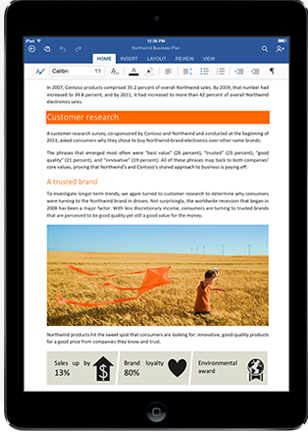
4.  MS OFFICE ON IPAD - Now you can get Office on your iPad. But wait! There are some drawbacks. It takes 450 MB of your iPad space just to load it. It is based on a subscription model that costs $99 annually.

5. GOOGLE DOCS - The great thing about Google Docs is that you can access them anywhere.  Google docs, also called Google Drive offers word processing, presentation, spreadsheet apps and others. When you type something in Google Docs it is saved on a server and you can access it through a browser anywhere that you have Internet access. If you need to access documents without internet access you can download Drive as a folder on your computer where you can access files even when you are not online. If you make changes they will upload the next time that you are online. 

PRINTING

You must have a WiFi printer and an app that can print in order to print from your iPad. You can print with Pages, MS Word, and there are many print apps (both free and up to $6.99). In my experience it takes a few times to get printing to work correctly, but don't give up. Search online for Printing with an iPad to get more information and quit when you are frustrated and start again when you are ready.