LET'S MEET ONLINE

LET'S MEET ONLINE! Call (512)560-2609 or email helpimnotageek@gmail.com and set up a time for a session. It works really well. We talk on the phone while I see your screen.
Showing posts with label Google docs. Show all posts

Thursday, November 15, 2018

EDITING WITH GOOGLE DOCS

EDITING WITH A GROUP
Track changes is helpful, but what I am really amazed with lately is Google Drive. I am on several boards and on committees that use it. It is a GREAT way to share documents so that multiple people can comment or edit a document without messing up what someone else has done.

When you go to http://drive.google.com you have to sign in with a Google account. You can get one even if you do not want to use gmail. Go to https://accounts.google.com/signup/v2 and either get a gmail account or sign up with your own email address.
signing up for a Google Accountsigning up with your own email


New Google Doc


Once you have a Google account and sign in to Google Drive you can start a new document or go to a document that has been SHARED with you.

shared documents
The person who creates the document is the owner. They can share it and set the permissions for each person who it is shared with.

If you choose File - Version History you will see who revised the document, what they did and when it was done. If you don't like the revision you can return to a previous version!

It is even great when you just want to share documents, but you don't want anyone to change them. When you share the document you just mark that everyone should VIEW only. They will not have the rights to change anything, but can view the document at any time.

This is becoming a very popular way to share documents on a committee or board.

Wednesday, March 26, 2014

Moving Documents to your iPad from your Computer and Printing Them

Now that a lot of us have iPads and use them all of the time we want an easy solution to getting our documents from our computers and to the iPad. Even better we want them to sync so that the same copy is on the iPad that is on the Computer.  Then we want to be able to print! We are demanding!

Luckily, there are lots of ways to move your documents from your iPad to your computer and to keep them in sync.


1.  PAGES - Using iTunes you can add documents from your computer to your iPad. They don't have to be .pages documents. You can even put .doc and .docx documents into Pages for iPad. In pages you can edit the document and then instead of "Saving As" you choose "Export" and export it as a .doc or whatever other format you can choose.
To add to your Pages App on your iPad:
  • Plug your ipad into your computer. 
  • Open iTunes 
  • Your ipad will show up on the list on the left side
  • Click on it and look for the apps tab on the top. 
  • The apps tab will show all of the apps that you have installed on your ipad. To get to pages slide down the page.
  • Click on Pages on the left side and on the right side it will show you all of the documents that you already have on Pages in your iPad. 
  • If you want to add a document click ADD at the bottom and find the document you would like to put up there.
Anything that is listed in the Pages documents can be edited with the pages application. You can then send it by email to your computer or use iTunes to move it back over or print it right from Pages if you have a WiFi printer (see below)


2.  GOODREADER -
Annotated PDF
GoodReader is an app that you can download to your iPad for free. Documents that you put here can be annotated. It is great for reading .pdf files or for teachers/professors who need to grade papers. After you have made the annotations that you want on the document you can send it by email. Goodreader always saves the annotated document and also the original that you began working with.


3.  DROPBOX - When you put a document into Dropbox you are actually putting it onto a server online. That server can be accessed by any computer that has the Dropbox app downloaded to it OR by logging in online at http://dropbox.com. Before you use Dropbox you sign up for an account. That way only you have access to your documents unless you specifically share them. When you work on the document and save it the changes are saved in Dropbox and so they are available on your iPad. You cannot edit a document in Dropbox, but if you have a word processing app on your iPad you can open the document into that app from Dropbox and work on it and then save it back into your Dropbox.
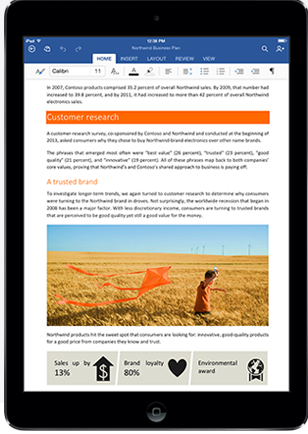


4.  MS OFFICE ON IPAD - Now you can get Office on your iPad. But wait! There are some drawbacks. It takes 450 MB of your iPad space just to load it. It is based on a subscription model that costs $99 annually.

5. GOOGLE DOCS - The great thing about Google Docs is that you can access them anywhere.  Google docs, also called Google Drive offers word processing, presentation, spreadsheet apps and others. When you type something in Google Docs it is saved on a server and you can access it through a browser anywhere that you have Internet access. If you need to access documents without internet access you can download Drive as a folder on your computer where you can access files even when you are not online. If you make changes they will upload the next time that you are online. 

PRINTING

You must have a WiFi printer and an app that can print in order to print from your iPad. You can print with Pages, MS Word, and there are many print apps (both free and up to $6.99). In my experience it takes a few times to get printing to work correctly, but don't give up. Search online for Printing with an iPad to get more information and quit when you are frustrated and start again when you are ready.


Wednesday, October 3, 2012

FREE Ways to Word Process, Collaborate, etc...


TWO STORIES 

At the end of September my son got married. He lives in Ohio and we are in Texas. We were helping him plan and design the ceremony. Instead of sending files back and forth or using lots of email David set up a Google Doc and invited us to share it. We could all work on it at different times or even at the same time in order to collaborate!  Amazing!


Recently I updated my MacBook to Lion, but to my unhappy surprise I found out that it does not support Microsoft Office. It has something to do with programs that used the Intel chip... I can't explain it... I'm not a Geek, but anyway there I was without some expensive software that I used all of the time. (side note: now when I receive an excel or word document I have to open up the Open Office first and then use File-Open to find the file and open it up.


You wonder what these two stories might have to do with each other?  Well, it is just that there are so many ways to get around having to use expensive software to do word processing, spreadsheets, and presentations now!

In this post I want to share with you some of what  I have done to fill in the gap from the software that no longer works on my system.

ONE

I downloaded a free program called Open Office. It is very similar to Microsoft Office, but it is Open Source which means that anyone can work on the code of it and make it better and it is FREE! I have been using it regularly for word processing. I have not used spreadsheets or presentations or anything else yet, but I think it will be fine. When I save something in Open Office I have to remember to change the format before saving because it has its own format (.odt) which other programs cannot open. When I save under "save as" I choose .doc and so far it seems to save everything just fine. 

TWO

I have been using Google Docs and Spreadsheets. The biggest benefit of these programs is that they can be shared online with others. You can give them rights just to look at the document or to edit it. You can make it public, so that everyone can see it or make it private so that you are the only one who has access to it. Google has just updated to Google Drives which I have not worked with much yet. It looks to me like you can download all of your Google Docs into a free software on your laptop. Then when you are not online you will still have access to your Docs and you can work on them. Then when you are online the newest copy syncs so that you have the same copy in both places. 

One drawback of using Google Docs is that you will be relying on Google to keep all of your stuff. It is all saved on one of their servers. If this is a problem for you avoid Google Docs. You will not have total control of everything. 

However, it is probably safer, in terms of not losing your documents because their servers are duplicated and regularly backed up. You can ALWAYS get to your stuff. It will be accessible even if you are in a flood or a fire and loose everything. You can access it from anywhere on any computer. 


  THREE

For some presentations I have started using Prezi. It is a whole new way of presenting ideas based more on networking thoughts and graphics together rather than presenting them in a linear way. The best way to see what it does is to go to their website and see some of their samples. 

So, we are getting to the point where we do not need expensive software to do the basic things that we want to do!