LET'S MEET ONLINE

LET'S MEET ONLINE! Call (512)560-2609 or email helpimnotageek@gmail.com and set up a time for a session. It works really well. We talk on the phone while I see your screen.

Thursday, January 24, 2013

Facebook-Constantly Changing

I guess Facebook has to keep changing in order to be responsive to all of their customers. It can be frustrating to think that all your privacy settings are set up and then to find out that Facebook has changed around how it works. Recently, it seems to me that they have been trying to figure out how to make your experience using Facebook more secure without losing all of the possibilities for networking that is the central purpose of the program.

I just read an article from USA Today (a paper that I usually do not take too seriously) at 
http://www.usatoday.com/story/tech/columnist/komando/2013/01/18/kim-komando-facebook-settings/1827413/ 
It was sent to me by a friend and the article did have several good recommendations. One overall suggestion is that it is good to check your privacy settings every once in a while to be sure they are how you want them to be. 

Facebook has added a new link to the right of your name at the top that looks like a lock with three lines next to it. When you click on it and the window opens up you can answer three questions. Who can see my stuff?, Who can contact me? and How do I stop someone from bothering me? Under these three questions is the link to See More Settings. When you click this it will bring you to a place where you can go into each one of your privacy setting areas and make changes. To make a change to them you click on the EDIT link, type in your changes, and then close the window. 


There is also a link here for looking at your own profile so you can see the way it looks to someone else who comes to your page. That is really helpful because you can get a feel for what people are seeing about you and decide whether you want to be more private or more public. 

To get there go to your privacy settings and look for the words "view as" in this view you will be able to see what people coming to your page see and also check if it is different for the public, your friends and friends of friends.

I suggest you take some time to click through these things and see what you think about the way your Facebook is set up. If this does not make sense to you or you have more questions please do add them as comments to this post and I will get back to them.


Monday, January 21, 2013

Tips on Working with Windows 8


First a quick review of Windows 8 after about a month of use


I like it. It is not intuitive (easy to figure out), but when you have figured out how to do things it works quickly and smoothly. I like the look of it. So far I have been able to download the apps that I need, but I really don't need many. It comes with Microsoft Office 2013 which is only out in trial form right now, but when it comes out it will automatically be updated on my Surface and I will have it without having to pay huge fees. 

The keyboard takes some getting used to and I am much better typing on my MacBook keyboard. I think with practice I can get used to it and not make so many mistakes. It is easier to use than the screen keyboard on the iPad or the screen keyboard that pops up on the Surface. I do not have an iPad keyboard, so I assume that if I did it would work like this does for the Surface. 

So, how does it compare to the iPad? They are just different, but both of them are great. The Surface does not have the camera quality that the iPad does and so it does not work well for taking picures or even for just looking at them, but it is OK.

Here are some tips for things that have baffled me that I figured out:

1. Closing programs

ONE
I am in the habit of closing programs that I have been using so that I do not have too many open at the same time. On most computers having too many programs running at the same time can cause the machine to run really slowly. For this reason it bothered me when I kept opening different things in Windows 8 and did not know where they went or how to close them. Here is what I learned:

Windows 8 is not like most operating systems. It has a way of keeping programs open without using a lot of the memory. It does not matter how many programs you have open. 

TWO
When a program is open it shows up in the top left hand corner when you put your mouse there. You can then click on it and it will appear in place of the program you were on. Another way to switch is to use the touch screen if you have one and swipe to the right or left and if you have several programs open you can switch between them easily. If you do this slowly and do not slide the whole way across you can create two programs that are open next to each other.
THREE

I really like the way that you can close programs with a touch screen even if it is not necessary. All you need to do is using one finger and swipe from the top to the bottom. First the program shrinks to a small rectangle and then you can get rid of it by swiping clear off of the screen at the bottom. 


2. Shutting down the computer

According to Windows website http://windows.microsoft.com/en-US/windows-8/settings-search-shutdown-basics#1TC=t1 (there is other helpful information on this website.) 

"In Windows 8 and Windows RT, there's really no need to shut down your PC completely—put it in sleep mode instead. This uses very little power, your PC starts up faster, and you’re instantly back to where you left off." 

They say that if it runs out of power it will automatically save everything and then shut down so you don't lose any of your work. If you just close your lid the Windows 8 chooses the sleep mode automatically.

The Shut Down Menu is still available by sliding your touch finger from the right side toward the left or putting your mouse pointer to the top right corner and then sliding down to the Charms Menu (that is what Microsoft calls the bar that shows up at the right side.) Then click on or touch Settings, which is the Gear at the bottom of the Charm Menu. You will see the familiar Power Symbol and when you touch it you will have the choice to sleep, shut down or reboot. 


3. Filing email

I have been using the Mail Client that comes with Windows 8 for reading my email. It was not hard to set it up so that it downloads my Gmail. When it was set up it added all of the same folders that I had created on Gmail, but it was not clear at all HOW I could get my mail into those folders. This is also fairly easy once you figure it out.

When you are in Mail and want to file a message, slide up from the bottom with your finger or the mouse. Click on the icon that says MOVE and then click on the folder that you want to move it into. It has to be one of the folders that you have already set up in your email program before.


4. Creating new Folders

This was one of the most puzzling things for me. There did not seem to be any way to set up new folders and I searched and searched online for the answer and could not find it. I finally learned that you cannot create new folders or even delete folders in the Mail program on Windows 8. All folders must be created, reorganized or deleted using the email program that you normally use. For example, I have a gmail.com address, so I have to log into my Gmail account online and make any changes to my folders. The changes are made also in your Mail program on Windows 8.

You Ask, "So, why not just use the Online program like Gmail?"

Sometimes (like when on an airplane, riding in a car, or at a location without WiFi) you may want to keep up with your email. If you open your Mail program in Windows 8 all of your email is downloaded to your computer and then you can look at it and respond even when you are offline. The responses do not get sent until you are online again, but at least they will be saved and waiting for when they can be mailed.


I know that there will be other things that come up as I use this operating system. If you have any questions let me know and I will see if I can figure them out and post the answers I find. I would also love to hear from you if this blog has been helpful to you. It is hard to know if people are reading unless I hear back from you!

Wednesday, January 2, 2013

Freeing up Memory on your iPhone

In order to write this post I looked on line at several pages and I have tried to note below the URLs of the pages that I consulted. You may find more information at these places, but here is a summary with a few additional thoughts from my experience.

Check your usage
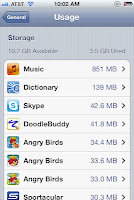
Before you start it is helpful to actually know how much memory you have and how much is used. 
  • Open Settings and tap on “General”
  • Tap on “Usage” and look for the storage available and storage used data points at the top of the installed app list.
Before clearing anything off mine says 2.3 G available, 11.3 G used (the example I show is from the article). I think mine is OK. One of the articles I read said that you should always have more than one G available. if your available amount is in MB you need to clear off some stuff.

Scrolling further down you’ll find how much space individual apps use. This is really helpful because you may find that apps you do not use take up a lot of space. Any apps that you delete from the Phone can be reinstalled for free if you want them back. 

1. Delete Pictures

Make sure first that you have downloaded any  pictures that you want to save to your computer. If you have a Mac with iPhoto it is easy. You can just plug in your phone and choose iPhoto. It will show your phone on the left side and then you can download any photos that you want to keep by choosing them and then choosing "download selected". You will be asked if you want to take them off of your phone. OR you can choose "download all" and all of your photos from your phone will be downloaded. It helps me to download them in groups because I don't do it often enough and so there are usually several events with pictures. I give them a name, choose the photos and click download selected. I choose delete from iPhone because I do not want to have all of those photos on my iPhone. Later I create albums of certain photos on my Mac and then put them onto my iPhone.

If there are photos on your iPhone that you do not want to have there you can go to Image Capture in your Applications Folder with your iPhone plugged in. It will show all of the photos that you have on the phone. You can choose the ones you do not want OR all of them and press the circle and line icon to delete them. 

You also may have something called a PhotoStream turned on. This is a record of all of the pictures that you have taken. To turn it off go to SETTINGS and choose PHOTOS. In the Photo settings you can turn on or off the PhotoStream. If you turn it off it automatically removes all of the pictures that were in the PhotoStream in the first place which saved me LOTS of space.

I am not including instructions on how to do this on a PC because there are so many different ways. You may use Flickr, Picasa, or some other software. These are all free and are great ways of saving your photos.

2. Change the format of the music you have

"A little-heralded feature of iTunes 9.1 (My addition: The version of iTunes on your computer is the same that is downloaded to your device, so to find out the version go to your computer and look under iTunes>About and it will tell you what version. Mine is 11.0.1.) is the ability to convert higher bitrate songs to 128kpbs AAC files for iPhone or iPod Touch sync with iTunes. How do you do it? It’s a simple check box option in the Summary tab when your iPhone appears in the iTunes source list. When the box is checked, on the next sync, all your songs on your iPhone that are not 128kpbs AAC files will be removed and then re-added, being converted on the fly.
The first time I did it, about 400 songs on my iPhone needed to be converted. It took about ten minutes to do the conversion. Once the first large conversion is done, the iPhone syncs your music as fast (or slow) as it ever did (unless you’re refreshing your iPhone’s library every time you sync). If you keep “convert higher bitrate songs to 128kpbs AAC files” checked, any new songs added to your iPhone will automatically be converted.It’s important to note that this on-the-fly conversion does not alter your original files inside your iTuneslibrary — those will remain at whatever bitrate and in whatever file format you had them in.How well does this work? I saved a whopping 1.5GBs of space on my 8GB iPhone. Others here at TUAW saved between 2-5GBs. Of course, how much space you save will be dependent on what bitrate and file type your songs are now."
Make sure to click on APPLY on the bottom of the screen after you make the changes. On mine it did take a while to download the new versions. I had 352 songs. Now I have 2.6 G available and 11 G used. I saved .3 Gigabytes or 300 Megabytes... not a lot, but some.

You an always just delete the Music you do not listen to temporarily. It is stored in iTunes and can be added back easily.

3. Change email settings:

Download Fewer Emails
You can limit the number of emails that your iPhone downloads for each email account you have configured. Needless to say, the fewer emails downloaded, the less disk space they’ll take up.
  • To set this limit low, tap “Settings” from the home screen.
  • Tap Mail, Contacts, Calendars.
  • In the Mail part of the page that shows up, choose "Show".  In the “Show” line, you can set the phone to show only your most recent 50, 75, 100, or 200 messages. The lower the number you use, the less disk space the emails will take up.
Mine was already set to the lowest, so that is not somewhere I can get space on my phone.

Delete Emails Sooner

When you delete an email on the iPhone, the disk space isn’t immediately freed up. Instead, that happens when the iPhone periodically clears deleted content from its memory.
You can free up disk space by making sure that those messages are actually cleared after being deleted. 

Once you get it set up here is how your iPhone works:  
1. When you click on the Mail program and then get to the INBOX the mail that you have received is downloaded from an email server somewhere to your phone. In SETTINGS>MAIL, CONTACTS, CALENDARS choose your email address. If you then go to ADVANCED you can set up your phone to download 50, 100, 150, 200 messages. I recommend that you download 50. That will give you the 50 newest messages and not take up as much space.

I have a lot of folders for my mail and so if I do not open them the messages that are in those folders on my computer are not downloaded onto my phone and so they do not take up space. If I download them by opening the folder and then want to remove them I have to delete them.


2. You can also set up where your messages go after they are deleted. This is also in SETTINGS>MAIL, CONTACTS, CALENDARS>EMAIL ADDRESS 2X>ADVANCED. I changed mine to go to the Trash. Now when I go to the TRASH folder it shows me all of the mail that I have deleted and I can choose to delete all of them at once. Unfortunately for me, and maybe for you. I have not been doing this for a long time so I have hundreds of messages in my Inbox that I have to move to the trash one by one before I can actually clear them from the phone.

4. Delete Voicemails
iPhone voicemails aren’t fully deleted until they’re cleared. Sure, you can mark the voicemails as deleted, but they’re still on the phone — taking up disk space — until you clear them.
I usually don't delete my voicemails just because I might want to look at them again sometime. I know how silly that is. Actually there are two steps to deleting the voicemails from the phone. If you don't do the second one, clear the deleted messages, you will still have them on your phone and you can restore them if you want to. Here are steps to fully delete your voicemail.
  1. Tap the Phone icon.
  2. Tap the Voicemail icon in the bottom right.
  3. If you have deleted messages that haven’t been cleared, the Visual Voicemail list will include an item at the VERY bottom of all of the messages called “Deleted Messages.” Tap it.
  4. In that screen, tap the “Clear All” button to permanently delete the messages and free up that valuable disk space.
When I did this my usage changed to 2.6G available and 10.9 G used. I guess that .1 G is not worth enough to open up more useable space.


5. Delete Apps that you do not use

iTunes keeps track of all of the apps that you have purchased (including the free ones). Even if you delete them from your iPhone you can download them for free again later. The list you first saw when you checked your usage told you what size different apps are. I found out that I have Pages on my phone. It takes up 289 MB (that is a lot!) I do not use my iPhone for writing, so I will take it off. There are other apps that I have downloaded to try (especially for free!), but don't use, so I can delete them. 

I could delete apps right from the Usage screen. If you click on an app it takes you to a screen with a DELETE button at the bottom. Click DELETE and it is removed from the list.

This made the most difference for me so far.  I now have 4.2 G Available and 9.4 G used.

6. Delete past Chat discussions

Maybe that is not such a necessary tip. It did not change my numbers at all. Maybe it was less than a MB, so it did not show up at all. I am not a big texter, so that may be the reason.


7. Remove watched Videos

In order to delete a video that is on your iPhone you first get to the list of videos and then touch the one you want to delete and drag to the left. The red Delete button appears and when you click on it the video is deleted. 

This is a video that shows how that works.


8. Prefer Standard Definition Videos

In the explanation above about changing the format of movies I also checked that I Prefer Standard Definition Videos. When there is a choice between Standard and HD it will choose the Standard. This should not affect the way it looks on the iPhone since the screen is so small.


A BIT OFF THE TOPIC, BUT HELPFUL
In writing all of this up I came across a software called Tune Up My Mac that goes through your Mac to see what it has on it that is extra and may be causing it to run slowly. My computer has been running slowly, so I thought I would give it a try. For free you get a scan where it finds those extra files and then in order to remove them you have to purchase the software at $39 for a one year license. I decided to purchase it because I wanted to see how it would work.
Here is a link to it incase you are interested.
Tune up my Mac


P.S. After writing most of this and giving you my final total I found more mail that I could delete and learned about the PhotoStream. My final usage is 5 GB available and 8.6 GB used! I still have mail to delete and remove. It has been great figuring this all out. I hope it is helpful to you.


Wednesday, December 19, 2012

Keeping a Christmas Spreadsheet

I don't know about you, but I can never remember what I gave to someone from year to year. I will go to the store and see something and think, "That would be perfect for Susie", but I am not sure if I get it for them every year, or if it is a new idea.


So I have started to keep a gift spreadsheet. It is very simple. In the first column I type the name of each person I want to give to each year. Then across the top row I type the number of the year. Then every year at Christmas shopping time I get out the list and I can see what I have gotten people for the last several years. I then add a new column for the current year and enter what I am giving this year.

This could also be done for gifts that you receive. Start by typing names of people that you have received gifts from in the first column. In the second column you could type what gift you received. The third column could be for checking off that you have written a thank-you note.


We use Google Spreadsheet in order to share the information for a silent auction for Child Development Center. On this shared spreadsheet we collect lots of information. Some of the columns include the item donated, the value of the item, the value of the minimum bid, how much it sold for, the address of the business, who found the donation and a place to check off that thank you notes were written. This is really handy because we all have access to the spreadsheet and can enter our information as soon as we find a donation. We can also look at the list to see what companies have already been asked, so we are not sending people to ask for donations to the same businesses and irritating them. Each year we start a new sheet of the spreadsheet, so that we can compare how we have done from year to year.


You can create a Google Spreadsheet by going to http://drive.google.com and then signing up for a free account. Once you are into the program you can choose if you want to make a webpage, write a document, create a spreadsheet or create a presentation. All of these programs work similarly to the programs you have used in the past. The main difference is that they save automatically on the cloud (Google's server bank) and you can share them with someone else. You can give the other person the option to edit the document or limit them to just reading it. You can also make the document private so that only you can see it.
Take a look at Google Drive and let me know what you think about it and if you have questions for me to research.

And finally Merry Christmas.

I hope you have a wonderful break

and can spend some time with family

doing things you love.


Tuesday, December 11, 2012

Security Settings for Kids


One cannot protect their kids from every harm that may come to them. The most important thing is to love them and to be there for them. However, there are a lot of things that you can do as a parent to minimize the problems they might have online and to maximize your time and communication with them about how they spend their time online.


PLACEMENT OF THE COMPUTER
Do not set up a computer in your child's bedroom. All computer devices should be used in the central part of the house where anyone could see what is on the screen. You should be able to casually walk by and see what is happening on the computer. 

COMPUTER SET UPAll computers and devices have ways to set up different identities with different rights. If there is a family computer that several people use, set different personal log ins for each person. Each log in will have a different password so that your identity will not be available to your kids. On their identity you can set it up so that they cannot download or purchase items. You can also adjust the level of different things like sex or violence that is allowed. Remember that this is not perfect. There are always things that cannot be controlled.

BROWSER SETTINGS
All browsers (Internet Explorer, Firefox, Chrome, Safari, etc...) have settings that you can change that block out certain websites from searches. 

COMMON SENSE MEDIA  
http://www.commonsensemedia.org/
Common Sense Media is a non profit organization that reviews media (movies, TV, apps, books, games, websites, and music). They are very clear that they do not tell you what to think, but give you a way to decide what you think about different things. They are for media-sanity not censorship and their webpage says,"We can't cover their eyes, but we can teach them to see." The emphasis here is on discussion and understanding rather than blocking certain things. One parent I  know said that after a while his daughter went directly to Common Sense Media to read the reviews before asking if she could go to a certain movie.
Each item is rated on these things:
  • Positive Messages
  • Role Models
  • Violence
  • Sex
  • Language
  • Consumerism
  • Drinking, Drugs, Smoking

It is easy to browse by many different qualities:

  • Age of Kids
  • Type of Entertainment (movie, game, app, etc...)
  • Genre (action, comedy, etc...)
  • Topics (dinosaurs, magic, sports, etc...), and more.

There are also  many advice articles and videos on things like screen time, multitasking or keeping kids safe online.

COMMON PROBLEMS AND SOME IDEAS

1. Sharing too much information with others - Have talks with your children about the importance of not sharing personal information online. The law says that children must be at least 13 before signing up for different sites on the Internet, but the responsibility for that is put on the companies offering services. Usually they just have a place where the person registering has to enter their birthday. It is quite easy to enter a birthday that makes you old enough to register.  Talk to your children about this and make sure that they have your approval before signing into any sites. Facebook is a good example. You can tell your children that they cannot have an account until they are 13 and make the point that it is not your rule, but actually a law. Once they do sign up think about having access to their account (their password) so that if it is necessary you can access it. You don't want to be constantly "spying" on them, but there may be an occasion where it would be helpful to have that access.

2. Getting into forbidden spots on the Internet - First set up whichever browsers you use (or all browsers on your computer) to the settings that you want for your children. Then be sure that they are aware that EVERYTHING they do on the computer is recorded. It is possible to trace back where they  have been and what they have done. One simple way that you can do this is to check the History on the Browser. In Firefox this is one of the menus at the top of the screen. Beware though, the history can be deleted. All of the information is findable by a specialist at a cost, but it is not as easy.

3. Downloading copyrighted material - According to current Copyright Law everything published on the Internet (or anywhere) is copyrighted. It is NOT OK to save images or copy and paste someone else's text without asking permission. There are ways to find images through Flickr, Google, and many other places that are marked with a Creative Commons license. This is a type of copyright that allows you to use the work for different uses without asking. Usually the license spells out what you can use and what you can do with it. If there is something that you want to use that is not licensed with Creative Commons you can email the owner and most of the time they are flattered and will let you use it. Wikimedia is a great place to look for pictures that can be used!

4. Using the Internet to do schoolwork - Caution is the main thing to use here. The world has changed and new information is discovered and published on the web every day. It is a terrific place to learn all kinds of things. Wikipedia, for example, is a great place to find lots of information. However, it can be inaccurate. It is true that ANYONE can add to an article in Wikipedia. It is also true that it is constantly being curated by thousands of energetic people who want it to succeed. The only way to be sure about accuracy is to "triangulate" or find two other places that have the same information.  Help your kids to be careful about what they trust on the Internet and to be able to "read" where a webpage comes from or who wrote it.


Common Sense Media has a  Holiday Gift Guide
http://www.commonsensemedia.org/guide/holiday-gift-guide-2012

Monday, November 12, 2012

Wiping out your Hard Drive-on Purpose

PICTURE of a Hard Drive
A HARD DRIVE
A friend recently asked me this question: "I want to give my computer to someone else, but I need to back up and then wipe out the Hard Drive first. How do I do that?"


Mac

First you need to back up all of your information from the hard drive. You need to think about any software that you have purchased or downloaded and your own files. Since you will be deleting all of this you will want to make sure you have a way to transfer them to another computer. If you have your new computer you can just transfer files from one computer to the other. You can see my post about backing up to learn more.


Also delete all of your files and folders from the computer. Most of these are probably in My Documents, but you may have saved things in other places like the Desktop. To delete you right click on the file and choose "Move to Trash" or "Delete". If you are using a Mac after everything is deleted you can empty the trash to get rid of the files from there.

Next use the Disk Utility that is included in a Mac to securely erase your computer. To get it go to Applications>Utilities and look for Disk Utility. If you choose the Secure method it will overwrite your hard drive so that the files cannot be accessed. You can run it several times to be sure that everything is clear.


PC

First you need to back up ALL of the information on your hard drive. To do this you can use a software program like Nova Back Up. You probably need to do this onto a separate Hard Drive. You can see my post about backing up to learn more.

Find the disks and licensing numbers (OEM number) that you used to connect to your printer and to install Windows. 

If you are giving away this computer you can use a program like Erase to wipe the machine so that your files cannot be found on it. 

Erase  http://eraser.heidi.ie/

If you are planning to reinstall and reuse the computer yourself here are some things to remember:

Be prepared to install dozens of patches after everything has been installed. It's very important that you do all Windows updates after installing a fresh copy of Windows on the computer.
Have installation discs or be prepared to download an antivirus immediately after installing Windows.
Finally, realize that re-installing any operating system to the point of completion is going to take several hours to complete.

Friday, November 9, 2012

An Update

I have been working on a post about "Wiping Out a Hard Drive on Purpose", but it is not done yet and I want to make sure to get something up by Friday every week. 

So, today I have decided to talk to you a little bit about how it has been starting a business. 

There are ups and downs. When someone calls and says they want to hire me that is exciting. When I talk to people and they like the name of the business that makes me feel good. However, there are days when there is not much going on and I have to force myself to keep working on it. When does the "word of mouth" begin?

One thing that a friend who is in business for herself suggested was to take advantages of any chance I had for networking and that has been really fun. I have met lots of new people and seen new things. I am going to start listing some of the start up businesses of others I have talked to on the sidebar of this blog. Yesterday I attended the Innotech Conference at the Austin Convention Center. I learned a lot of new things and met interesting people. One thing that I especially learned was about Windows 8. I have seen ads on TV showing how different it is, so I really enjoyed trying it first hand and going to a session where they talked about it and I could ask questions. If you are upgrading and need some help with Windows 8 I will be ready.

I also learned about a software that will allow me to work with people virtually. We could connect on the computer and communicate that way and then if I needed to I could, with your permission of course, have access to your computer. It is called Link and would cost me a small monthly amount, but you would not have to pay anything.

Other things I have been doing are substitute teaching at University of Texas Elementary School, volunteering with Trinity Child Development Center, making phone calls for Lloyd Doggett (a local candidate for Congressman) and working the Election Day Polls. That was an experience. 

So, next week you can look forward to Wiping Out a Hard Drive on Purpose. Please send along any suggestions for topics.
