LET'S MEET ONLINE
LET'S MEET ONLINE! Call (512)560-2609 or email helpimnotageek@gmail.com and set up a time for a session. It works really well. We talk on the phone while I see your screen.
I don't know about you, but I can never remember what I gave to someone from year to year. I will go to the store and see something and think, "That would be perfect for Susie", but I am not sure if I get it for them every year, or if it is a new idea.
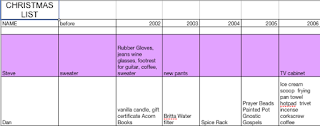 So I have started to keep a gift spreadsheet. It is very simple. In the first column I type the name of each person I want to give to each year. Then across the top row I type the number of the year. Then every year at Christmas shopping time I get out the list and I can see what I have gotten people for the last several years. I then add a new column for the current year and enter what I am giving this year.
This could also be done for gifts that you receive. Start by typing names of people that you have received gifts from in the first column. In the second column you could type what gift you received. The third column could be for checking off that you have written a thank-you note.
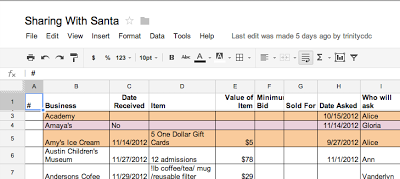
We use Google Spreadsheet in order to share the information for a silent auction for Child Development Center. On this shared spreadsheet we collect lots of information. Some of the columns include the item donated, the value of the item, the value of the minimum bid, how much it sold for, the address of the business, who found the donation and a place to check off that thank you notes were written. This is really handy because we all have access to the spreadsheet and can enter our information as soon as we find a donation. We can also look at the list to see what companies have already been asked, so we are not sending people to ask for donations to the same businesses and irritating them. Each year we start a new sheet of the spreadsheet, so that we can compare how we have done from year to year.

You can create a Google Spreadsheet by going to http://drive.google.com and then signing up for a free account. Once you are into the program you can choose if you want to make a webpage, write a document, create a spreadsheet or create a presentation. All of these programs work similarly to the programs you have used in the past. The main difference is that they save automatically on the cloud (Google's server bank) and you can share them with someone else. You can give the other person the option to edit the document or limit them to just reading it. You can also make the document private so that only you can see it.
Take a look at Google Drive and let me know what you think about it and if you have questions for me to research.
And finally Merry Christmas.
I hope you have a wonderful break
and can spend some time with family
doing things you love.
 One cannot protect their kids from every harm that may come to them. The most important thing is to love them and to be there for them. However, there are a lot of things that you can do as a parent to minimize the problems they might have online and to maximize your time and communication with them about how they spend their time online.
PLACEMENT OF THE COMPUTER
Do not set up a computer in your child's bedroom. All computer devices should be used in the central part of the house where anyone could see what is on the screen. You should be able to casually walk by and see what is happening on the computer.
COMPUTER SET UP All computers and devices have ways to set up different identities with different rights. If there is a family computer that several people use, set different personal log ins for each person. Each log in will have a different password so that your identity will not be available to your kids. On their identity you can set it up so that they cannot download or purchase items. You can also adjust the level of different things like sex or violence that is allowed. Remember that this is not perfect. There are always things that cannot be controlled.
BROWSER SETTINGS
All browsers (Internet Explorer, Firefox, Chrome, Safari, etc...) have settings that you can change that block out certain websites from searches.
COMMON SENSE MEDIA
http://www.commonsensemedia.org/
Common Sense Media is a non profit organization that reviews media (movies, TV, apps, books, games, websites, and music). They are very clear that they do not tell you what to think, but give you a way to decide what you think about different things. They are for media-sanity not censorship and their webpage says,"We can't cover their eyes, but we can teach them to see." The emphasis here is on discussion and understanding rather than blocking certain things. One parent I know said that after a while his daughter went directly to Common Sense Media to read the reviews before asking if she could go to a certain movie.
All computers and devices have ways to set up different identities with different rights. If there is a family computer that several people use, set different personal log ins for each person. Each log in will have a different password so that your identity will not be available to your kids. On their identity you can set it up so that they cannot download or purchase items. You can also adjust the level of different things like sex or violence that is allowed. Remember that this is not perfect. There are always things that cannot be controlled.
BROWSER SETTINGS
All browsers (Internet Explorer, Firefox, Chrome, Safari, etc...) have settings that you can change that block out certain websites from searches.
COMMON SENSE MEDIA
http://www.commonsensemedia.org/
Common Sense Media is a non profit organization that reviews media (movies, TV, apps, books, games, websites, and music). They are very clear that they do not tell you what to think, but give you a way to decide what you think about different things. They are for media-sanity not censorship and their webpage says,"We can't cover their eyes, but we can teach them to see." The emphasis here is on discussion and understanding rather than blocking certain things. One parent I know said that after a while his daughter went directly to Common Sense Media to read the reviews before asking if she could go to a certain movie.
 Each item is rated on these things:
- Positive Messages
- Role Models
- Violence
- Sex
- Language
- Consumerism
- Drinking, Drugs, Smoking
It is easy to browse by many different qualities:
- Age of Kids
- Type of Entertainment (movie, game, app, etc...)
- Genre (action, comedy, etc...)
- Topics (dinosaurs, magic, sports, etc...), and more.
There are also many advice articles and videos on things like screen time, multitasking or keeping kids safe online.
COMMON PROBLEMS AND SOME IDEAS

1. Sharing too much information with others - Have talks with your children about the importance of not sharing personal information online. The law says that children must be at least 13 before signing up for different sites on the Internet, but the responsibility for that is put on the companies offering services. Usually they just have a place where the person registering has to enter their birthday. It is quite easy to enter a birthday that makes you old enough to register. Talk to your children about this and make sure that they have your approval before signing into any sites. Facebook is a good example. You can tell your children that they cannot have an account until they are 13 and make the point that it is not your rule, but actually a law. Once they do sign up think about having access to their account (their password) so that if it is necessary you can access it. You don't want to be constantly "spying" on them, but there may be an occasion where it would be helpful to have that access.
2. Getting into forbidden spots on the Internet - First set up whichever browsers you use (or all browsers on your computer) to the settings that you want for your children. Then be sure that they are aware that EVERYTHING they do on the computer is recorded. It is possible to trace back where they have been and what they have done. One simple way that you can do this is to check the History on the Browser. In Firefox this is one of the menus at the top of the screen. Beware though, the history can be deleted. All of the information is findable by a specialist at a cost, but it is not as easy.
3. Downloading copyrighted material - According to current Copyright Law everything published on the Internet (or anywhere) is copyrighted. It is NOT OK to save images or copy and paste someone else's text without asking permission. There are ways to find images through Flickr, Google, and many other places that are marked with a Creative Commons license. This is a type of copyright that allows you to use the work for different uses without asking. Usually the license spells out what you can use and what you can do with it. If there is something that you want to use that is not licensed with Creative Commons you can email the owner and most of the time they are flattered and will let you use it. Wikimedia is a great place to look for pictures that can be used!
 4. Using the Internet to do schoolwork - Caution is the main thing to use here. The world has changed and new information is discovered and published on the web every day. It is a terrific place to learn all kinds of things. Wikipedia, for example, is a great place to find lots of information. However, it can be inaccurate. It is true that ANYONE can add to an article in Wikipedia. It is also true that it is constantly being curated by thousands of energetic people who want it to succeed. The only way to be sure about accuracy is to "triangulate" or find two other places that have the same information. Help your kids to be careful about what they trust on the Internet and to be able to "read" where a webpage comes from or who wrote it.

Common Sense Media has a Holiday Gift Guide
http://www.commonsensemedia.org/guide/holiday-gift-guide-2012
I have been working on a post about "Wiping Out a Hard Drive on Purpose", but it is not done yet and I want to make sure to get something up by Friday every week.
So, today I have decided to talk to you a little bit about how it has been starting a business.
There are ups and downs. When someone calls and says they want to hire me that is exciting. When I talk to people and they like the name of the business that makes me feel good. However, there are days when there is not much going on and I have to force myself to keep working on it. When does the "word of mouth" begin?

One thing that a friend who is in business for herself suggested was to take advantages of any chance I had for networking and that has been really fun. I have met lots of new people and seen new things. I am going to start listing some of the start up businesses of others I have talked to on the sidebar of this blog. Yesterday I attended the Innotech Conference at the Austin Convention Center. I learned a lot of new things and met interesting people. One thing that I especially learned was about Windows 8. I have seen ads on TV showing how different it is, so I really enjoyed trying it first hand and going to a session where they talked about it and I could ask questions. If you are upgrading and need some help with Windows 8 I will be ready.
I also learned about a software that will allow me to work with people virtually. We could connect on the computer and communicate that way and then if I needed to I could, with your permission of course, have access to your computer. It is called Link and would cost me a small monthly amount, but you would not have to pay anything.
Other things I have been doing are substitute teaching at University of Texas Elementary School, volunteering with Trinity Child Development Center, making phone calls for Lloyd Doggett (a local candidate for Congressman) and working the Election Day Polls. That was an experience.
So, next week you can look forward to Wiping Out a Hard Drive on Purpose. Please send along any suggestions for topics.
Here is a question a PC user asked me:
"Someone played around with my computer and I can't log in any more. It keeps giving me the hint question and when I type in the correct answer it keeps telling me that it is not correct. What do I do?"
This is something that happens to people and so there are lots of places to look online to find help. Unfortunately if you have been locked out of your computer you cannot get online to get help or even see this blog.
In the hopes that someone with this problem can find this blog I will put the solution that I found online here. Since there are a lot of different versions of Windows this may or may not apply to your computer. It is advice for someone with Windows XP who has not put in an Administrator password.
I have not done this, so I cannot be sure that it will work. In fact, there may be many different reasons that you are locked out of your computer, but this is the first thing to try:
1. Boot up (Turn On) your computer.
 2. Before it starts up hold down F8. This is one of the keys on the top row.
3. When it starts up you will see a black screen with white words. It will ask you if you want to start in SAFE MODE.
4. Choose to open in SAFE MODE.
5. It will take a while, but when it opens you should see the regular desktop and be able to get into an account called Administrator. Usually a new Windows computer is shipped out with an Administrator account with no password. If you have not put a password onto it you can still get in as an Administrator which will allow you to do anything you want.
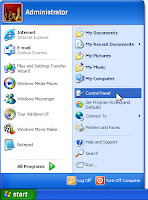
6. With this account you can go to the Control Panel and remove or change the password of the user that you usually log into.
One other video on YouTube that I watched showed how you can just type in Administrator into the log in window that comes up. If no password has been set you can just click OK and it will open up the computer. To change any password at that point you can go to the Control Panel.
If neither of these things works for you I am sorry to say you may need to take it in to someone professional who can help you.
GMAIL OFFLINE
I am traveling today and I am also behind in reading my email. I want to catch up while on the airplane, but I use Gmail.
 For anyone who is new to email/webmail I want to explain that there are two types of email: Webmail or eMail on your computer. For both of them you have to be online for them to get your new mail and send mail that you write. eMail on your computer can be opened up without getting online, but it does not give you any new mail. It keeps track of anything you write and when you are next online all of it is sent. Webmail only works when you are online.
Until now I thought that because I was using Gmail I only had webmail. That meant that when I was flying I did not have access to my email. That was the first thing that made me unhappy with using Gmail.
 Now there is a way to create a mailbox on your computer that can keep up with your Gmail. Unfortunately it only works with Gmail on Google Chrome, so if you have another webmail program you are out of luck. Google Chrome is a browser. [A browser is something that connects you to the Internet like Internet Explorer, Safari, Firefox and others]. I use Firefox usually and really like it, but for this I have switched to Chrome.
First I had to set it up. I had to go to Firefox and search for Chrome. Then I had to download Chrome. It is free, but takes some time and space on your computer to set up.
 When I opened Chrome I had to click to open a new tab so that I could see the Google Web Store Icon. Google offline is an Add On to Chrome which is sort of like an app that works inside the Chrome program. You have to go to the Chrome Store to get it, but it is free. When you have opened Chrome click on the shopping bag to get to the Chrome Store.
At the store search for "Gmail Offline" and a list of Add Ons will show up.
The top one is Gmail Offline. You can click on it for more information which will take you to a new window with more information or just click on the button that says, "Add to Chrome".
As soon as you do this the blue M shows up on the Chrome page which had only the shopping bag on it before.
Now if you are somewhere where there is no Internet access you can open Chrome, click on the diamond shape next to the tab and open up a new tab. On the new tab you will see the shopping bag, gmail offline and other add ons that you have chosen to add. When you click on the blue M it will take you right to your email...offline!!
CHROME ADD ONS
One other thing I learned while doing this is that there are all sorts of other Add Ons for Chrome. I need to explore them more to see what is there, but there seemed to be hundreds. One that sounded interesting to me was a remote access app. It would be nice to be able to help people over the phone with their computers and the software I have seen to do that is $40 a month. However, this application (and maybe the others also) makes your computer readable by the company that owns it. They can get all sorts of information from my computer and I did not want to risk that yet.
FUN AFTER FIFTY
As I try to get this business off the ground I am meeting lots of interesting people and today I want to tell you about one of them. Jackie has started a blog called Fun After Fifty (http://www.funafterfifty.com). In one post she says, "My passion is to help people approaching or past the age of fifty to thrive rather than just survive life. What’s your passion?" She told me that she often meets people over 50 who have given up. I guess that they feel that they are past the first half of life and on a downhill slide. She wants to meet people and help them for free! Eventually she hopes to get sponsors that will help her pay for her business. Check it out!
I hope to hear from you. I need more suggestions of what to write about. I will gladly take time to research and come up with an answer to your issue. Comments of all kinds are welcomed!
TWO STORIES
At the end of September my son got married. He lives in Ohio and we are in Texas. We were helping him plan and design the ceremony. Instead of sending files back and forth or using lots of email David set up a Google Doc and invited us to share it. We could all work on it at different times or even at the same time in order to collaborate! Amazing!
Recently I updated my MacBook to Lion, but to my unhappy surprise I found out that it does not support Microsoft Office. It has something to do with programs that used the Intel chip... I can't explain it... I'm not a Geek, but anyway there I was without some expensive software that I used all of the time. (side note: now when I receive an excel or word document I have to open up the Open Office first and then use File-Open to find the file and open it up.
You wonder what these two stories might have to do with each other? Well, it is just that there are so many ways to get around having to use expensive software to do word processing, spreadsheets, and presentations now!
In this post I want to share with you some of what I have done to fill in the gap from the software that no longer works on my system.
ONE
 I downloaded a free program called Open Office. It is very similar to Microsoft Office, but it is Open Source which means that anyone can work on the code of it and make it better and it is FREE! I have been using it regularly for word processing. I have not used spreadsheets or presentations or anything else yet, but I think it will be fine. When I save something in Open Office I have to remember to change the format before saving because it has its own format (.odt) which other programs cannot open. When I save under "save as" I choose .doc and so far it seems to save everything just fine.
TWO
I downloaded a free program called Open Office. It is very similar to Microsoft Office, but it is Open Source which means that anyone can work on the code of it and make it better and it is FREE! I have been using it regularly for word processing. I have not used spreadsheets or presentations or anything else yet, but I think it will be fine. When I save something in Open Office I have to remember to change the format before saving because it has its own format (.odt) which other programs cannot open. When I save under "save as" I choose .doc and so far it seems to save everything just fine.
TWO
 I have been using Google Docs and Spreadsheets. The biggest benefit of these programs is that they can be shared online with others. You can give them rights just to look at the document or to edit it. You can make it public, so that everyone can see it or make it private so that you are the only one who has access to it. Google has just updated to Google Drives which I have not worked with much yet. It looks to me like you can download all of your Google Docs into a free software on your laptop. Then when you are not online you will still have access to your Docs and you can work on them. Then when you are online the newest copy syncs so that you have the same copy in both places.
One drawback of using Google Docs is that you will be relying on Google to keep all of your stuff. It is all saved on one of their servers. If this is a problem for you avoid Google Docs. You will not have total control of everything.
However, it is probably safer, in terms of not losing your documents because their servers are duplicated and regularly backed up. You can ALWAYS get to your stuff. It will be accessible even if you are in a flood or a fire and loose everything. You can access it from anywhere on any computer.
THREE
 For some presentations I have started using Prezi. It is a whole new way of presenting ideas based more on networking thoughts and graphics together rather than presenting them in a linear way. The best way to see what it does is to go to their website and see some of their samples.
So, we are getting to the point where we do not need expensive software to do the basic things that we want to do!

 So I have started to keep a gift spreadsheet. It is very simple. In the first column I type the name of each person I want to give to each year. Then across the top row I type the number of the year. Then every year at Christmas shopping time I get out the list and I can see what I have gotten people for the last several years. I then add a new column for the current year and enter what I am giving this year.


