LET'S MEET ONLINE

LET'S MEET ONLINE! Call (512)560-2609 or email helpimnotageek@gmail.com and set up a time for a session. It works really well. We talk on the phone while I see your screen.

Friday, November 9, 2012

An Update

I have been working on a post about "Wiping Out a Hard Drive on Purpose", but it is not done yet and I want to make sure to get something up by Friday every week. 

So, today I have decided to talk to you a little bit about how it has been starting a business. 

There are ups and downs. When someone calls and says they want to hire me that is exciting. When I talk to people and they like the name of the business that makes me feel good. However, there are days when there is not much going on and I have to force myself to keep working on it. When does the "word of mouth" begin?

One thing that a friend who is in business for herself suggested was to take advantages of any chance I had for networking and that has been really fun. I have met lots of new people and seen new things. I am going to start listing some of the start up businesses of others I have talked to on the sidebar of this blog. Yesterday I attended the Innotech Conference at the Austin Convention Center. I learned a lot of new things and met interesting people. One thing that I especially learned was about Windows 8. I have seen ads on TV showing how different it is, so I really enjoyed trying it first hand and going to a session where they talked about it and I could ask questions. If you are upgrading and need some help with Windows 8 I will be ready.

I also learned about a software that will allow me to work with people virtually. We could connect on the computer and communicate that way and then if I needed to I could, with your permission of course, have access to your computer. It is called Link and would cost me a small monthly amount, but you would not have to pay anything.

Other things I have been doing are substitute teaching at University of Texas Elementary School, volunteering with Trinity Child Development Center, making phone calls for Lloyd Doggett (a local candidate for Congressman) and working the Election Day Polls. That was an experience. 

So, next week you can look forward to Wiping Out a Hard Drive on Purpose. Please send along any suggestions for topics.

Wednesday, October 31, 2012

Locked out of my Own Computer!!

Here is a question a PC user asked me:

"Someone played around with my computer and I can't log in any more. It keeps giving me the hint question and when I type in the correct answer it keeps telling me that it is not correct. What do I do?"

This is something that happens to people and so there are lots of places to look online to find help. Unfortunately if you have been locked out of your computer you cannot get online to get help or even see this blog. 

In the hopes that someone with this problem can find this blog I will put the solution that I found online here.  Since there are a lot of different versions of Windows this may or may not apply to your computer. It is advice for someone with Windows XP who has not put in an Administrator password.

I have not done this, so I cannot be sure that it will work. In fact, there may be many different reasons that you are locked out of your computer, but this is the first thing to try:

1. Boot up (Turn On) your computer.


2. Before it starts up hold down F8. This is one of the keys on the top row.


3. When it starts up you will see a black screen with white words.  It will ask you if you want to start in SAFE MODE.

4. Choose to open in SAFE MODE.

5. It will take a while, but when it opens you should see the regular desktop and be able to get into an account called Administrator. Usually a new Windows computer is shipped out with an Administrator account with no password. If you have not put a password onto it you can still get in as an Administrator which will allow you to do anything you want.

6. With this account you can go to the Control Panel and remove or change the password of the user that you usually log into.

One other video on YouTube that I watched showed how you can just type in Administrator into the log in window that comes up. If no password has been set you can just click OK and it will open up the computer. To change any password at that point you can go to the Control Panel.

If neither of these things works for you I am sorry to say you may need to take it in to someone professional who can help you.

Tuesday, October 23, 2012

Gmail Offline and Fun after Fifty!

 GMAIL OFFLINE

I am traveling today and I am also behind in reading my email. I want to catch up while on the airplane, but I use Gmail.

For anyone who is new to email/webmail I want to explain that there are two types of email: Webmail or eMail on your computer. For both of them you have to be online for them to get your new mail and send mail that you write. eMail on your computer can be opened up without getting online, but it does not give you any new mail. It keeps track of anything you write and when you are next online all of it is sent. Webmail only works when you are online.

Until now I thought that because I was using Gmail I only had webmail. That meant that when I was flying I did not have access to my email. That was the first thing that made me unhappy with using Gmail.

Now there is a way to create a mailbox on your computer that can keep up with your Gmail. Unfortunately it only works with Gmail on Google Chrome, so if you have another webmail program you are out of luck. Google Chrome is a browser. [A browser is something that connects you to the Internet like Internet Explorer, Safari, Firefox and others]. I use Firefox usually and really like it, but for this I have switched to Chrome.


First I had to set it up. I had to go to Firefox and search for Chrome. Then I had to download Chrome. It is free, but takes some time and space on your computer to set up. 


When I opened Chrome I had to click to open a new tab so that I could see the Google Web Store Icon. Google offline is an Add On to Chrome which is sort of like an app that works inside the Chrome program. You have to go to the Chrome Store to get it, but it is free. When you have opened Chrome click on the shopping bag to get to the Chrome Store. 

At the store search for "Gmail Offline" and a list of Add Ons will show up. 


The top one is Gmail Offline. You can click on it for more information which will take you to a new window with more information or just click on the button that says, "Add to Chrome". 

 
As soon as you do this the blue M shows up on the Chrome page which had only the shopping bag on it before. 


Now if you are somewhere where there is no Internet access you can open Chrome, click on the diamond shape next to the tab and open up a new tab. On the new tab you will see the shopping bag, gmail offline and other add ons that you have chosen to add. When you click on the blue M it will take you right to your email...offline!!


CHROME ADD ONS
 
One other thing I learned while doing this is that there are all sorts of other Add Ons for Chrome. I need to explore them more to see what is there, but there seemed to be hundreds. One that sounded interesting to me was a remote access app. It would be nice to be able to help people over the phone with their computers and the software I have seen to do that is $40 a month. However, this application (and maybe the others also) makes your computer readable by the company that owns it. They can get all sorts of information from my computer and I did not want to risk that yet. 

FUN AFTER FIFTY
 
As I try to get this business off the ground I am meeting lots of interesting people and today I want to tell you about one of them. Jackie has started a blog called Fun After Fifty (http://www.funafterfifty.com). In one post she says, "My passion is to help people approaching or past the age of fifty to thrive rather than just survive life. What’s your passion?" She told me that she often meets people over 50 who have given up. I guess that they feel that they are past the first half of life and on a downhill slide. She wants to meet people and help them for free! Eventually she hopes to get sponsors that will help her pay for her business. Check it out!

I hope to hear from you.  I need more suggestions of what to write about. I will gladly take time to research and come up with an answer to your issue. Comments of all kinds are welcomed!


Wednesday, October 3, 2012

FREE Ways to Word Process, Collaborate, etc...


TWO STORIES 

At the end of September my son got married. He lives in Ohio and we are in Texas. We were helping him plan and design the ceremony. Instead of sending files back and forth or using lots of email David set up a Google Doc and invited us to share it. We could all work on it at different times or even at the same time in order to collaborate!  Amazing!


Recently I updated my MacBook to Lion, but to my unhappy surprise I found out that it does not support Microsoft Office. It has something to do with programs that used the Intel chip... I can't explain it... I'm not a Geek, but anyway there I was without some expensive software that I used all of the time. (side note: now when I receive an excel or word document I have to open up the Open Office first and then use File-Open to find the file and open it up.


You wonder what these two stories might have to do with each other?  Well, it is just that there are so many ways to get around having to use expensive software to do word processing, spreadsheets, and presentations now!

In this post I want to share with you some of what  I have done to fill in the gap from the software that no longer works on my system.

ONE

I downloaded a free program called Open Office. It is very similar to Microsoft Office, but it is Open Source which means that anyone can work on the code of it and make it better and it is FREE! I have been using it regularly for word processing. I have not used spreadsheets or presentations or anything else yet, but I think it will be fine. When I save something in Open Office I have to remember to change the format before saving because it has its own format (.odt) which other programs cannot open. When I save under "save as" I choose .doc and so far it seems to save everything just fine. 

TWO

I have been using Google Docs and Spreadsheets. The biggest benefit of these programs is that they can be shared online with others. You can give them rights just to look at the document or to edit it. You can make it public, so that everyone can see it or make it private so that you are the only one who has access to it. Google has just updated to Google Drives which I have not worked with much yet. It looks to me like you can download all of your Google Docs into a free software on your laptop. Then when you are not online you will still have access to your Docs and you can work on them. Then when you are online the newest copy syncs so that you have the same copy in both places. 

One drawback of using Google Docs is that you will be relying on Google to keep all of your stuff. It is all saved on one of their servers. If this is a problem for you avoid Google Docs. You will not have total control of everything. 

However, it is probably safer, in terms of not losing your documents because their servers are duplicated and regularly backed up. You can ALWAYS get to your stuff. It will be accessible even if you are in a flood or a fire and loose everything. You can access it from anywhere on any computer. 


  THREE

For some presentations I have started using Prezi. It is a whole new way of presenting ideas based more on networking thoughts and graphics together rather than presenting them in a linear way. The best way to see what it does is to go to their website and see some of their samples. 

So, we are getting to the point where we do not need expensive software to do the basic things that we want to do! 

Tuesday, September 25, 2012

Should I Upgrade my iPhone to iOS 6?

While I was at my son's wedding this weekend I kept getting messages when I turned on my phone that a new operating system was available (6.0) Normally it is good to just download the newest one, but I decided to do some searching online first to see what people were saying.

One person said that it took a long time (45 minutes). I am glad I didn't just start it downloading when I first saw the message.

The biggest complaint is that Apple has decided to try to keep Google out of its phone, so it created its own Mapping App and got rid of YouTube. The default map that was on the phone was a Google Map, but with iOS 6 and on the new iPhone 5 it will be Apple's Map App. You cannot even download the Google Map if you wanted to. People do not like the Apple Map App. There are complaints that it is not accurate enough and that it is inferior to what people have gotten used to using. Since the map is one of the things that I use the most the thought of getting rid of it is not a good one. 

The second complaint is that the new Operating System is not that much of a change from the earlier OS. One article said that it was "evolution rather than revolution".

There are some good things too. When a phone rings and you cannot answer it you have a choice of quickly sending a preset text so that the other person has an idea why you did not answer. There is a "Do not Disturb" feature that you can set so that you do not get calls in the middle of the night or whenever you may not want to. It has improved Siri so that she can actually text for you and do things like make reservations. It has increased connections with Facebook and Twitter. You can send a Facebook update or a Tweet without going into their applications online. However, these things are not enough to make for a big change. 

I think I have decided to wait a bit. I like the way my phone is working now. Who knows, they might come out with a better iOS with some of these things corrected.

Tuesday, September 18, 2012

To Post or not to Post?

Allison Morris saw the earlier post in this blog about posting to Facebook and kindly offered an infographic about the same topic which I have put below. It is from http://OnlineClasses.org. I like that it was copyrighted under a Creative Commons License so that it can be shared as long as they are given credit. It is good to be aware of this so that you can be careful about copying things that may be copyrighted and so not free to use.

Info Graphic about posting on Facebook

Look at their site to find the original.


Monday, September 10, 2012

How to Back Up your Computer

The best way to learn how important it is to back up your computer is to lose everything once. Most people have to go through that in order to learn, but not YOU. Starting today you are going to be careful about regularly backing up what matters to you.

WAYS TO BACK UP
1.  Put everything that you want to back up on "the cloud".  A good example of this is Google Drive. The slogan that they use is "Keep Everything, Share Anything". 

This is the easiest way to back up, but remember that whatever is put onto Google Drive is actually being put on a Server (a type of computer) somewhere owned by someone else.

I am very aware that much of what I am working on is already kept on "the cloud". I use Blogger.com to write this blog and so all of the content that is here is kept on a server somewhere that Blogger (actually Google) owns. I also have some pictures online using Flickr and some with Picasa. I often use Google Docs and whatever is done there is "on the cloud".

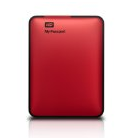
2.  Get a separate hard drive that you can plug into your computer and create a back up.

Of course if you back up using a hard drive it is important to realize that the hard drive should be kept in a different place than your computer. If there is a fire and you lose BOTH the computer and the hard drive, the back up will not help much. Some people recommend that you have three copies of everything (a double back up) so that at least one copy will be left if something happens. 


Most computers have a back up utility that will help walk you through the process. It is different for every computer, so I will not try to explain the details of how it works. You can either use the Utility that comes on your  computer or you can purchase a program that will walk you through the steps for backing up. I will give you one example, I use Time Machine on my MacBook.

I have purchased an external hard drive. The first time I plugged it in I opened the Time Machine program on my Mac and set it up to back up on that drive. Now every month or so I plug it in and my Mac automatically copies everything to the External Hard Drive. Time Machine backs up all of my programs, settings and data files on my computer. If something happened to my computer I could remake it with the Hard Drive. I really don't have to think about it much and it is easy to do. If I kept it plugged in all of the time it would do regular backups every hour.

In some computers the Utility (built in back up program) may be confusing, so it may be better to purchase a backing up program (something similar to Time Machine, but for PC) so that it will do the steps for you and make it easier. 

Some recommended programs that you can purchase for backing up your computer are:

http://data-backup-software-review.toptenreviews.com/ - This site reviews the top ten back up softwares for 2012.

http://www.pcworld.com/article/148765/save_your_data_with_one_of_these_top_backup_programs.html
This long URL may need to be copied and pasted into a browser to work. It is an article on PC World talking about 5 of the best Back Up programs.


Some places you can get external hard drives:
Go to these sites and search for external hard drive.
 
Amazon.com - http://www.amazon.com/

Newegg.com - http://www.newegg.com/

Office Depot - http://www.officedepot.com/

Best Buy - http://www.bestbuy.com

External hard drives come in different sizes. Some are in Gigabytes (GB) and some are in Terabytes (TB). All of the drives that I looked at came in at least 350 Gigabytes. That is plenty of memory for backing up most computers. If you are doing podcasts or making movies you may need more memory.