LET'S MEET ONLINE

LET'S MEET ONLINE! Call (512)560-2609 or email helpimnotageek@gmail.com and set up a time for a session. It works really well. We talk on the phone while I see your screen.
Showing posts with label event. Show all posts

Tuesday, February 24, 2015

Confused by Events and Projects in iMovie


I like iMovie and I have created movies using it, but I never really understood the Event window and the Project window. The whole idea of Events was confusing. I also closed the Project window once and could not get it back. So, finally I have done a bit of sitting and learning and this is what I found.


EVENTS AND PROJECTS

One of the most confusing things about iMovie is the difference between Events and Projects and how they work with each other.

Events

Events are just collections of clips and pictures. When you start a project you may start out with a NEW event and then import all of the clips and pictures that you want to use for that event. 

Projects

Projects are actually movies that you are making. They are not finished and published yet. iMovie calls them both projects and movies.

STEP BY STEP 
    screen shot import media
  1. When you create an Event by choosing FILE>NEW EVENT from the menus above the event is named the date that it is created. Then a window opens up with a big arrow that says IMPORT. You can import clips and photos from your camera, folders on the computer, or even from iPhoto
  2. Next you start a project to use those clips and photos. Choose FILE>NEW MOVIE.  Once you choose New Movie, choose a template and give your movie a name the working panel opens up with the name of your movie on it. This is where you can drag clips, transitions, sounds, etc…. to create your movie.
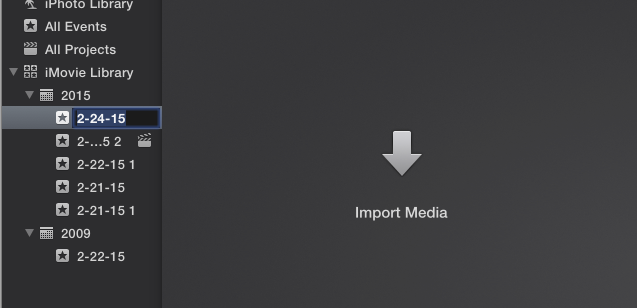


Think of Movies (Projects) and Events separately. The square on the top left shows the clips and pictures in the event. It also shows which movie project you started using the event. 

The Event and the Project do not have to Match.
Changing the event does not make the project change.


If you click on a different Event on the right the project window DOES NOT CHANGE. 

The project window at the bottom does NOT need to match the Events window.

So, an event can be associated with more than one movie project AND a project can take clips or photos from any event. Clips can be selected from one event and dragged to the side and moved to another event. Projects can also be moved from one event to another. If you just want to see what projects you have started without looking at events you can click “all project” on the left side.  
The Event is taking the Project space because there is no Project open.

If you close a project window the Event window just moves down into the empty space. In order to get a project window back just click twice on the project that you want to work on.

ORGANIZATION
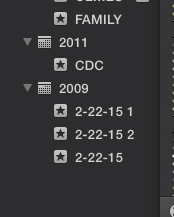
You can replace the dates that name each of your Events with words. Click once on the date. Count to 5 and then click again. Wait 5 seconds or so. The date will be highlighted and you can type something else into it. 


Now it is possible to drag and drop both projects and clips into the folders that make the most sense to you.

Monday, September 30, 2013

OK I'm ready for an iCalendar, now what?

There are so many different types of calendars and devices to talk about and I am not an expert in all of them, so this time I will tell you a story about how I solved my calendar problems and then give you a few tips about how to export a calendar from one type of online calendar and import it into another.
If this does not answer your questions maybe the links below will help you. You can always go to Google and just type in your question. Most often a lot of links will show up with discussions from people who have had the same problem as you have and often there is a solution you can use.

Using the Calendar in iPhone
I started by using my iPhone Calendar regularly. All of my appointments were on my iPhone. Here is what I do.
1. Click on the Calendar icon on my Phone.

2. Find the date that I am wanting to put something onto. This has changed with OS 7.  Here are some screen shots of how I go through it.
  • Click on Today in the bottom corner to get back to today's date. 
  • Click on the name of the month at the top of the page and scroll down to find the month that I want.
  • Click on the calendar of the month that you are wanting.
  • Click to choose a date that you want to put something on.


  • Click on the + at the top right side to add an event. 
  • Fill out the event information (remember that there is more you can put in if you scroll down)
  • Click on DONE on the top right when you are done.
The Event Details will appear. It will show what you have put in as well as which calendar it is on.

To Delete an event click on it and when the Event Details appear click EDIT on the top right side and scroll down until you see the red delete button. Click it and the event is gone.

Syncing that Calendar with the Google Calendar
Now that I had the events on my iPhone I wanted to be able to see them on my Google Calendar. I can get to a Google Calendar where ever I am, even without having my own computer. There were two things that I needed to do in order to make my events show up on Google Calendar.

1.  I followed the directions on this link: https://support.google.com/calendar/answer/151674 which made sure that my Calendar was set up correctly. I named the calendar that I wanted to sync "Google Calendar" and gave it a different color than other calendars so that I could see what was happening.

2.  I went back to the calendar on my iPhone and went to the appointments that I wanted to show up on the Google Calendar. I clicked on the event and on the event details looked to the part that told me which calendar it was on. Most of mine defaulted to HOME and had blue dots, so I clicked on the word HOME and switched it to Google Calendar.  When I changed the Calendar they began to show up on my Google Calendar on the computer.


Sharing Calendars with Other People
I thought it would be good to have my husband's events on my calendar so that I could keep up with what he was doing. In order to do that in Google

  • On the computer open up and sign into your Google Calendar
  • Click on the Gear on the top right side and slide down to the word SETTINGS
  • Click on the tab at the top that says CALENDAR
  • Click on the link under Sharing.


  • Look for Share With Specific People.
  • In that box type the names of the person you want to share your calendar with. 
  • You can share your calendar with more than one person.

  • They can opt to have your calendar show in a different color on their calendar or not to show. 
Finally, How to Export and Import your Calendar
This may help you if you want your events to go into a calendar that is not compatible with the Google calendar or another calendar that you have. Instead of using SAVE like you do with a document you choose EXPORT. 

EXPORT is usually found under the File Menu, but in Google Calendar it is in the settings.

This exports the file into a format that can be opened by most calendars. One of the formats that is used is .CSV It cannot be clicked on and opened up as a calendar (it may open, but will look like a mess or not open at all. What you need to do is to IMPORT it into another calendar program.

Open the other program and under file look for the word IMPORT. When you choose IMPORT a window opens like when you want to open a file. Find the file that you just EXPORTED and choose it. The calendar program will open it up and you should have all of your calendar items on the new calendar. 

This can also be done with your CONTACTS or ADDRESS BOOK. With most programs you can EXPORT your contacts and then IMPORT them into another address book program. 

IMPORTANT NOTE - This is not the same as syncing your calendar or address book. You are only moving over the things that were entered in the past. It will not continue to update as you update the old one. 

OTHER RESOURCES

Google Support
https://support.google.com/calendar/answer/151674?hl=en

https://support.google.com/mail/answer/3008051

About.com
http://email.about.com/od/googlecalendartips/qt/Sync_Google_Calendar_and_iPhone_Calendar.htm

Digital Trends
http://www.digitaltrends.com/mobile/sync-multiple-google-calendars-on-iphone-or-ipad/

Monday, August 19, 2013

I want certain photos in my iPhone Gallery!

The photo gallery of your iPhone SHOULD be the place where you have photos that you can share on the run. It should be used as the new grandma's book of pictures of her grandchild or pictures of the wedding that you want to be able to show anywhere at any time! What about that cruise in Alaska or vacation in Hawaii that you just took?

The thing about the iPhone to remember is that you use iTunes for EVERY change that you want to make on your phone. There is a way to create a folder right on the phone and move pictures into it that I will describe later in this post, but most of the time you will go to iTunes.

PUTTING AN ORGANIZED PHOTO ALBUM ON YOUR PHONE

Step 1 Open up iPhoto

Step 2 In iPhoto choose FILE>NEW ALBUM


Step 3 Name the album and drag pictures into it from the tray of thumbnails. You can open one event and drag over multiple shots, open the last 12 months and drag in assorted photos, or choose any view you want in order to see the photos you want and drag them over. You can close iPhoto if you want.
Step 4 Plug in your phone and open iTunes.

Step 5 Click on your phone on the left side of the screen and choose "Photos" from the top of the screen.


Step 6 This is where you indicate which folders you want to be transferred over to your phone. At the top choose to add all folders or only the ones you indicate. Put checkmarks next to the folders to move to the phone. 

Step 7 Click Apply on the left bottom of the screen and then Sync. The folder will be added to your phone. When you want to take it off you can just take the checkmark out of the box and sync again!


FOLDERS THAT ARE ALWAYS THERE

You may have noticed that there are always 2 folders in your iPhone Gallery; library and camera roll. You cannot delete them and they seem to have different photos. Why?

Camera Roll - This is a folder that contains all of the photos that you have taken using your phone. When you download your photos to iPhoto a question comes up at the end of the process asking if you now want to delete your photos from the phone. One way to organize your photos is to always delete the ones in the camera roll from the phone and to add organized folders that you want to show people by creating an album in iPhoto and putting it on the phone (see above). It does not hurt to leave the photos on the phone, but they do take up some of the memory.

Library - In the library are copies, not originals, of all of the photos that you have put onto your phone using iTunes. They do not take up any memory space. When you click on them it goes to the same photo that is listed in your Album. This is the only place you will see the Events that you have loaded onto your phone. Plug in your phone and go to iTunes.Choose Photos from the top of the page. It will open up to a window where you can indicate which Albums and which Events you want to put onto your phone. Albums each show up in a list below the Camera Roll and Library. Events show up in the Library. 


CREATING FOLDERS AND MOVING PHOTOS ON THE PHONE

If  you want to create a new album right on the phone from photos in the folders already on your phone follow these steps:

1. On your phone go to Photos.

2. Click the + sign at the top left of the screen.

3. Type in a name for the folder.


4. A new folder is created and a screen comes up asking which photos you want moved into the new folder.


5. Click on the photos for the new folder and click Done.

6. The new album appears at the bottom of your list of Albums containing the photos that you have moved.


You can always add or remove from the albums you create by choosing Edit on the top right of the page of photos (the album is open).  To Add click the word add which will take you back to your list of albums. Then find and check the photos you want to move. They will be added to your new Album when you click Done. In the Camera Roll you can delete photos unless they are photos that you have moved to an Album. The album just points back to the original photos and so if you delete them you will also delete the photos in the album. All album have the option to share the images to Facebook, email and many other places if you click Edit.