LET'S MEET ONLINE

LET'S MEET ONLINE! Call (512)560-2609 or email helpimnotageek@gmail.com and set up a time for a session. It works really well. We talk on the phone while I see your screen.
Showing posts with label iPhone. Show all posts

Friday, February 26, 2016

What is Home Share on the Mac, iPad, iPhone and Apple TV?

A client recently wanted to sync her music from her Mac to her iPhone. Since I am not a Geek and don't keep up with my iTunes Music much I assumed that it was automatically syncing just like my contacts, calendar, mail and photos.

I was wrong. (shocking I know!) My explanation for what things sync and what is treated a different way is ownership. I own my contacts, calendar, mail and photos. I do not own the music in my iTunes. In many cases I purchased the CD's that I copied onto my computer or paid for downloaded albums. Someone else owns the copyright, so Apple handles it differently. You are allowed to have 5 authorized computers. This allows you to put the same content on 5 different devices.

First you have to set up Home Sharing on all of the devices that you want to share. This involves going to the setup and putting in your Apple ID and Password. On your Mac open iTunes and go to FILE>Home Sharing. For some reason mine was already set up and it said Turn off Home Sharing. I don't remember setting this up, but was glad that it was already on. 

On your iPhone and iPad you do this through settings. Click on the Settings Icon and then Find Music in the list of things to set up. At the bottom it says Home Sharing and again mine already had my Apple ID entered in that space. On my Apple TV I also went to the Settings Icon. Then under General and Accounts I found Home Sharing. Again it already had been set up with my Apple ID

At that point I really wondered why my music lists were not the same on the different devices.  I was just missing one step. On each of the devices except for the computer I  had to find the place that listed what I wanted to listen to. On both my iPhone and my iPad there was a pull down menu that said Artists, Albums, Songs, Genres, Composers, Compilation and what I had not seen before Home Sharing!  Once I switched to Home Sharing the devices connected to my computer and now I can play the same music on all of them. Once I had done that magically all of the music was added to my list on the Apple TV.

Buena Vista Social Club
Right now I am listening to one of my favorite albums through my Apple TV and surround sound!

Friday, May 8, 2015

Is OneDrive Part of "the cloud"?

"The Cloud" can be really confusing. That is because it is invisible. I wrote aboutit in an earlier post called "What is Cloud Computing?" 

When I think of a cloud, I think of a fluffy white thing floating peacefully through the sky.  


That is NOT what the Cloud is that you hear about these days.When someone talks about "The Cloud" in the context of technology they are talking about HUGE warehouses of computers called servers that are storing HUGE amounts of your data and serving it or sending it out when requested. They look more like this picture.

Companies have "Clouds". If you use Kindle, you are storing your books on the Amazon Cloud. If you have Gmail your email goes through the Google Cloud. Apple has a cloud that they call iCloud. Microsoft calls their cloud OneDrive. Dropbox is a Cloud. Social Media sites like Facebook, Pinterest, and Twitter have Clouds. 

The Cloud or Clouds have made it possible for us to access information from anywhere that there is wifi. We can sync all of our devices so that they have the same information. We can share files and photos with people in other locations easily without having to attach them to email. Clouds are maintained and backed up regularly - hopefully in different locations, to ensure the integrity of information. 

A word of caution though.  The Cloud is not just one thing or an innocent peaceful thing. Clouds are many different collections of data managed by companies. It is possible that a company may go out of business. What will happen to your data? What if the company that is storing your data uses it in ways you do not approve of? What if there is a security breach somehow and your files are accessed? The recent story of celebrity pictures is an example of that. (Click on the link if you don't remember it! I chose CNN because it does not actually have the photos. It just talks about them.)

That is why strong passwords and not posting anything that you don't want to share with the world are really important.

The image below shows what the Cloud is and may make it clearer than what I have said. 


Thursday, January 8, 2015

Comparisons of Samsung Galaxy 5S with my iPhone 4S

With the New Year came a change of phones. I wanted a chance to try out a Samsung Galaxy since so many of my customers had them and I wanted to change service providers. I have had ATT since I have had my first iPhone. It was required in order to get an iPhone at the time. 


Here are my first impressions

  1. I hate all of the different - proprietary - plugs that each phone has!! My iPhone has a plug which is the same as the one on my iPad.  Now the Samsung Phone has a different one. My husband updated to an iPhone 6 and so he also has a different one.
  2. The cord is not as smooth for the Samsung Phone. I am guessing that Apple has some patent on the cords it uses. They are so wonderfully smooth.
  3. The plug into the phone for the power cord is not as smooth on the Samsung as on the Apple.
  4. I learned the hard way that Samsung has a removeable battery that needs to be put in before you can start it up. I thought that maybe my Samsung was bad and I would have to send it back. Clear proof that I am not a Geek.  After a call to the help desk, all I had to do was to put the battery in and the Samsung started.
  5. Now that it has started up I like it. The screen is bigger and the picture is so clear. It feels like it floats, it is so light. My husband got the iPhone 6. I think they are similar.

Just a cool side discovery was that I could take one picture that did BOTH a "selfie" and a picture of what is in front of the camera.

SYNCING
What I have learned is that whereas the iPhone, the Mac and iPad all use iTunes to sync their information using iCloud, Samsung uses various things. The first thing I had to do was to download an app onto my Samsung phone called Smart Switch Mobile. With that app and an updated iCloud back up of my iPhone I could transfer most of the content from my iPhone to my Samsung phone.

Calendar, Contacts and eMail use Google
The Smart Switch took care of my calendar, my contacts and my email. Now I keep all of these synced using Google. My email was a gmail account, so that made it easier. If you don't have a gmail account you can easily create one for free and have your current address forwarded to it so that you get all of your email through gmail. You don't have to switch email addresses or tell your contacts that you have changed, because your mail is all forwarded.


Now my contacts are synced to the phone through Google rather than through the Contacts app. When I add an address to my computer under contacts it does not show up on my phone, although it does show up on my iPad. If I add it using Google it shows up on my phone. Another way to say it is that the Samsung does not talk with my Contacts on my Mac or Apple devices and they do not talk with the Samsung. I guess, for me, that means that my up to date contacts will now be on gmail and I will have to export them from gmail and import them to my Mac contacts every once in a while if I want that updated.

Pictures
The pictures are another issue. Before, using the iPhone and iPhoto, I plugged the phone into my computer it opened iPhoto. I could name and download the photos on my phone to my computer. The Samsung can be set up to use different methods. Mine is set up to use Dropbox. The photos I take are automatically loaded to Dropbox. I do not have to plug my phone in for that. 

To set it up this way I had to enter my Dropbox username and password into my phone. Now any picures I take on the phone automatically go to Dropbox. I can then move them to whatever photo organizing program I want to use. Some common ones are iPhoto, Flickr and Picasa.

A warning about using Dropbox. In dropbox you can share your folders or files with someone else, but you need to remember that if you take anything out of the Dropbox it is no longer available to the other person. I think that what I will do is to always copy the photos I have in Dropbox to somewhere on my computer so that even if they are deleted from Dropbox I still have them.

FREE OPINIONATED EXPERIENCE: SWITCHING PROVIDERS


For me ATT always worked. I don't have complaints about their service. At first (5-6 years ago), getting good help on the phone was impossible, but that has changed. Recently I have noticed that they have bent backwards to make sure your needs are met. The main thing is that I don't think that they, in general, support the same issues that I do and SO much of their money is going to make a few people rich. In years past ATT has compensated its five top executives (with equity, cash, and benefits) at about $47 million dollars a year. Credo Mobile, who I switched to has given $78 million to charities.

I chose Credo for those reasons. I am happy about that, however, the connection has not been as good. We have had bad connections and dropped calls. It has been easy for me to talk to a person and get help at Credo and the last phone call they said they were going to send out an AirRave Access Point for us to use for free. We will see how that goes and hopefully not have to switch to another company.

Friday, August 29, 2014

My Phone is full of Pictures, Now What?

Recently several of my clients have had the same problem. All of them had iPhones, loved taking pictures and video and had gotten to the point where they could not update the operating system or add apps because they kept getting the message from their phone that there was not enough memory. They did not want to delete any of their pictures. 


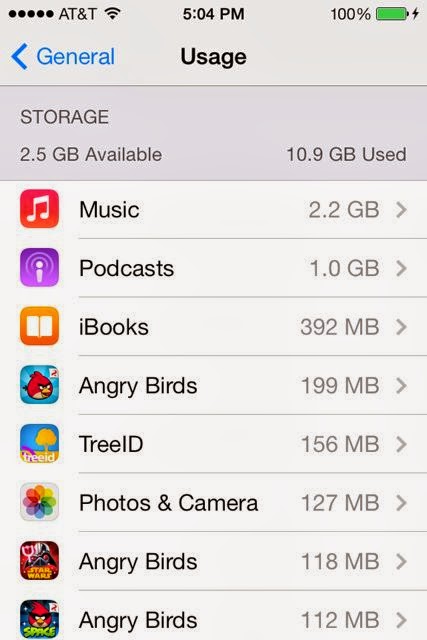
You can check the memory of your phone this way: 


  1. From the start page choose settings
  2. Open General
  3. Slide down until you see Usage and click on it.
  4. Your phone will tell you how many GB are available and how many you have used. Then it lists the apps on your phone in order of how much space they are taking. From here you can see what is taking the most space on your phone and decide what you might want to remove.
If you are sure that it is pictures and videos that are taking up too much space you may want to find another space to save them. On your computer you probably have a built in software for storing and editing your photos. iPhoto is the main one for Mac, but there is also Picasa. PCs come with Windows Photo Gallery. Each of these programs allows you to organize your pictures in different ways so that they are easy to find. 

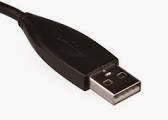
First you will need a USB connector that goes from your phone (or camera) to the computer. Once you have plugged in your iPhone (or other SMART phone) to your computer and turned it on your compute should notice it and a screen should pop up asking what you want to do with the files that are on the device you just plugged in. You want to MOVE them to your computer from the iPhone. When you have chosen to do this a window will pop up and there will be a place to check that you want them to be deleted from your phone when they are transferred to the computer. Your computer should show you the process of transferring the pictures and then the process of deleting them from your iPhone. 

Now your iPhone has new space and your photos are all in a place where you can edit them and sort them in different ways easily. 

Having a program that will store your photos online as well as on your computer is really helpful. If something happens to your computer you will not lose all of your photos. iPhoto, Picasa and Windows Photo Gallery all have ways that you can sign up to have your photos stored online. They usually give you a bit of space free (3-5 GB) and then charge you for space beyond that. 

DELETE ON YOUR PHONE

On your phone you can delete photos and video without downloading them. You can also delete them if you have already downloaded them to your computer and didn't want to erase all of them from your phone. 
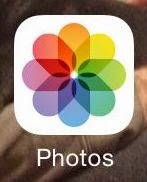
Start by going to the Photos button on your phone. When you click on it your collection of photos shows up. You can see them in many different ways. For this you want to choose "photos". 


In this view they are organized by date. The first view is to see them by year. 


If you choose one of the years it will open to something called Collections. These are organized by date or place. 


If you click on one of those they are now organized as Moments. When the are in this arrangement you can see the word SELECT on the top right corner. 


If you click it the word SELECT appears at the top right of each of the groups of pictures. You will also see that there is a trashcan at the bottom right of the screen. You can select whole groups of photos or only the ones you want to delete. When you have selected more than one you will see the trashcan become blue. Now when you click it the pictures are gone.


Tuesday, February 25, 2014

Arranging the Icons on your iPhone or iPad

The iPhone and iPad are amazing. There are so many apps that eventually you have too many and it is difficult to find anything. In this post I will go over several ways that you can organize your apps so that they are easier for you to find.

ON THE PHONE

1.  Alphabetical Order

You can only organize the apps that you have downloaded and added to your iPhone or iPad. The ones that come with the phone cannot be changed.  Go to:
              • Settings 
              • General 
              • Reset 
              • Reset Home Screen Layout
Now all of your apps, except the ones that came with the phone are in alphabetical order. If you like it this way you will have to redo this each time you download an app because they download to the first empty space or to the end rather than in alphabetical order.


2.  Putting them in Folders

It is possible to put your apps into folders so that you can sort them into types. You can name the folders yourself.


        • Hold down one of the icons until they all have x's and shake.
        • Drag one of the apps onto another one that you want in the same folder.
        • Click the name at the top of the folder window and erase the name that is there and type what you want it to be.
        • It will be the same size as the icons before, but when you click on it the folder opens to reveal all of the apps inside.

3.  Pages by subject

At the bottom of the iPhone window above the bar with the programs that do not change when you go to a different page of icons there are dots. Each dot represents a page of apps. When you swipe the dot that represents the page you are on becomes bold.

Some people like to organize their apps by making each page one of their categories. They might put all games on one page or all music apps on another page.


ORGANIZING ONLINE


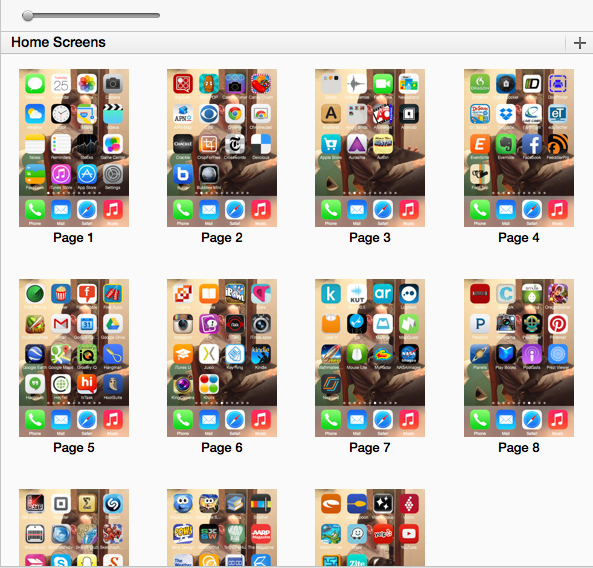
Probably the easiest way to organize the apps is in iTunes on your computer with your iPhone or iPad plugged in because the icons are larger and you can use your mouse. 

  1. Plug your iPhone or your iPad into the computer that you use for syncing.
  2. Go to the iTunes Program and you can see all of the pages of your apps at one time. 
  3. Now using your mouse you can do the same organizing that you were doing on the phone before. You can drag apps from place to place and create folders or pages with your organized apps. When you are finished click on apply at the bottom to make sure to  have the same set up on your phone.
  4. The only thing that is more easily done on the device than on the computer is alphabetize the apps. Remember that alphabetization will not reorder the default apps that came with your phone. 

ON THE IPAD

The iPad works in the same way that the iPhone does and so if you follow the directions above they will help you to organize your iPad

I cannot help you with your Android or Windows devices because I am not sure if they work in the same way or not.

RUNNING OUT OF SPACE? 

I recently had to do an update to my phone and the message it sent me was that it could not download the update because there was not enough empty space on the device. 


The way to deal with that is to open your phone and go to SETTINGS.  In SETTINGS choose GENERAL

In GENERAL choose USAGE. This will give you a list of all of the apps that are on your iPhone or iPad and then you can look through the list to decide if there are apps on there that you never use.


Remember that on your computer you have a comprehensive list of everything you have had on your iPhone.  It keeps track of the apps that you have removed. You can always add them back in without paying for them again if you paid or if they were free!  

Tuesday, January 28, 2014

Apps for your new Device: 10 apps I use and several others to try!

Did you get a new device for Christmas? A device might be an iPhone, an iPad or any sort of tablet or phone that uses Android as an operating system. Because I use an iPhone and iPad that is what is highlighted in this post. Most of these apps have android versions.

Now is the time that you are probably looking for new apps to use on your device. Since there are so many this blog will just share a few favorites that you might want to try.

MY 10 DAILY APPS

I use my iPhone and my iPad several times a day. Here are the ways that I use them. 

1. I use the Clock in the morning for meditation. Once I start meditating I find that having a timer set helps me to focus on my inner self instead of what time is left. I also set it for an hour when I am with a client to help us keep track of the time we work together. I also use it as an alarm clock when I am traveling.

2. I use the Map function, either Maps or Google Maps, to figure out how to get to my next customer's house. I can even have it talk to me to tell me the directions as I drive. Once I even used it when I was already at the address I was supposed to be at, but could not find the building. By following the blue dot that showed where I was in relation to the destination I finally found it.

3. Of course I use it as a phone on a regular basis.

4. I use Messages to text my husband when I just have something short to say like, "on my way home"

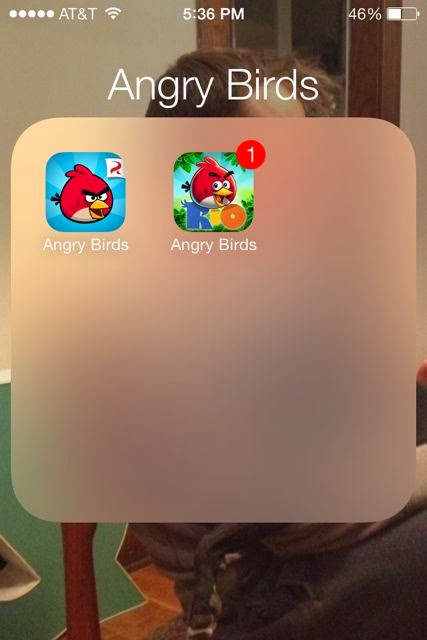
5. When I am in a waiting room or flying and want time to pass quickly I play Angry Birds or Candy Crush Saga. These are the kinds of games I like, but there are tons of other games with better graphics and more action.

6. Gmail has an app that connects to my email, so if I am somewhere that I can't get it and need to I can access it. I find it harder to write back on the iPhone, but sometimes I do.

7. Contacts-I use this all of the time to find addresses, emails or phone numbers for people. I really LOVE the fact that it is with me all of the time.  I can add people into it easily.

8. Calendar-I use this all day to schedule things for the future, to see what I am doing in the next few hours or even to look back to see what I did in the past.

9. Grocery IQ - This is an awesome app that keeps my grocery list for me. I can put into it lists of items that I buy from certain stores and then when I am at the store it is easy to look and see what I usually buy there. I use it to make my weekly shopping list and then check off the items as I get them. I never write grocery lists anymore!

10. Lots of sites are websites that also have mobile apps. I use Yelp to find restaurants I am interested in going to OR to review services that I have used. Facebook has an app. These apps make working on your device a bit easier and help you skip the step of having to search for them on a browser

I use the iPhone all day. It has changed how I do things. As you can see, most of the apps that I regularly use came with the phone or are free to download. There are so many apps out there that I don't usually download anything that costs something.

Following is a list of other recommended apps that I found online with a few comments.

Waze - This is another MAP app that is free and comes highly recommended. It can also give you traffic warnings. It can be used in a social way so that others can see where you are driving and you can see their routes.


Shazam - This is an amazing app that can find the name of any music that you hear. It does have to be close enough to the origin of the sound to figure it out. I am in a coffee shop now and it is not able to find the music that is playing.  


i-nigma - By now you have probably seen those square marks that look sort of like bar codes. They are often on advertisements, but you see them all over now and they ask you to scan them for more information. These are QR-Codes. i-nigma is a QR-Code scanner. Here is one that I made with another app called QR Code maker.

Layar- This app lets you get an idea of what people who are using Google Glass might be seeing. It is sort of a futuristic app. Amazing and fun.


Lose It - This app can help you keep track of what you are eating, how much you are exercising and how your weight is changing. It works on calories and tells you the calories of food. It can read barcodes and enter the information from the barcode into the program. 

Tree ID - This is an app I downloaded to find out about a tree that I did not recognize in my yard. It walked me through the identification process. I think it is really handy to have.
Flashlight - This is not an app, but is a part of the regular operating system on an iPhone. If you slide up from the bottom after turning it on you are given a window with a lot of choices. Choose the one that looks like a flashlight and it makes the camera into a very strong light.


As I wrote this and looked for icons I realized that there are many more apps that I use often. There is just so much available!

Some of the apps in this post are from this New York Times article:
http://www.nytimes.com/2013/12/26/business/basic-apps-for-smartphones-and-tablets.html?hp&_r=0

Friday, January 3, 2014

How Can Airplanes Allow WiFi Use?

 Last weekend I flew to Chicago to visit my son. It was a new experience on a flight for a few reasons. None of the reasons had to do with weather although it was an issue this weekend.

For Christmas I got a GoGo Pillow for my iPad. https://www.gogopillow.com/
It actually fits all sorts of tablets (kindle, nook, android, mini ipad, regular ipad, etc...) The thing about it is that the Federal Aviation Association (FAA) rules have changed so that you can use small devices on the plane even on take off. They still ask that you put away your laptop because it is big. If you want to pay you can even be online while FLYING!  Since I am not a Geek, I don't really know HOW they do that. From what I have read you are connecting to a WiFi that is on the plane, but you cannot use other Internet Connections or use your phone. 

What you CAN do is connect to your email online, so that you send and receive right away. You can stream a video or TV show from the Internet to watch rather than have to take up space downloading it to your device first. You can just look up things on the Internet (maybe plan your trip or shop!) while on the plane. Our airline was offering TV shows and movies that you could purchase and watch through your device for a small amount (99 cents for a TV show). This was on a 3 hour flight where there is usually no entertainment (except for the flight attendents reading the rules).

They ask that during the take off and landing that your device (iPhone, Kindle, etc...) is in Airplane Mode. That means that you have chosen the setting where your device cannot try to connect (ping) during that time. Laptops and devices are always sending out messages to see what else is around them. Even if you are not going to get onto the Internet your computer can see what options are available. 

So, what did I do? Well, it may sound boring, but it did make the time go fast. I set my iPad up on the GoGo Pillow so that I could see it easily. Then I played Candy Crush Saga, Solitaire, and Angry Birds Star Wars. No one told me to put it away when taking off or landing!  I did check out connecting to the plane's wifi and decided I didn't want to spend any extra money to be online. 

After several hours in the airport with a flight delay because of weather I was pretty brain dead, so this was all I could do at the time!  Also, take offs and landings are times when I want to be occupied with something other than noticing how well things are going. iPad games are really good for that!

I also liked using my Gogo Pillow to as an iPad case. I don't think that all tablets will fit, but anything the same size or smaller than an iPad 2 will fit inside the zippered area.  It is pretty cool.


________________________________________________________________________

Extra Bonus Information:  How to put your iPad or iPhone into Airplane Mode. On the HOME screen choose the Settings icon. The first thing you see when you get there is Airplane Mode on the left side. Just click the slider and it will turn green. That shows that Airplane mode is on. As long as this is set you will not be able to connect to the WiFi at all.


Monday, September 30, 2013

OK I'm ready for an iCalendar, now what?

There are so many different types of calendars and devices to talk about and I am not an expert in all of them, so this time I will tell you a story about how I solved my calendar problems and then give you a few tips about how to export a calendar from one type of online calendar and import it into another.
If this does not answer your questions maybe the links below will help you. You can always go to Google and just type in your question. Most often a lot of links will show up with discussions from people who have had the same problem as you have and often there is a solution you can use.

Using the Calendar in iPhone
I started by using my iPhone Calendar regularly. All of my appointments were on my iPhone. Here is what I do.
1. Click on the Calendar icon on my Phone.

2. Find the date that I am wanting to put something onto. This has changed with OS 7.  Here are some screen shots of how I go through it.
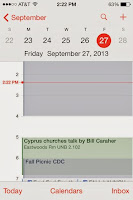
  • Click on Today in the bottom corner to get back to today's date. 
  • Click on the name of the month at the top of the page and scroll down to find the month that I want.
  • Click on the calendar of the month that you are wanting.
  • Click to choose a date that you want to put something on.
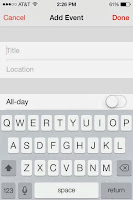

  • Click on the + at the top right side to add an event. 
  • Fill out the event information (remember that there is more you can put in if you scroll down)
  • Click on DONE on the top right when you are done.
The Event Details will appear. It will show what you have put in as well as which calendar it is on.

To Delete an event click on it and when the Event Details appear click EDIT on the top right side and scroll down until you see the red delete button. Click it and the event is gone.

Syncing that Calendar with the Google Calendar
Now that I had the events on my iPhone I wanted to be able to see them on my Google Calendar. I can get to a Google Calendar where ever I am, even without having my own computer. There were two things that I needed to do in order to make my events show up on Google Calendar.

1.  I followed the directions on this link: https://support.google.com/calendar/answer/151674 which made sure that my Calendar was set up correctly. I named the calendar that I wanted to sync "Google Calendar" and gave it a different color than other calendars so that I could see what was happening.

2.  I went back to the calendar on my iPhone and went to the appointments that I wanted to show up on the Google Calendar. I clicked on the event and on the event details looked to the part that told me which calendar it was on. Most of mine defaulted to HOME and had blue dots, so I clicked on the word HOME and switched it to Google Calendar.  When I changed the Calendar they began to show up on my Google Calendar on the computer.


Sharing Calendars with Other People
I thought it would be good to have my husband's events on my calendar so that I could keep up with what he was doing. In order to do that in Google
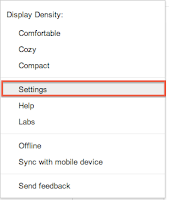

  • On the computer open up and sign into your Google Calendar
  • Click on the Gear on the top right side and slide down to the word SETTINGS
  • Click on the tab at the top that says CALENDAR
  • Click on the link under Sharing.


  • Look for Share With Specific People.
  • In that box type the names of the person you want to share your calendar with. 
  • You can share your calendar with more than one person.

  • They can opt to have your calendar show in a different color on their calendar or not to show. 
Finally, How to Export and Import your Calendar
This may help you if you want your events to go into a calendar that is not compatible with the Google calendar or another calendar that you have. Instead of using SAVE like you do with a document you choose EXPORT. 

EXPORT is usually found under the File Menu, but in Google Calendar it is in the settings.

This exports the file into a format that can be opened by most calendars. One of the formats that is used is .CSV It cannot be clicked on and opened up as a calendar (it may open, but will look like a mess or not open at all. What you need to do is to IMPORT it into another calendar program.

Open the other program and under file look for the word IMPORT. When you choose IMPORT a window opens like when you want to open a file. Find the file that you just EXPORTED and choose it. The calendar program will open it up and you should have all of your calendar items on the new calendar. 

This can also be done with your CONTACTS or ADDRESS BOOK. With most programs you can EXPORT your contacts and then IMPORT them into another address book program. 

IMPORTANT NOTE - This is not the same as syncing your calendar or address book. You are only moving over the things that were entered in the past. It will not continue to update as you update the old one. 

OTHER RESOURCES

Google Support
https://support.google.com/calendar/answer/151674?hl=en

https://support.google.com/mail/answer/3008051

About.com
http://email.about.com/od/googlecalendartips/qt/Sync_Google_Calendar_and_iPhone_Calendar.htm

Digital Trends
http://www.digitaltrends.com/mobile/sync-multiple-google-calendars-on-iphone-or-ipad/