LET'S MEET ONLINE

LET'S MEET ONLINE! Call (512)560-2609 or email helpimnotageek@gmail.com and set up a time for a session. It works really well. We talk on the phone while I see your screen.
Showing posts with label videos. Show all posts

Friday, August 29, 2014

My Phone is full of Pictures, Now What?

Recently several of my clients have had the same problem. All of them had iPhones, loved taking pictures and video and had gotten to the point where they could not update the operating system or add apps because they kept getting the message from their phone that there was not enough memory. They did not want to delete any of their pictures. 


You can check the memory of your phone this way: 


  1. From the start page choose settings
  2. Open General
  3. Slide down until you see Usage and click on it.
  4. Your phone will tell you how many GB are available and how many you have used. Then it lists the apps on your phone in order of how much space they are taking. From here you can see what is taking the most space on your phone and decide what you might want to remove.
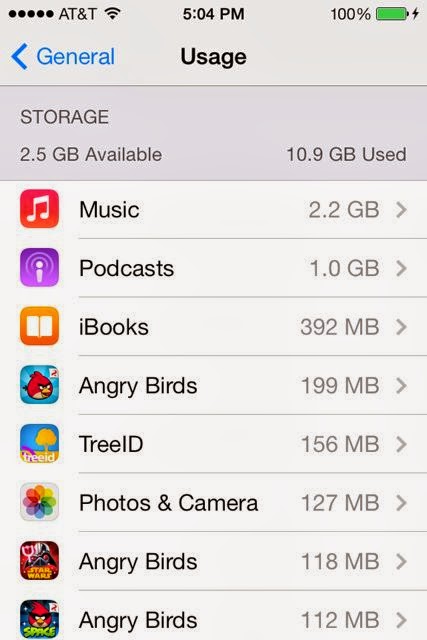
If you are sure that it is pictures and videos that are taking up too much space you may want to find another space to save them. On your computer you probably have a built in software for storing and editing your photos. iPhoto is the main one for Mac, but there is also Picasa. PCs come with Windows Photo Gallery. Each of these programs allows you to organize your pictures in different ways so that they are easy to find. 
First you will need a USB connector that goes from your phone (or camera) to the computer. Once you have plugged in your iPhone (or other SMART phone) to your computer and turned it on your compute should notice it and a screen should pop up asking what you want to do with the files that are on the device you just plugged in. You want to MOVE them to your computer from the iPhone. When you have chosen to do this a window will pop up and there will be a place to check that you want them to be deleted from your phone when they are transferred to the computer. Your computer should show you the process of transferring the pictures and then the process of deleting them from your iPhone. 

Now your iPhone has new space and your photos are all in a place where you can edit them and sort them in different ways easily. 

Having a program that will store your photos online as well as on your computer is really helpful. If something happens to your computer you will not lose all of your photos. iPhoto, Picasa and Windows Photo Gallery all have ways that you can sign up to have your photos stored online. They usually give you a bit of space free (3-5 GB) and then charge you for space beyond that. 

DELETE ON YOUR PHONE
On your phone you can delete photos and video without downloading them. You can also delete them if you have already downloaded them to your computer and didn't want to erase all of them from your phone. 
Start by going to the Photos button on your phone. When you click on it your collection of photos shows up. You can see them in many different ways. For this you want to choose "photos". 


In this view they are organized by date. The first view is to see them by year. 


If you choose one of the years it will open to something called Collections. These are organized by date or place. 


If you click on one of those they are now organized as Moments. When the are in this arrangement you can see the word SELECT on the top right corner. 


If you click it the word SELECT appears at the top right of each of the groups of pictures. You will also see that there is a trashcan at the bottom right of the screen. You can select whole groups of photos or only the ones you want to delete. When you have selected more than one you will see the trashcan become blue. Now when you click it the pictures are gone.


Sunday, October 27, 2013

Watching TV and Movies with your computer

Do you remember when you got your first TV?  Remember how you had to get up every time you wanted to change the channel because no one had invented the remote yet? There weren't that many channels to choose from. Now we have remotes and too many channels, but I find that often when I want to watch there is nothing "good" on.

Things are changing! Now it is easy to watch what you want, when you want to watch it. If you have DVR you can record your favorite shows and watch them at a convenient time.

So, why I am I writing about TV and DVR when this blog is about technology tips? It is because I never have gotten a DVR and I am even thinking of getting rid of cable. I have learned that I can easily watch shows from my computer on my TV. The following gives you a step by step guide of how to do it and then several places you can go online to find free or paid shows. 
HDMI PORT

Hooking your computer up to your TV

Do not be afraid of this!  It involves cables that you may not have seen  before, but you can get them at a Radio Shack or Best Buy with the help of the sales person. This is easiest to do if you have a laptop or even an iPad or other tablet, but it can be done with a desktop computer. The computer will need to be near the TV or have really long cords.

VGA PORT
1.  Check on the back of your TV to see what ports you have on it. You will need to plug in BOTH the sound and the picture.


SOUND CABLE
2. The sound will be going out of your computer and then needs to be plugged into some sort of speaker. For mine I just use speakers that I use for my computer to play music.
SPEAKER


VGA CABLE

HDMI CA
3. The picture can come through either VGA or HDMI cords. Check to see what you have on the back of your computer. Newer TVs will have both choices. HDMI is high definition, so it should be your first choice. VGA will also work well.


ONE TYPE OF VGA ADAPTOR FOR MAC

So, you will need two cords and maybe an adapter depending on your computer. For a Mac either VGA or HDMI will require an extra piece of connector to go between the HDMI or VGA cord an the Mac. Newer PCs will have both an HDMI port and a VGA port. There are different adapters for iPads and other devices. Look at the ports on your computer to see which ones you have

ADAPTER FOR MAC CONNECTED TO VGA CABLE

Now your TV is hooked up to your computer. You will need to let your TV know which input you want it to look for. I have to change mine to PC. It then looks for the PC and displays the screen that is on my computer.

The next thing is to find shows that you want to watch. The following links will take you to lots of possible places to find TV shows. You can skip the TV and watch them on your computer or tablet. It is much more fun though to run them through your TV and watch them on the big screen.

MEMBERSHIPS

Netflix and Hulu are two of the most popular sites for subscribing to TV shows or Movies. With both of them you pay a certain amount each month and then you can watch as much as you want from their sites. When you set it up you get a login and a password that you must enter in order to access your account.

Netflix has two different plans. One is streaming video. All of the shows and movies that are available can be used right away. The other plan is borrowing CDs. I will not go into that since it is not the subject of the blog post.


OTHER PLACES TO FIND SHOWS

Crackle
Crackle by Sony is limited. There may not be full seasons for some shows, but there are many that are free. You will have to watch some ads and it does not seem to be something you can avoid.

TV.com
Reviews, discussion forums leads to full episodes that reside other places like Hulu or Netflix

FreeTVHub.com
International channels, less popular programming

Hitbliss.com
This sounds like an interesting new idea. It is sort of a pay as you go system where you pay by watching ads. 

Television networks (FOX, NBC, ABC, PBS)

Amazon Prime

WHAT ABOUT THE REMOTE?

If your have an iPhone you are in luck.  There is an app called Mobile Mouse which allows you to manipulate your computer using your iPhone. It also works with an iPad or iPod. You download the app to your iPhone and then another app onto your computer that makes it into a server for the app. Your iPhone uses WiFi and works just like a mouse with your computer!

There are other options for the Android. I have not tried them, so I cannot speak to them though.