LET'S MEET ONLINE
LET'S MEET ONLINE! Call (512)560-2609 or email helpimnotageek@gmail.com and set up a time for a session. It works really well. We talk on the phone while I see your screen.
I work with a client who is creating a blog in anticipation of a long trip. The pages written ahead of time are listed in date order in the list of pages in Design. The problem is that the travel is not going to be in the same date order, nor will it be alphabetical. It would be much more useful to have the pages listed in the order of travel.
In order to do this just adjust the dates that Blogger has recorded.
Here are the instructions with some images.
- Open one of the pages or posts.
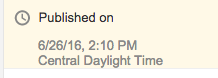
- When it is open on the right side you will see the date that it was published.
- Click on the words Published On.
- A window will open with a calendar which will allow you to change the date.
- You can change all of the dates so that they show up in the correct order.
Did you get a new device for Christmas? A device might be an iPhone, an iPad or any sort of tablet or phone that uses Android as an operating system. Because I use an iPhone and iPad that is what is highlighted in this post. Most of these apps have android versions.
Now is the time that you are probably looking for new apps to use on your device. Since there are so many this blog will just share a few favorites that you might want to try.
MY 10 DAILY APPS
I use my iPhone and my iPad several times a day. Here are the ways that I use them.
1. I use the Clock in the morning for meditation. Once I start meditating I find that having a timer set helps me to focus on my inner self instead of what time is left. I also set it for an hour when I am with a client to help us keep track of the time we work together. I also use it as an alarm clock when I am traveling.
2. I use the Map function, either Maps or Google Maps, to figure out how to get to my next customer's house. I can even have it talk to me to tell me the directions as I drive. Once I even used it when I was already at the address I was supposed to be at, but could not find the building. By following the blue dot that showed where I was in relation to the destination I finally found it.
3. Of course I use it as a phone on a regular basis.
4. I use Messages to text my husband when I just have something short to say like, "on my way home"

5. When I am in a waiting room or flying and want time to pass quickly I play Angry Birds or Candy Crush Saga. These are the kinds of games I like, but there are tons of other games with better graphics and more action.
6. Gmail has an app that connects to my email, so if I am somewhere that I can't get it and need to I can access it. I find it harder to write back on the iPhone, but sometimes I do.
7. Contacts-I use this all of the time to find addresses, emails or phone numbers for people. I really LOVE the fact that it is with me all of the time. I can add people into it easily.
8. Calendar-I use this all day to schedule things for the future, to see what I am doing in the next few hours or even to look back to see what I did in the past.
 9. Grocery IQ - This is an awesome app that keeps my grocery list for me. I can put into it lists of items that I buy from certain stores and then when I am at the store it is easy to look and see what I usually buy there. I use it to make my weekly shopping list and then check off the items as I get them. I never write grocery lists anymore!
10. Lots of sites are websites that also have mobile apps. I use Yelp to find restaurants I am interested in going to OR to review services that I have used. Facebook has an app. These apps make working on your device a bit easier and help you skip the step of having to search for them on a browser
I use the iPhone all day. It has changed how I do things. As you can see, most of the apps that I regularly use came with the phone or are free to download. There are so many apps out there that I don't usually download anything that costs something.
Following is a list of other recommended apps that I found online with a few comments.
 Waze - This is another MAP app that is free and comes highly recommended. It can also give you traffic warnings. It can be used in a social way so that others can see where you are driving and you can see their routes.
Shazam - This is an amazing app that can find the name of any music that you hear. It does have to be close enough to the origin of the sound to figure it out. I am in a coffee shop now and it is not able to find the music that is playing.
i-nigma - By now you have probably seen those square marks that look sort of like bar codes. They are often on advertisements, but you see them all over now and they ask you to scan them for more information. These are QR-Codes. i-nigma is a QR-Code scanner. Here is one that I made with another app called QR Code maker.
Layar- This app lets you get an idea of what people who are using Google Glass might be seeing. It is sort of a futuristic app. Amazing and fun.
Lose It - This app can help you keep track of what you are eating, how much you are exercising and how your weight is changing. It works on calories and tells you the calories of food. It can read barcodes and enter the information from the barcode into the program.
Tree ID - This is an app I downloaded to find out about a tree that I did not recognize in my yard. It walked me through the identification process. I think it is really handy to have.
Flashlight - This is not an app, but is a part of the regular operating system on an iPhone. If you slide up from the bottom after turning it on you are given a window with a lot of choices. Choose the one that looks like a flashlight and it makes the camera into a very strong light.
As I wrote this and looked for icons I realized that there are many more apps that I use often. There is just so much available!
Some of the apps in this post are from this New York Times article:
http://www.nytimes.com/2013/12/26/business/basic-apps-for-smartphones-and-tablets.html?hp&_r=0
Lately I have been getting a lot of questions about using Outlook, especially on a Mac. Below are some of the questions and my response.
I use two different email addresses. How can I set them up to both send to my same Outlook account?
There are two ways to do this.
- If you want to have two separate mail boxes which you open separately and that keep one account separate from the other you need to set up a second profile. Here are the instructions for setting up a second profile. http://www.youtube.com/watch?v=6KbzzVjjn
In this scenario your set up is almost like having two different email accounts. You read and send mail with one account and then switch and read and reply with the other account. You will always have the correct account in the from: area where people reply.
- Another option is to have two email addresses that both send to the same mailbox. Here are the instructions for setting that up.
Go to Tools>Account Settings in Outlook. Click "new" and then add your second mail account. Now you have two different accounts that both have the same mailbox.
 I have two different email addresses that both feed into my Outlook account. How can I reply to someone with the account I want to use with them?
When you send mail you will notice that below the send button is the word Account with an arrow. If you click the arrow it will give you a list of the accounts that are set up in your system. Choose the account you want to use for your reply and then click send.
You can change the default address for replying if you find that you are having to switch too often. To do this look under the Tools menu for Account Settings or Email Accounts. You should see a list of which email accounts you have set up. Highlight the one you use most often and click "set as default".
How do I get my Outlook calendar to sync with my phone?
The main thing to realize is that your calendar is a part of your email set up and so when you set up your email you are also setting up your calendar.
Windows Phone - Flick left to the app list, tap settings, tap email and accounts, tap Add an Account, Depending on your Version of Windows Phone choose Outlook or or Windows Live. Enter your Outlook. com address and password. Tap sign in.
iPad, iPhone, iPod Touch - Go to Settings-Mail, Contacts, Calendar and choose HOTMAIL. Fill in your Outlook email and passwords. Choose what you want to sync and tap SAVE.
Other Phones - You will need to download an Android app. Go to this link and follow the directions.
http://tinyurl.com/cobm3rq
Unfortunately this app has fairly poor reviews. Maybe it will be improved in the future.
What is the difference between an Outlook Exchange account and Outlook that I have at home?
Outlook Exchange is a set up of Outlook that is run from a server (a server is just a computer that can share everything through a network). The reason that employers like it is that it is a closed system that allows workers from the same company to interact and share among other workers in the same company easily and safely. As a user you do not see a lot of difference between Outlook Exchange and regular Outlook, which is what people use on a home computer.
If you are using Outlook Exchange at work and you want to access information on a home computer you will need to talk with the System Administrator to get information about how to connect.
Can you explain Outlook Express and Outlook 365?
Outlook Express was a free version of Outlook which came with some versions of Internet Explorer and Microsoft Office. It was meant for personal use rather than the more robust Outlook that was designed for offices. Right now you are encouraged to download Windows Live Mail instead if you want a free email client (program that works on your computer).
Outlook 365 is a service with a monthly or annual fee. It uses Windows Sky Drive as an online server which saves all of your mail. Signing up gives you 20 Gigabytes of Sky Drive storage. It does allow you to install it on five machines, so it can be cost effective even though it is a subscription rather than a one time purchase.
If you have a Mac and want a shortcut to get to your Outlook mail the MailTab app for Outlook will do that. Here is a link to the app on iTunes https://itunes.apple.com/us/app/mailtab-for-outlook/id582581625?mt=12
Here are links to some of the sites where I found the best information:
Wikipedia
http://en.wikipedia.org/wiki/Microsoft_Outlook
YouTube
http://www.youtube.com/watch?v=VTSn_z3OrpM
Microsoft
http://office.microsoft.com/en-us/outlook-help/what-is-a-microsoft-exchange-server-account-HA001230171.aspx
PC World
http://www.pcworld.com/article/2026710/why-office-365-is-a-better-deal-than-office-2013.html
DISCLAIMER: I learned these things from looking them up on the Internet and have not experienced them. I use Gmail and the mail app on my iPhone and iPad. They work well and easily for me.