LET'S MEET ONLINE

LET'S MEET ONLINE! Call (512)560-2609 or email helpimnotageek@gmail.com and set up a time for a session. It works really well. We talk on the phone while I see your screen.

Monday, July 8, 2013

When I try to open a document it keeps opening in the WRONG Program

If you open your documents (word processing, spreadsheet, pictures, quicken, etc...) from the document icon on your computer usually it opens in the program that you created it in. If it opens the wrong program, what do you do?

This is the way that computers work: 
1.  Each file is automatically associated with a program. When you click on it that program opens up. 

2. Now and then, for various reasons (which really don't matter) your file opens up in a different program. Some examples of this are when you happen to have (like me) more than one word processor on your computer. You have created something in Word, but when you click on that document it opens up in Pages (or Open Office, Word Perfect), which you never use OR more commonly you click on a link from a website that you are looking at in Internet Explorer and it opens up a different browser (Safari, Firefox, Chrome, etc...).

3. This means that the file or maybe all files of that type now think that they are associated with the new program. 

If you know the steps it is pretty easy to switch them back the way you want them to be. The instructions below are for MAC and following that are PC.

CHANGING A FILE ASSOCIATION IN A MAC

1. Find the file that you want to change. Hold Control down and click on the icon or name if it is listed in a list of text.

2. A window will open with several choices. Look for the words GET INFO. 

3.  When you click on GET INFO a new window opens giving you lots of information about that file and ways that you can
work with it. Look down the list until you see a small box on the bottom that says OPEN WITH. It has a pull down window. It will show you all of the programs that can open this type of file. 

4. Choose the one you want. If you want ALL of the documents of this type to open in the program you chose CHANGE ALL. If you do not choose this it will just make the change on the one file. 

CHANGING A FILE ASSOCIATION IN A PC

1. Open DOCUMENTS to see your files OR find the document that you need to change in the way you are used to.  

2.  Right Click on the document name or icon. A window will come up. Look for the words OPEN WITH. 

3. A window will come up with the program that this file is associated with and a checkmark in the box next to USE THIS APP FOR ALL .DOCX FILES

4. At the bottom it says MORE OPTIONS. If you click this it will open a list of other programs that can open this document. If you want to change which program it opens with LEFT CLICK on that one. 

5. If you want ALL documents like that to open with the new program make sure there is a checkmark in the top box that says USE THIS APP FOR ALL DOCX FILES.

CHANGING WHAT OPENS WHEN YOU CLICK A LINK IN YOUR BROWSER


This applies to both Macs and PCs. The default browser settings are actually in the browser. They all have settings that say something like "Make this browser my default".  If you click this your links will always open in that browser. You can change it by going to the browser that you want to use and finding the "Make this browser my default" choice and clicking it. It will automatically change the settings so that the other browsers do not automatically open.

In the Mac Open up the Main Menu and choose Preferences. Click on the tab at the top that says General.  

In the PC look for Internet Options under either TOOLS or Settings (the little thing that looks like a gear). Choose the Programs TAB and then look for the words CHOOSE HOW YOU OPEN LINKS. Pull down to change the browser that you want to use.


Monday, July 1, 2013

Memory Allocation on iPhone

I received this question from a faithful reader:

I use an iPhone 4S for my company phone. I get tons of voicemails everyday and soon it will say I've used all of my memory. So now, everyday, I delete all of my voicemails and clear them from the "deleted messages." So my question is, does the iPhone have only a set amount of memory to hold voicemails? Or is it shared through everything? I only have 300 pictures on this phone so I'm confused as to why 20 voicemails take all of my memory.

I did not know the answer to this one, so I was very happy to do some research and see what I could find. After reading through lots of different discussions it was still unclear to me why you might be having this problem. I did learn a few things:


1.  It doesn't seem that the iPhone has an allocation system like you may be used to on your computer. There is basically one pot of memory for all of the things that are on your phone. What your phone does have is a way of showing you what is taking up the memory. This is not an allocation, but just a reflection of what is there. To see it plug your phone into your computer and go to iTunes. Click on your phone which should be listed on the left side of the screen.

2. As was stated in my earlier blog post there are ways to delete and clear out most of the items that take up memory on your phone. See this post http://helpimnotageek.blogspot.com/2013/01/getting-more-memory-on-your-iphone.html for more information.

3. Pictures can take up different amounts of memory depending on what resolution they are saved at. If you go to Settings - Photos and Camera at the bottom of the screen you will see that there is an on off switch for "Keep Normal Photo" The pictures on the phone are HDR (High Dynamic Range) and so you have a choice to save the normal image as well as the HDR image. Depending on which iPhone you have the pictures can take up different amounts of memory. The newer the phone, the larger the picture files.

4. The one thing that you have no control over is "Other". This mysterious category includes things like the operating system itself and other secret items that make it work. If  the Other category gets higher than 1 Gig it may mean that you have some corruption in your OS. The articles that I read recommended that you do a hard reset on your phone which will start the phone out fresh and should correct the problem. If you do this make sure that you have downloaded all of your pictures and music to iTunes and iPhoto or whatever photo program you use. That way you can put them back on your phone if you want them to be there. Here are the steps
  • Back up all of the items on your iPhone or iPad to iTunes or iPhoto. All of your apps and purchases are already kept in a record in iTunes so you can download them again easily. 
  • Hold down the On/Off Button (on the top of the iPhone) and the Home Button (on the front bottom of the iPhone with the square on it) for a long time until the phone completely goes blank. 
  • Wait for a minute or so and then hold the on off button for a long time. Your phone should start up. It may be back to the way it was in the very beginning in which case you will have to download the items you still want on your phone. 
  • Check your memory categories by following the directions above to see if it has resolved the problems with the amount of space Other was taking.

Friday, June 14, 2013

Sites to Help Plan Your Vacation


So, are you planning a summer vacation?  One thing you can do is to type the location you are going into Google and get lots of information about it. You can go to expedia.com or kayak.com to search for the best flights, rental cars and rooms. 

There are other options that may be new to you. 


Vacation Rentals By Owner is one of
many different sites where people can post their own property as a rental by the day or by the week.  Many of these are really interesting houses that sleep 6 or more. It is a great way to find a place to stay that costs less than a hotel room depending upon how many different people divide the cost. 

I have experience with this site and have only had very good experiences with the houses that we have rented. It is so nice to have a living room where everyone can gather to spend time together. They usually have kitchens with dishes, pots and pans, and everything you would need to make meals in the home. 

A few other sites like this were listed and so I have included their links below.

Home Away Home Away is the parent company of VRBO and Vacation Rentals. They also have some other sites like Bed and Breakfast

Vacation Rentals

Vacation Listings by Owner This site is a separate business not related to Home Away. It is possible that different listings would be found on this site.  
Trip Advisor screen shotA few years ago I traveled for vacation to London, England. My husband and I stayed in an apartment very similar to the arrangements above. We shared it with a couple who are friends of ours. Each night we would have to decide where to eat out. 


That is where I learned about Trip Advisor My friend would go to the site and type in what type of restaurant she wanted to try and it would return multiple possibilities. They came with a map, menu and reviews, so it was easy to figure out which one to try. Another thing that was fun was that we could write our own reviews after trying it. 


Since then I have used another site Yelp.com more often. I am not sure why. I guess that Trip Advisor looks more like a far away vacation site and Yelp looks more local, but really they both do the same things. I often look at Yelp to help me decide which restaurant to go to or what activity got good ratings. Reading the reviews is so helpful. You should always pay attention to how many reviews the place you are reading about has had. a 5 star place may just have one review and so it is possibly NOT as good as the average of a place that has 100 reviews. 

Tell us about other sites that you use to help plan your vacations!

Monday, June 3, 2013

Pinterest, Doodle and Instagram

Every day there are more and more Web 2.0 sites showing up that solve various problems in our lives. I assume that some of them do not get used and so they disappear after a while and others take off and become favorites. Today I am going to review three of them that seem to have made it and are well-liked and used by many people.


Probably the most popular of sites is Pinterest. Here is the description from their website:"Pinterest is a tool for collecting and organizing the things you love. Browse boards created by others to discover new things and be inspired by people who share your interests. People use boards to plan their trips, decorate their homes, and share their favorite recipes."


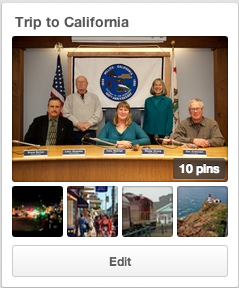
It is really a way of bookmarking websites that is very visual. You are keeping a collection of PICTURES of different webpages. You can share your "pins" or keep them private. It is easy to go back to something you have pinned and look at it later. I am going to start a Board with sites relating to a coming trip to California.

First of all I logged into Pinterest. I think the one thing that has made all of these sites possible is the ability to keep track of users by making them log in. Because you are logged in you can also keep your "Boards" (collections of things that you have pinned) private or share them with only certain people.


What makes Pinterest easy is the Pin it marker on the Browser. It shows up no matter what website I go to and in order to save a site I just click on the P! In order to get mine I had to go to the Chrome store because I use Chrome. There are instructions for how to get one no matter what browser you are using.


After logging in I created a Board called Trip to California I spent some time searching sites relating to the trip I will be taking. At each site that I want to save I click on the P on my browser to save the site. Pinterest offers me several pictures from the website to use as the one that will show when the Board is viewed. I click on the one I want and then it shows me a list of my boards and I tell the program which Board I want to add it to.

Some of the best uses I have heard of for this site involve planning the visual part of events like weddings or DIY projects. It is great to have a picture of each of the things that you are interested in after you have searched. Sometimes the words describing the site do not help you remember.

If you want to see boards you can just search for "pinterest dogs" or whatever interests you. The first site returned should take you to Pinterest pins on that subject. It is a fun way to search for something you are interested in.


Doodle is one of the most helpful sites that I have ever used and you do not even have to log in to use the site, but if you do log in there are more things that you can do. It is a site created for scheduling a group.


With any group it is extremely difficult to get everyone together and find out what is the best common date and tme for the next meeting. Doodle solves that problem. Whoever is in charge of the meeting creates the Doodle and then mails a link out to all of the others who are involved in that meeting asking them to designate what times they are available. If the person in charge of the meeting puts down 5 or 6 times that they can meet then each person is able to check ALL of the times that they can meet.


As each person confirms the meeting everyone can see what the results are. Then all the person in charge of the meeting has to do is to look at Doodle to see what is the best date for the meeting (when they most people can be there). They can then send out this information to the group.


Finally, Instagram is a fun way to send photos to people or to Facebook and other places easily. There is no need to attach something to an email.
Instagram is different than the sites above. 


It is an app that you can get on your iPad, iPhone, or other Smart Phone. First you need to download the free app from the app store or the Google store for the Android version.

After that all you do is take a picture with your Smart Phone or tablet. The picture shows up and you can edit it automatically. I just play with this until it looks the way that I want it to. When it is ready click NEXT and fill in any of the information. You can click Add People if you want to put markers on the picture so that people can see who is in it by rolling their mouse over the picture.

Then you can decide who you want to share it with. It can be posted to Facebook, put on Twitter, Sent in your email, sent to Tumblr, Flickr or Foursquare automatically. When you click share the photo is automatically shared. You will still have a copy saved in your instagram profile also. You can follow other Instagram users to see all of the photos that they post.

You can use keywords with hashtags in Instagram. Those are words that have # in front of them. You can put important describing words about your pictures with the # mark in front of them in order to help people searching that word to find them.

To search go to the symbol on the bottom of the screen that looks like the compass rose on a map (showing West, North, East, South) and click on it. It will take you to a screen where you can type in what you want to see. You can search for a specific user OR for a hashtag. I searched for #cats and it returned 6,795,304 photos! I guess I need to narrow my terms next time! Also, when I looked at them very few were actually cats although they were not offensive photos.

Friday, May 17, 2013

Finding a Job Using Online Resources


It can be daunting it to look for a job if you are not comfortable with technology. Many of the places to look for jobs are online.  If you go to many places to apply they have a computer right there that you can use.  You may even feel that your outdated computer skills will make it hard to get any job, even if you successfully apply.


Here are some things that might help with your job hunt.  I assume that if you are reading this blog you can use a mouse and know how to get onto the Internet.

1. Linked In is a network similar to Facebook, but rather than connecting to friends and family the goal of Linkedin is to help you connect with people professionally. It can provide you with job possibilities while also helping you to connect to people who can write you a recommendation. You can also follow a company so that you are notified when there are changes on their profile.

2.  Workplace Reviews:  Looking online to find out what employees of places you may apply are saying might be helpful. I just typed "employment 'name of company' reviews and got many helpful websites. The two most common are listed below. The Glass Door allows you to see all sorts of things about the company that you are considering including Salary, Who is Interviewing, and a list of Job Openings. You can create a notification so that it sends you email whenever a new job you are interested in is posted. On Indeed you can post your resume and employers can post a job
Glass Door
Indeed


3. Filling out an Online Application: Some online applications require that all of your documents (resume, cover letter, etc...) need to be uploaded in .pdf format. If you have typed your resume using word it probably has a .doc ending. To make it a .pdf often you have to go to FILE>PRINT and then choose PDF (usually at the bottom of the window). The computer will ask you where you want to put it (the same as saving) and will change it into a .pdf. Unlike saving as, a .pdf makes a picture of your document, so it cannot be edited or changed.


4. Writing a Resume  In your word processor (Word, Open Office, Pages, etc) there are often templates built in. These are pages that are already formatted like a resume. All you need to do is to type and replace words that have been put in the right spaces. To find out if your program has templates for this go to FILE>OPEN>TEMPLATES and look through what is there to see if there is a template you like. If not, you can go online to look for a template. Here are some links to free templates online. 

http://www.resume-now.com/rna.aspx  Build your resume online with several choices of format. You must log in and create a password.

http://www.primermagazine.com/2011/earn/7-free-resume-templates  This has an article about things you should include in a good resume.

http://resumecompanion.com/resume/resume-templates This has 1500 templates that are all sorted by job type.

There are lots of other sites that provide templates. There are also courses that teach you how to make a resume. Below is a link to one example. Search Google for resume writing course and you will see 15,000,000,000 results. There are also courses at your local Junior College and through Employment Centers at your city government.

http://www.universalclass.com/i/course/resume-writing-tutorial.htm This is an online class. It costs $35 and will give you 1.2 CEUs.

Another possibility that is a bit more expensive is to have someone write your resume for you. If you have trouble putting your experience into words this might be for you. This is an example of a list of services in Austin, TX. 

http://localresumeservices.com/Austin-Resume-Services-Writers.php

5.  Job Search Websites


http://www.Monster.com - There is lots of information and job hunting advice as well as a searchable list of jobs on this site.

http://www.careerbuilder.com/ - This site has other resources as well. You sign up and create a password so that you can get back into your account.

http://www.simplyhired.com/ - Simply Hired allows you to search for a job by category.

http://www.pcmag.com/slideshow/story/294523/the-10-best-job-search-websites - This site reviews the links above as well as many others.

Finally, remember that EVERYTHING you have done online is easy for any employer to find and lasts forever. It is important that you do a search on your name to see what comes up. 

If nothing shows up when you type in your name it is not always good. It means that you have no digital footprint and depending on the job you are looking for that might be bad. 


It is always possible that something surprisingly bad might come up. A friend of mine did a search and several years ago she was arrested for a minor issue. Some company takes mug shots and posts them for anyone to see. In order to have them to take your picture down you have to send them money. At least if you know that something like that is out there you can explain it in an interview or a cover letter. 

http://mugshots.com

One last thing!  You can call I'm not a Geek.com at (512)560-2609 and spend 1 hour brushing up on your skills or getting help with writing that resume or searching for jobs!

Friday, May 10, 2013

10 Ways to use a Spreadsheet (Excel)

Spreadsheets are one of the most under-appreciated pieces of software. People don't realize how helpful they can be. I use them all of the time. With a spreadsheet you can easily sort by any column to bring up the information that is helpful to you. You can also put in formulas and graphs to give your information more meaning. My favorite way to use a spreadsheet is to do a Google Drive Spreadsheet. If you use Google Drive you can share the spreadsheet with others and work on it together or even make it so that the other person can see it, but not edit it.

Here are 10 ways that Spreadsheets can make your life easier!

1. Any Check List - There are other ways to make check lists, but a spreadsheet is a great way to keep track of dates. You can also sort or create a notes column to remind you of anything that is important. I used to use a spreadsheet to keep track of students who brought in signed field trip forms. I had a column for their first name, last name, a column with the date they handed it in and a column with notes that would remind me if I had called their parent. When most were brought in I could easily sort on the column with the dates and find which ones were blank and follow up on them.

There are many things in life that you can keep track of this way if you want/need to. You can keep a list of what you ate, figure out car mileage easily, keep track of dates and where you ate out, keep track of medications dates and times for taking and check off if you have taken them. Comment below if you think of other things!

This How To article might help you.
http://www.techrepublic.com/article/use-excel-check-boxes-to-create-a-list-totaling-spreadsheet/1041101

2. Login/Registration/Password Data - These days you have to keep track of SO MANY different passwords and log in names for different websites that you use. Most people have a system of scraps of paper or notebooks where they keep lists of all of their passwords.  What if you created a spreadsheet with one column that has a link to the website, one column with the login and a third column with the passwords. What if you kept all of this on a thumb drive that you could take with you easily anywhere?  That way it would not be on your computer where it could possibly get hacked into or on little pieces of paper that get lost or that you don't have when you are somewhere away from your desk. (it is 4 years later and I realize that this is a BAD idea!)


3. Christmas Gift List - I tend to forget what I have given people from year to year. I am sure that I think of giving certain people the same thing from year to year. So, I started a spreadsheet where I list the people I give gifts to.  It has columns with a year title for each column. Then when it is Christmas time I add the gifts next to each person. I can see what I have given people for the last years. It is really helpful. I suppose if I cared I could add a column for money spent each year and total it at the bottom so that I can have an idea of how I am doing with spending.

4. Anything that you might want to sort. I enter clients into a list on a regular basis, but occasionally want to sort by last name, or where I met them. Sorting is extremely easy. Depending on the Spreadsheet you use all you do is click on the letter at the top of a column and then either look for the down triangle to click or got to DATA-Sort Ascending or Sort Descening. This will sort the whole table by whatever column you have chosen. It really helps to bring to the top the information that you might be looking for. One example is a spreadsheet with data about what was donated to a Silent Auction. One of the columns was who asked for the donation. If I wanted to find out who got the most donations I could sort the spreadsheet by the ASKED column. It would be easy to scan down and see who got the most. OR it is possible that I have forgotten to type some information into a column. To find the blank spaces I can sort by that column and the blank spaces will come to the top. This does not permanently change anything. A spreadsheet can be sorted any way and then sorted back.

5. Anything where you have to add or average a lot of numbers. There are tons of formulas for figuring out different things in a spreadsheet, but I do not have much occasion for using most of them. The two that I regularly use are SUM and AVERAGE. Spreadsheets are made to put in formulas very easily.
Function Symbols for a Spreadsheet

  1. Click on the space you where you want the answer to showClick on one of the three symbols to the side. fx means Formula, the second one that looks like a capitol E means Sum and of course the third means Equal.
  2. If you choose fx it will give you a list of all of the fomulas you can choose from. There are a lot. If you choose the second one it will give you the formula to sum the numbers you indicate. If you use the third one you will have to choose from the pull down list to your left and choose one of the formulas.
  3. When you choose this it should put the answer to the formula in the box you have selected.

I know that these instructions are a bit hard to follow, so feel free to call and set up an appointment if you want to really learn how to do this. Or check on YouTube to see a video of how to do this: 

http://www.youtube.com/watch?v=JJPjs-lITAw

There are lots of videos to help you learn how to use various formulas in Excel. It is worth checking out!

6. To create a graph to show information in a way that is easy to understand. You have seen lots of graphs that help you to better understand various information.

Here is one that shows which the places that people use to get to this blog.


Here is a pie chart showing the World Distribution of Wealth in 2000.


To create a graph first enter all of the information that you want to show in your graph. Then highlight the columns that contain that information and click INSERT>CHART and select the type of chart that you want to create. When you are done the chart will be inserted onto the page. The chart is editable by color and titles and many other things. 

In order to learn better how to do this you can go to http://youtube.com and search for creating a graph in a spreadsheet. 

This is a good one, but there were about 7,000 to choose from!

http://www.youtube.com/watch?v=Iv5m00YS_4I


7. Financial Record Keeping - There are lots of premade spreadsheets for keeping financial records, so I will not go into this thoroughly. I do simple things like keeping track of my mileage so that I can get an easy total of it at tax time. I also use it to keep track of what I make working with people each week. When I want to do more complicated record keeping I use Quicken. Many people use Quickbooks or other software already created to keep that sort of information and give you the reports that you might need. There are also templates that can give you a preformatted spreadsheet so that all you have to do is fill in the cells with information and numbers.

Microsoft Office-Recipe Tracker, Invoice, Financial, Personal Inventory, Flow Chart and many more
http://office.microsoft.com/en-us/templates/excel-templates-FX102828204.aspx

Free Spreadsheet Templates - Wedding Planner, Vacation Home Manager
http://www.spreadsheetmarketplace.com/frsp.html

There are many others. To find them I went to Google and typed "spreadsheet template" and there were a whole bunch of them listed. 

8. Donations to a silent auction - The board I am on kept this one on a Google Spreadsheet. It was easy that way for all of us to share the document. We could add to it and see a current copy. This allowed us to check before going to a business to ask for donations.  It also allowed the person coordinating to see that donations were coming in regularly.

9. Keeping track of about anything - I use a spreadsheet to keep track of the places that I have called to make contact for I'm not a Geek.com. I have a column for the name of the place, the date I called or visited, who I talked to, the phone number, the website and other notes. 

10. Managing Vacation Property, Gardening, Wines, Exercise Plans, Grades, Investments, Sports, Games, Household Budget, Calendar, Agenda, etc...  Again, there are templates online for all of these that you can freely download and use. They have the formulas built in and so are easy to use.

Tuesday, April 30, 2013

Dewitty Computer Center

Last week I attended a day out of a two day forum on the Digital Divide which took place at the LBJ school. People were there from lots of different states and I learned a great deal. One of the main things I learned about is the:  

DEWITTY JOB TRAINING AND EMPLOYMENT CENTER 


Map of the Dewitty Center AustinIt is located on Rosewood Dr. here in Austin, Texas.  One of the services that they offer is a free computer lab staffed by people who will help you with what you need to do. It is called Austin FreeNet. Since it is part of the Dewitty Job Training and Employment Center there are many people there who need help with Resumes and Filling out Forms. They said that in April there are lots of people working on filing their taxes online. It is free for people to use the lab and they help you with whatever you need.

Austin FreeNet  http://www.austinfree.net/ This page has a good summary of the meeting that I attended. They run computer labs and training in lots of different locations. See this page for a list of their locations. 

If you need to learn technology you will want to check this place out!