LET'S MEET ONLINE

LET'S MEET ONLINE! Call (512)560-2609 or email helpimnotageek@gmail.com and set up a time for a session. It works really well. We talk on the phone while I see your screen.
Showing posts with label dropbox. Show all posts

Wednesday, November 21, 2018

CloudHQ

I keep running into times where I am told to create an account for CloudHQ. I tend to be skeptical at first of creating accounts for things that are new. So, I decided I needed to do a little look into what CloudHQ is and decide if I really need an account.

I now understand that CloudHQ is a cloud to cloud management service. I know that is a lot of tech talk. What it means is that since every company has their own cloud service (One Drive for Windows, iCloud for Mac, Google Drive, Dropbox, etc...), it allows them to talk to each other so that you can get all of your "stuff" in one place.

For example, I have a Dropbox account, use Google Drive and iCloud. I also use Gmail. I think it was with Gmail that I was required to sign up for CloudHQ. AHA!  I was trying to learn about Gmail Templates!

The Research
When I want to learn more about something I just go to Google and type a question into the search box. For this I just typed "review CloudHQ" and got 29,100 results. I almost never go beyond the first page of results.

What I learned is that there are other management systems that do what CloudHQ does, but it is the most used. It is a completely web-based app meaning that you do not have to download anything to your computer to make it work. If you want to sync multiple services (let's say Google Drive, Dropbox, and iCloud) you will have to pay for it, but if you are just pairing two services (Google Drive and Dropbox) you can use the free version.

The free version is enough for the average user. They make money especially by working with companies who use it so that their employees can be more effective at their jobs. I guess signing up for a free service is OK for me.

This review from 2013 is where I learned most of this information:
https://www.pocketables.com/2013/01/app-review-cloudhq-syncs-your-cloud-from-the-cloud-but-at-a-price.html

Another article that was helpful was from 2018
https://blog.leadfeeder.com/cloudhq-growth-hacking-examples/

Thursday, September 8, 2016

Sharing in Dropbox-Can someone else delete my stuff?

There are different ways to share folders in Dropbox. You are in charge of how you share folders or documents. 


If you want to share so that the other person can edit the document, the choice comes up after you type their email address into the To: line

You can choose how they will interact with the document. 

You can also choose to share only a link to the folder in your Dropbox. 


If you Create a Link you can send it in your own email and the recipients will have access to your folder. They cannot change anything in it, but they can download the contents to their own computers. There are additional choices for how the link is managed if you sign up for a paid account. 

Here are step by step directions for sharing. You can do it from your own Dropbox folder on your computer, but I think it is more straight forward if you sign in online.

1. Get online-any browser should work.
3. Sign in. Your files should appear and look like this when you roll over them.

Inline image 2

4. Click on the "Share" button
Inline image 3
5. Fill in the To line with the email or email addresses.
6. Add a message.
7. It will be sent letting the people you are sharing with that they have access to that folder.

If you have given someone editing permissions for your folder they can add and remove items. It is always good to have a backup somewhere for the items you store in Dropbox. 

Wednesday, March 26, 2014

Moving Documents to your iPad from your Computer and Printing Them

Now that a lot of us have iPads and use them all of the time we want an easy solution to getting our documents from our computers and to the iPad. Even better we want them to sync so that the same copy is on the iPad that is on the Computer.  Then we want to be able to print! We are demanding!

Luckily, there are lots of ways to move your documents from your iPad to your computer and to keep them in sync.


1.  PAGES - Using iTunes you can add documents from your computer to your iPad. They don't have to be .pages documents. You can even put .doc and .docx documents into Pages for iPad. In pages you can edit the document and then instead of "Saving As" you choose "Export" and export it as a .doc or whatever other format you can choose.
To add to your Pages App on your iPad:
  • Plug your ipad into your computer. 
  • Open iTunes 
  • Your ipad will show up on the list on the left side
  • Click on it and look for the apps tab on the top. 
  • The apps tab will show all of the apps that you have installed on your ipad. To get to pages slide down the page.
  • Click on Pages on the left side and on the right side it will show you all of the documents that you already have on Pages in your iPad. 
  • If you want to add a document click ADD at the bottom and find the document you would like to put up there.
Anything that is listed in the Pages documents can be edited with the pages application. You can then send it by email to your computer or use iTunes to move it back over or print it right from Pages if you have a WiFi printer (see below)


2.  GOODREADER -
Annotated PDF
GoodReader is an app that you can download to your iPad for free. Documents that you put here can be annotated. It is great for reading .pdf files or for teachers/professors who need to grade papers. After you have made the annotations that you want on the document you can send it by email. Goodreader always saves the annotated document and also the original that you began working with.


3.  DROPBOX - When you put a document into Dropbox you are actually putting it onto a server online. That server can be accessed by any computer that has the Dropbox app downloaded to it OR by logging in online at http://dropbox.com. Before you use Dropbox you sign up for an account. That way only you have access to your documents unless you specifically share them. When you work on the document and save it the changes are saved in Dropbox and so they are available on your iPad. You cannot edit a document in Dropbox, but if you have a word processing app on your iPad you can open the document into that app from Dropbox and work on it and then save it back into your Dropbox.


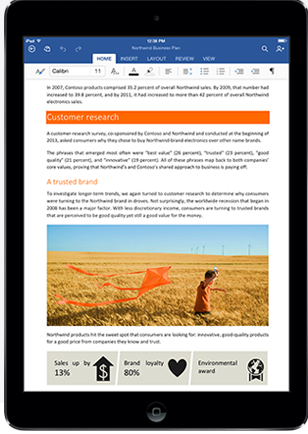
4.  MS OFFICE ON IPAD - Now you can get Office on your iPad. But wait! There are some drawbacks. It takes 450 MB of your iPad space just to load it. It is based on a subscription model that costs $99 annually.

5. GOOGLE DOCS - The great thing about Google Docs is that you can access them anywhere.  Google docs, also called Google Drive offers word processing, presentation, spreadsheet apps and others. When you type something in Google Docs it is saved on a server and you can access it through a browser anywhere that you have Internet access. If you need to access documents without internet access you can download Drive as a folder on your computer where you can access files even when you are not online. If you make changes they will upload the next time that you are online. 

PRINTING

You must have a WiFi printer and an app that can print in order to print from your iPad. You can print with Pages, MS Word, and there are many print apps (both free and up to $6.99). In my experience it takes a few times to get printing to work correctly, but don't give up. Search online for Printing with an iPad to get more information and quit when you are frustrated and start again when you are ready.


Tuesday, October 18, 2011

Dropbox-A great way to collaborate

For the last few weeks I have been working with someone from a distance and we have been sharing files in such a great way!  Dropbox is a program that you can download to your computer, iPhone, Blackberry, Android or  iPad. It creates what looks like another Folder or Drive on your device. It is a place where you can put files that you want to share with someone else OR that you just want to be able to access in more than one location on more than one computer. You can even go to a computer you have never used and log into Dropbox online to access all of your files.

My friend and I were trying to figure out how she could share a bunch of photos, that we had agreed I would resize and crop, with me. There were a lot of photos and we wanted to start out with the largest sizes we could so that the quality was good. First she copied them all onto a thumb drive and I tried to put them onto my computer, but we had some problems. Either the thumb drive was not good or it was because she is working on a PC and I work on a Mac. So, we decided to try Dropbox as a way to share files.  Here is how it works:

1. My friend uploaded all of the pictures into the SHARED folder in her Dropbox.

2. She invited me to share the files with her. I got an email and accepted.

3. Now when I open my shared folder the folder that she uploaded there appears. I can access all of the pictures that she sent me and work on them.

4. I edit the pictures for her and then put them in other folders inside the folder that we are sharing. She can access them and let me know if they are OK or what else needs to be done on them.

It is amazing and easy!

p.s. You remember 'the cloud' that everyone talks about? Well, that is how this works. The files in the dropbox are actually stored on a server (computer) somewhere and by sharing that folder more than one person can access it OR you can get your files from any computer that has WiFi access.